Export the submittal log
Things to Consider
Required User Permissions:
'Read Only' level permission or higher on the project's Submittal tool.
Additional Information:
The exported data reflects any active search results, filters and sorted columns. See Search and filter for submittal.
The exported data does not reflect any column display configurations. See Custom the column display in the Submittal tool.
The exported data does not include custom field columns.
Steps
Navigate to the project's submittal tool.
Click the items, packages, spec sections or Ball in Court tab. See Switch between submittal views.
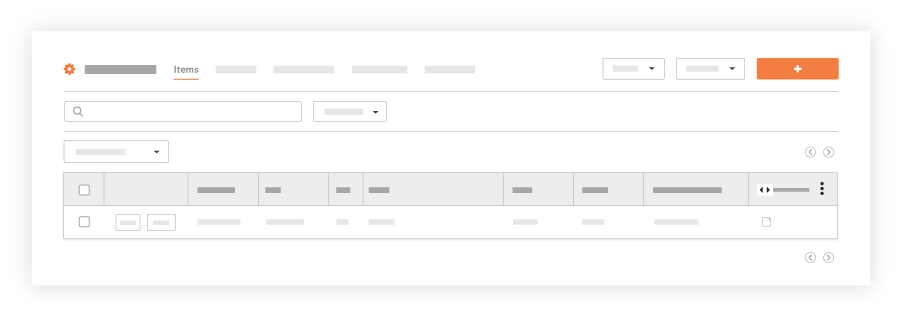
Click Export.
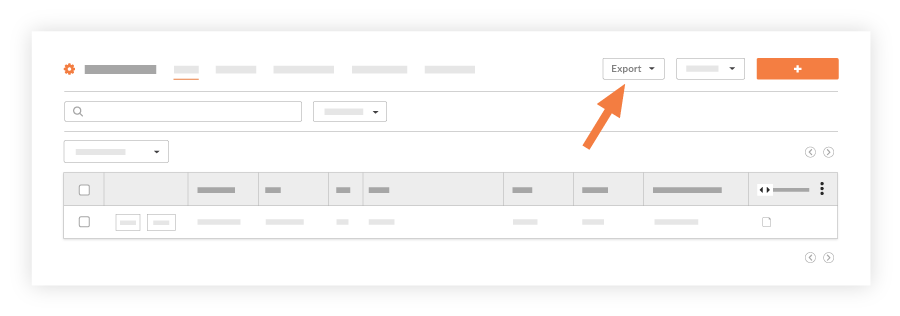
Choose one of the following options:
PDF. Exports data to the Portable Document Format (PDF).
CSV. Exports data to the comma separated values (CSV) format.
Excel. Exports data to the open XML spreadsheet file format (XLSX) used by Microsoft Excel. This option is only available on the item tab.
Depending on the number of records in the data export, one of the following options occurs:
For 150 submittal or fewer, Procore exports the data to the specified file format and saves the file your computer's downloads folder (or to the location that is specified as your computer's download location).
ORFor greater than 150 submittal, Procore exports the data and sends you an email notification when the export is complete. To download the submittal log, click the link in the email message.
See Also
Loading related articles...