Resource Management 2.0 Report (Beta)
The Resource Management 2.0 report lets you evaluate how well your available workforce meets project demands. It does this by comparing requested, assigned, and available headcount across projects, job titles, and timelines. This report helps you monitor immediate staffing needs for the next 30 days and long-term headcount trends. It also tracks weekly labor hours and actual costs over a rolling 12-month period to help identify resource gaps and labor overruns early on.
Prerequisites
For the Resource Management 2.0 Report to function properly, budgeted production quantities must be added to the project's budget and quantities must be added to the project's timesheets. See Add Budgeted Production Quantities to a Project's Budget and Add Quantities to a Timesheet.
Procore Tools Used in the Resource Management 2.0 Report
Resource Planning
Report Pages
Overview
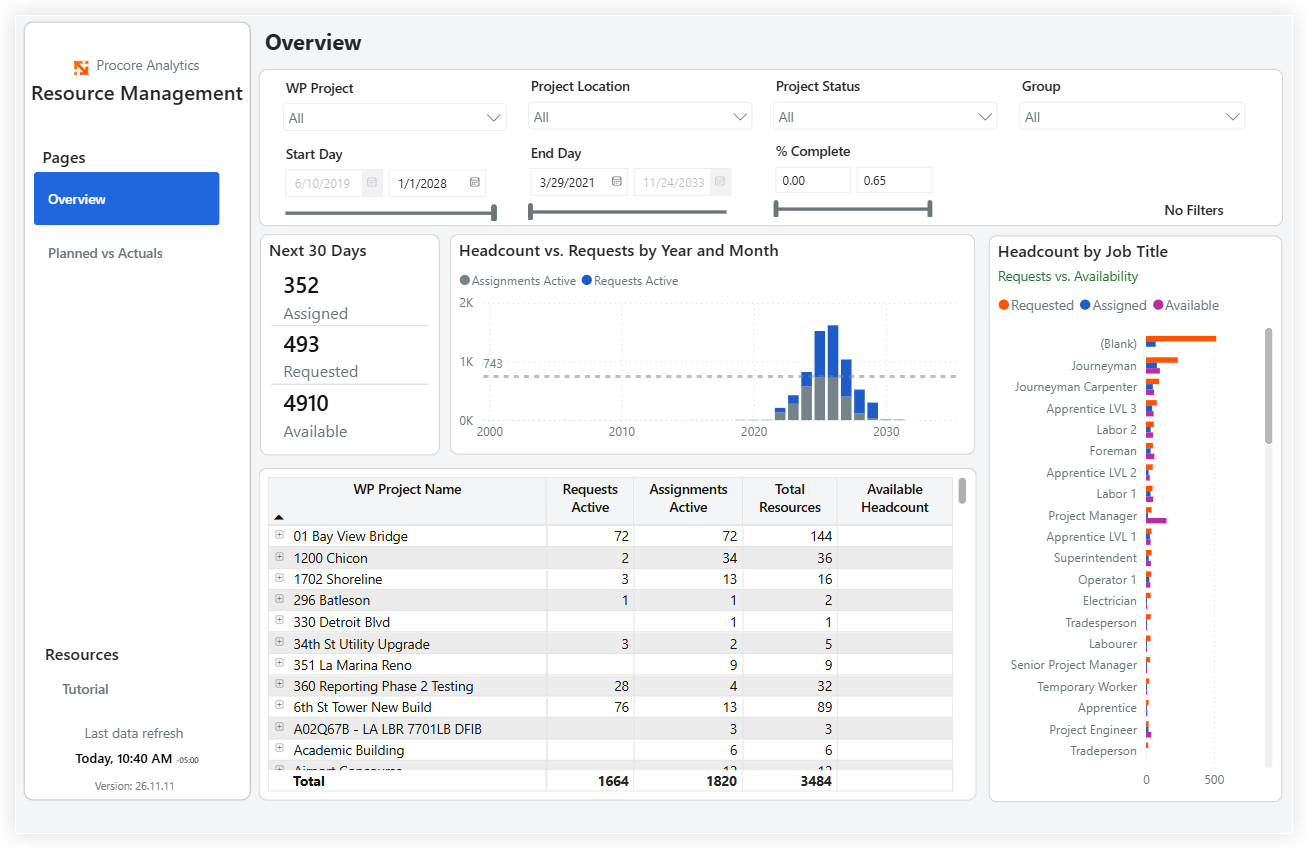
The Overview page allows you to monitor requested, assigned, and available headcount across your portfolio to identify any staffing gaps. You can view a 30-day demand summary alongside the monthly active assignments compared to active requests. Additionally, you can break down total resources by project and compare requested, assigned, and available headcount by job title. The data can be filtered by project, location, status, group, start or end date, and percentage of completion.
Planned vs Actuals
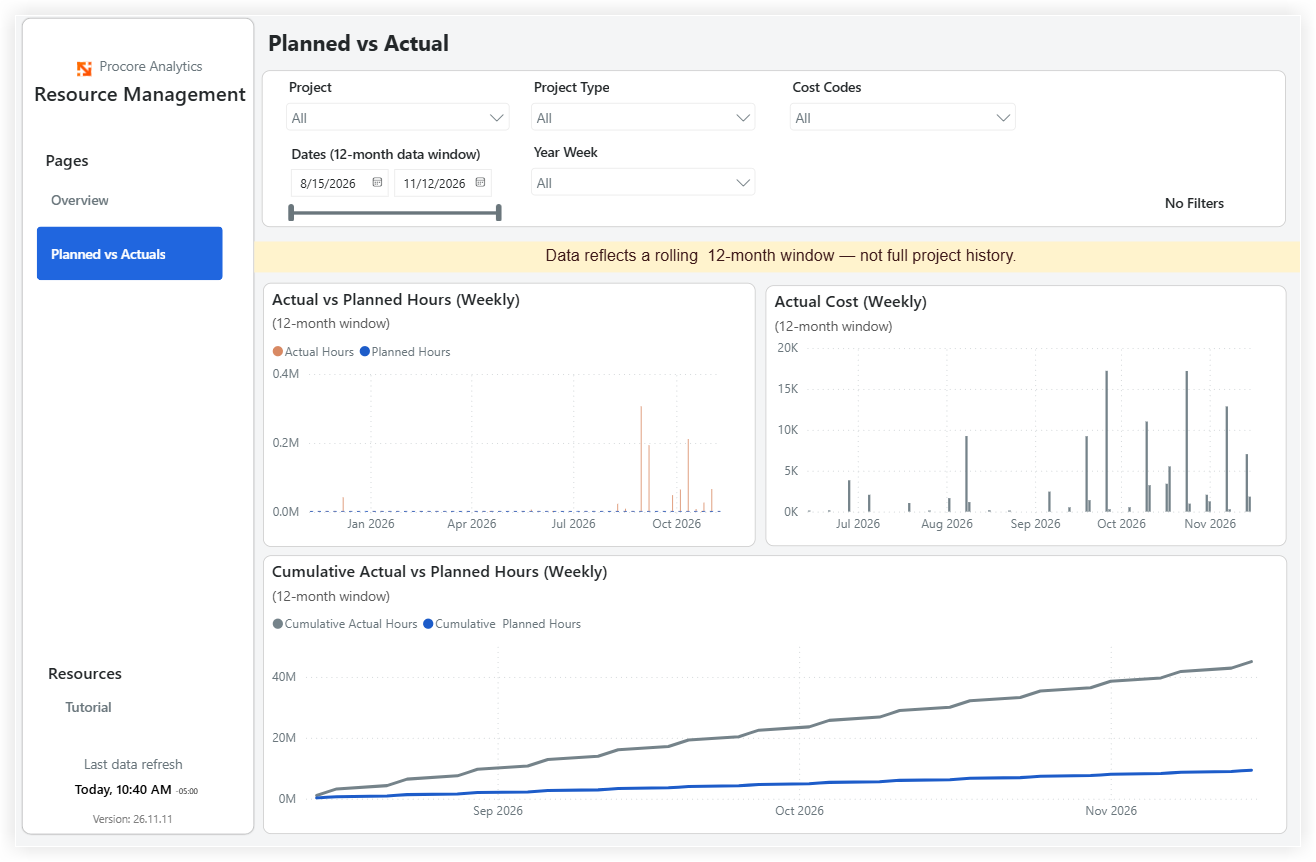
The Planned vs Actuals page enables resource management teams to track the difference between actual and planned labor hours on a weekly basis. It provides insights into cumulative hour trends and weekly labor costs over a rolling 12-month window. You can filter the data by project, project type, cost codes, date range, or year-week to quickly identify where labor hours are exceeding or falling short of the plan.
Data reflects a rolling 12-month window, not the entire project history.
Cost is calculated using the hourly rate associated with each employee's job title. If an employee is missing a job title, their hours cannot be converted to cost and will be excluded from the planned and actual cost visuals.
To ensure complete cost reporting, confirm that every employee has a job title assigned in the Company Directory. See Edit a User Account in the Company Directory.