Accept or Reject a Company for Export to ERP

ERP DOCUMENTATION

Each Procore-built ERP integration offers its own unique feature set. Your integration might not support the action described on this page.

To learn about your integration and its supported features, see Which ERP integrations are supported by Procore?

Background

After sending a company record to your ERP Integrations tool, a designated accounting approver has the option to accept or reject it for export to your ERP system.

Things to Consider

  • Required User Permissions:

    • 'Standard' or 'Admin' on the company's ERP Integrations tool.
      AND

    • The person's account must be granted the 'Can Push to Accounting' privilege in the Company Directory. See Grant Accounting Approver Privileges.

Steps

  1. Navigate to the company's ERP Integrations tool.

  2. Click Companies.

  3. Under Filters, click Ready to Export.
    Notes:

    • This page only lists active company records. Inactive companies cannot be exported to an integrated ERP system.

    • If a company record is not listed here, check to see if it is inactive. See Deactivate a Company in the Company Directory.

  4. Review the companies in the list. Then do the following:

    • Accept the Company

    • Reject the Company

Accept the Company

  1. Locate the company record to export in the 'Companies Only in Procore' list. To view the company record, click the company name hyperlink.

     Notas
    • Si el registro de la compañía que desea exportar no aparece en la lista, verifique si el registro estaba marcado como Inactivo en Procore.

    • Esta página solo enumera los registros de compañías activas en Procore.

    • Los registros de la compañía marcados como Inactivos no se pueden exportar al archivo . Consulte Desactivar una empresa en el directorio de proyectos.

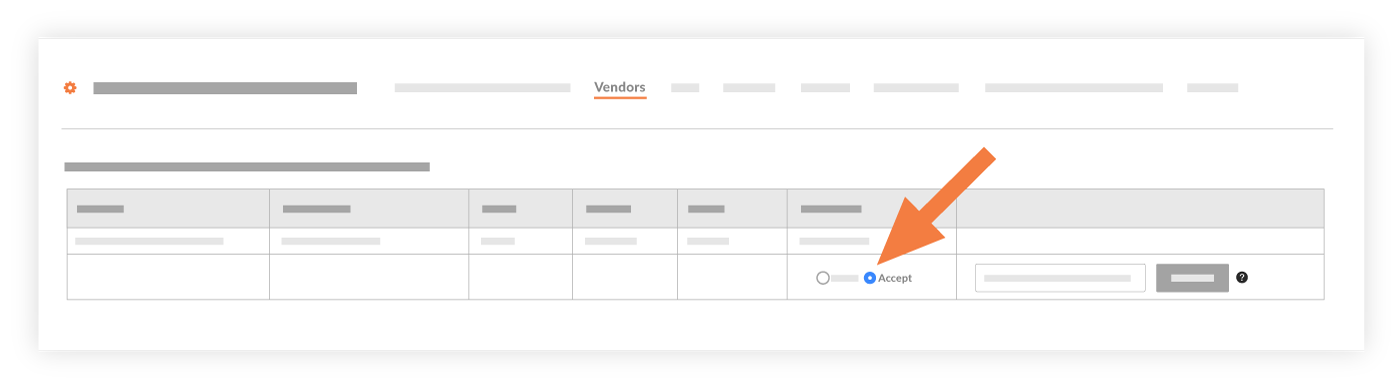
  2. Choose Accept.
    Accept Company Export To Integration

  3. In the Company Type drop-down list, select the company type. For example, if the record is for a subcontractor, select sub.

  4. Select the company type from the Company Type drop-down list.

  5. Enter the Company ID from your ERP.

     Notas
    • Debe ingresar un ID de compañía ERP único en este campo.

    • En su sistema ERP, se asigna un número de compañía único a un nuevo registro utilizando el sistema de numeración establecido por su compañía. Algunas compañías ingresan el siguiente número disponible en una secuencia, mientras que otras usan caracteres alfabéticos para representar el nombre del cliente (por ejemplo, All Star Concrete = ASC).

    • Si su entrada de ID de compañía ERP en Procore ya se ha asignado a un registro en su sistema ERP, la integración NO exportará el registro.

  6. Click Export.
    This exports the company record to the integrated ERP system. A message appears to show you the export status, which can take a few minutes.

     Consejos
    • Para confirmar que la exportación se realizó correctamente, inicie sesión en su sistema ERP y verifique que el registro aparezca como se esperaba.

    • Si se produce un error en la exportación del registro, haga clic en No se pudo exportar para ver los elementos con errores en una lista. Luego, siga los pasos a continuación para rechazar a la empresa.

Reject the Company

  1. Locate the desired company in the 'Companies Only in Procore' list.

  2. Choose Reject.
    Reject Company Export To Integration

  3. Provide a reason for the rejection in the Enter a Comment box.

  4. Click Reject.
    This rejects the company record. It is not imported into the integrated ERP system. The system returns the record to an editable state in both the Company and Project Directory tools.

See Also

Loading related articles...