Este sitio web aún no se ha lanzado completamente en tu configuración regional preferida
La única página disponible en tu configuración regional preferida del sitio de soporte V2 es la página de la biblioteca de videos. El lanzamiento completo del sitio web llegará pronto.
¿Buscas otro contenido? Vuelve al sitio de soporte V1.
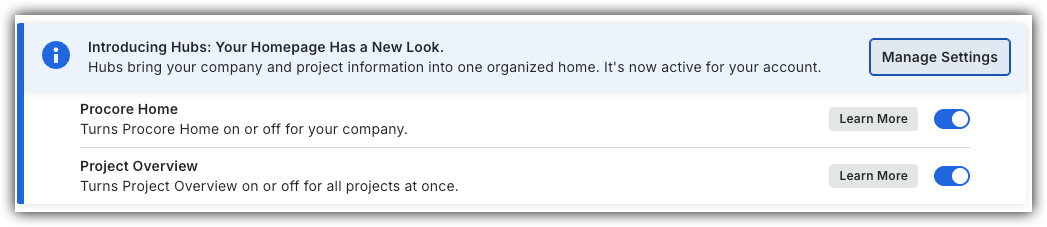
To return to the legacy Project Home, Company Administrators can navigate to the Company Portfolio / ProcoreHome tool, click Manage Settings and toggle Project OverviewOFF.
However, later this year it will be sunset and will no longer be available. If your company reverted to the legacy Project Home experience, Company Administrators can re-enable the Project Overview by switching Project Overview toggle ON.
Background
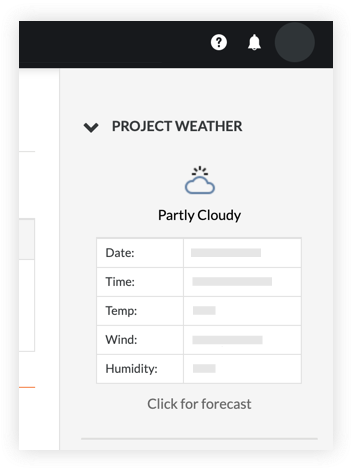
The Project Weather section of the Project Home page allows members of the project to view the current weather forecast for the project site. It also provides you with access to a 7-day weather forecast. For this to appear on your project's Home page, it must be configured by your company's Procore Administrator. Typically, this is configured when the project is created. See Create a New Project.
Things to Consider
Required User Permissions:
'Read Only' or higher permissions on the project's Home tool.
In order for the weather to populate, the project's latitude and longitude coordinates must be entered in the project's Admin tool. See Update General Project Information.
Steps
Navigate to the Project Overview.
Navigate to the project's Home to be redirected to the Project Overview.
Click Menu and select Project Overview.
Click the weather forecast on the 'Project Information' card to view the 7 day forecast.
Steps
Project Home (Legacy)
Navigate to the project's Home tool.
Click the arrow icon next to Project Weather if the weather section is not already expanded.
Click the Click for forecast link to view a 7-day forecast for your project's location.
 OFF.
OFF.
 ON.
ON.