Este sitio web aún no se ha lanzado completamente en tu configuración regional preferida
La única página disponible en tu configuración regional preferida del sitio de soporte V2 es la página de la biblioteca de videos. El lanzamiento completo del sitio web llegará pronto.
¿Buscas otro contenido? Vuelve al sitio de soporte V1.
The Model Manager (Beta) tool is exclusively available to registered beta participants. It is not available through Procore Explore. To learn more, see Beta Participant Guide.
To access the beta and provide feedbackShow/Hide Details
To register: Participating companies must sign the Procore Beta Agreement. Once signed, your Procore Administrator coordinates with your Procore point of contact to enable Model Manager (Beta) on specific Procore projects.
To Provide Feedback During Beta: Contact your dedicated Beta program lead.
To report issues: Report breaking changes to Procore Customer Support. For general feedback or non-critical issues, contact your Beta program lead or Procore point of contact.
For information about Beta Services, see the Procore Subscription Services Agreement. This documentation supports a product currently in Beta; content is actively being developed for General Availability (GA) and may be incomplete.
As-Is Basis: Provided solely for evaluation purposes on an "as is" basis.
No Warranties: Standard contractual commitments do not apply. This information carries no formal product commitments, and Procore assumes no liability for harm arising from its use.
Subject to Change: Procore may change, discontinue, or choose not to generally release these Beta Services at any time without notice.
Procore is finalizing functionality and documentation for general availability in the UK and Ireland (UKI). Please check back here for updates.
Regional Availability
The Document Management tool is available to accounts in the following countries: United Kingdom, Ireland, Australia, and New Zealand. It is not yet available for Procore accounts in the U.S. To learn more, please reach out to your Procore point of contact.
Pinning items from supported Procore tools to exact X, Y, Z coordinates in a model lets teams locate and track issues like pipe clashes and structural conflicts with precision. With the Connected BIM feature in the Next-Gen Viewer, you can pin coordination issues, observations, and punch list items directly to your model without having to switch tools or lose context.
Where you pins sync depends on your project's chosen document repository:
Document Management: Pins sync to 2D sheets in the Document Management tool.
Documents: Pins sync to 2D sheets in the Drawings tool.
Tip
What's the difference between a link & a pin in a model? A link ties an item in a Procore tool directly to a physical 3D model object (like a specific pipe or door). It does not require dropping a spatial pin. A pin ties a record to a specific spatial coordinate (X, Y, Z location) in the model by dropping a visual 3D pin.
To learn when to link or pin an item Show/Hide Details
Follow the appropriate steps below to either create a new pinned item or pin an existing item in a model.
Create a New Pinned Item in a 3D Model
Follow these steps to create a new pinned item in the federated project model:
Navigate to the Model Manager (Beta) tool.
Open a model.
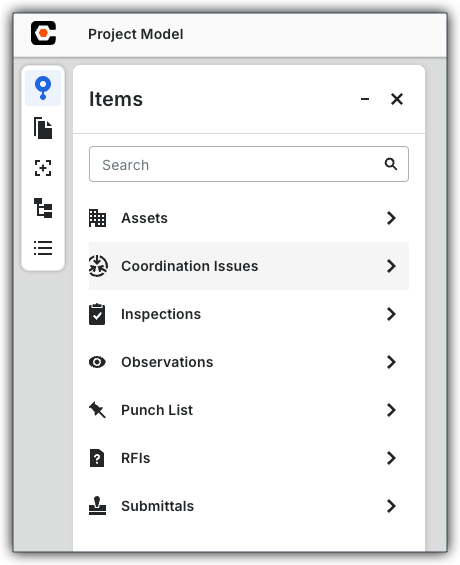
Click the Items icon on the left toolbar.
Select one of the supported Procore tools to see items correlated to the model. In this example, we show how to pin a coordination issue, but you can create pins for other supported tools.
Choose one (1) option:
To create a new pinned item in a supported tool, click Create or click the Plus (+) icon at the top of the page.
If the item item already exists in a supported tool (for example, it was synced from the Procore BIM Plugin), locate it in the list and click + Pin on the item's card to create the pin. Existing items must always be pinned to the model in the Next-Gen Viewer.
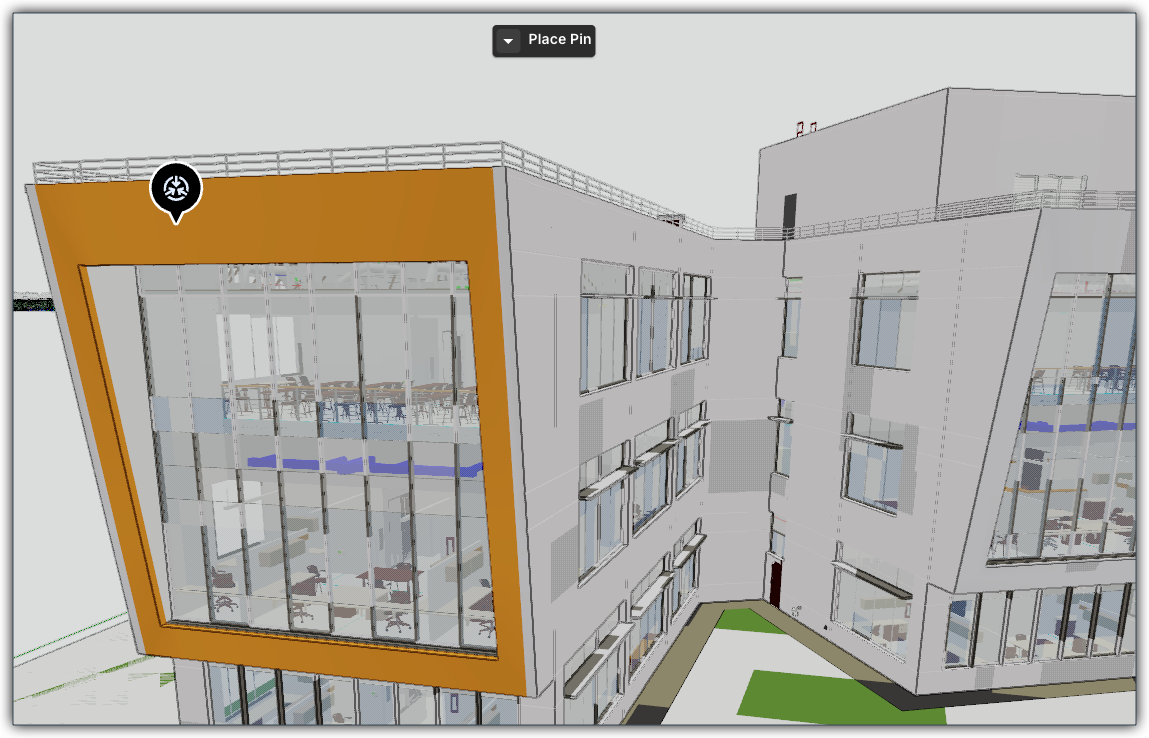
Click a location in the model's 3D space to drop the pin.
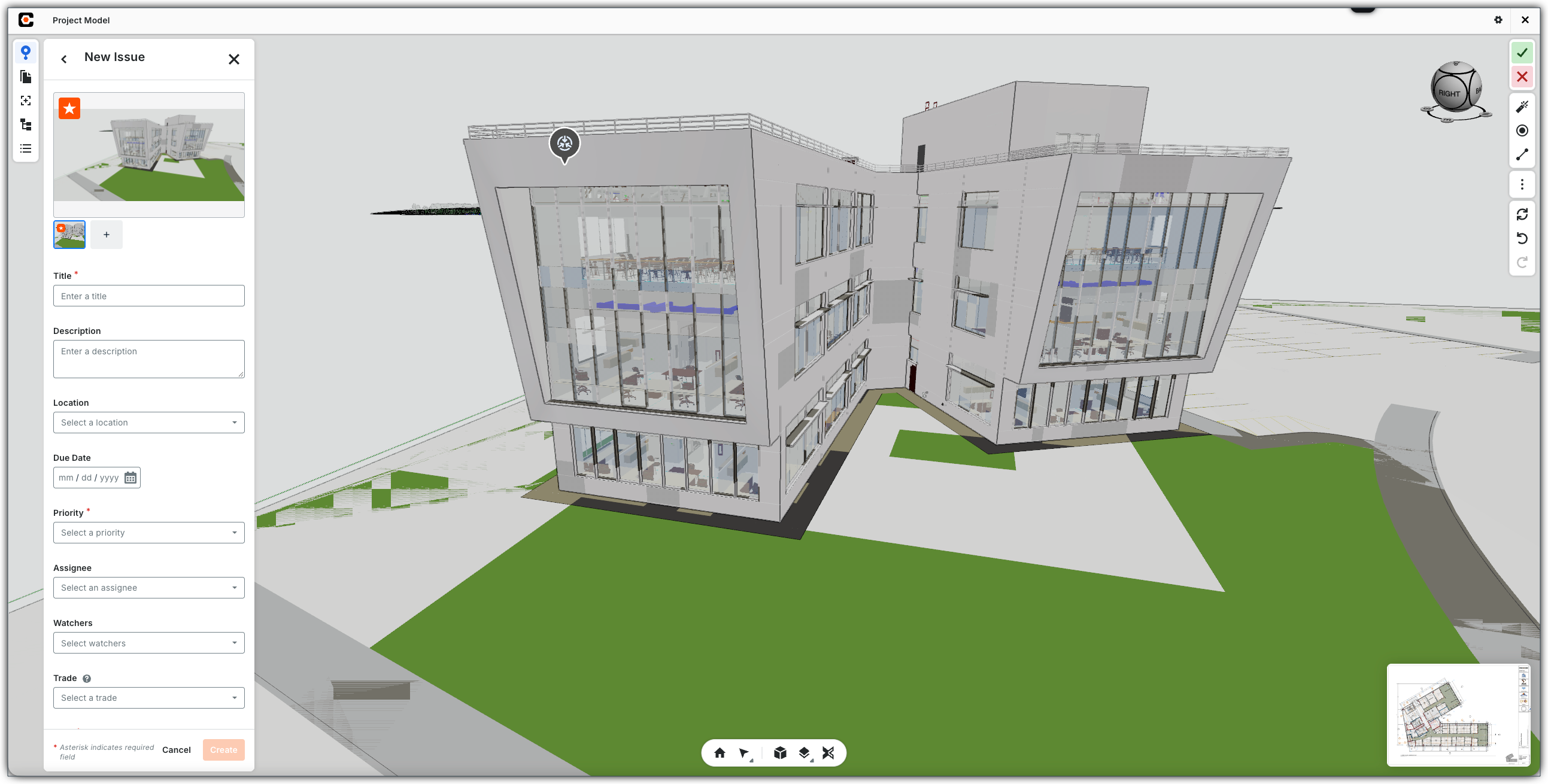
In the New Issue panel, fill out the required fields.
When finished, click Create.
Procore adds a new pin for the item to the Items list.
Pin an Existing Item
Follow these steps to pin an existing item in the federated project model:
Navigate to the Model Manager (Beta) tool.
Open the federated project model.
In the left toolbar, click the Items icon.
Select one of the supported Procore tools to see items correlated to the model.
On the desired item card, click +Pin.
Click a location in the model's 3D space to drop the pin. Procore links the existing item to a pin.
Windows is a registered trademark of Microsoft Corporation in the United States and other countries. Google Chrome, Android, and Google Play are trademarks of Google LLC. iPhone, iPad, and App Store are trademarks or service marks of Apple Inc., registered in the U.S. and other countries and regions. iOS is a trademark or registered trademark of Cisco in the U.S. and other countries and is used under license by Apple Inc. Autodesk, AutoCAD, Civil 3D, Navisworks, and Revit are registered trademarks or trademarks of Autodesk, Inc., and/or its subsidiaries and/or affiliates in the USA and other countries. All other trademarks are the property of their respective owners.
 No
No Yes
Yes