Este sitio web aún no se ha lanzado completamente en tu configuración regional preferida
La única página disponible en tu configuración regional preferida del sitio de soporte V2 es la página de la biblioteca de videos. El lanzamiento completo del sitio web llegará pronto.
¿Buscas otro contenido? Vuelve al sitio de soporte V1.
Los administradores de procore pueden cambiar entre la nueva Inicio de Procore y los Compañía Portafolio heredados siguiendo los pasos a continuación:
Abra la herramienta Inicio o Compañía Portafolio de Procore.
Busque el banner de Introducing bases centrales .
Seleccione Administrar ajustes en el banner.
Active o desactive ProcoreInicio para cambiar entre la vista nueva y la vista heredada.
Sin embargo, a principios de 2027, el Compañía Portafolio expirará y ya no estará disponible.
Background
Search Procore Home for projects to locate specific jobsites across your company portfolio quickly. Entering keywords into the search bar filters projects by location, name, or identification number without requiring manual scrolling. Finding active, inactive, or template projects immediately streamlines daily navigation across your organization.
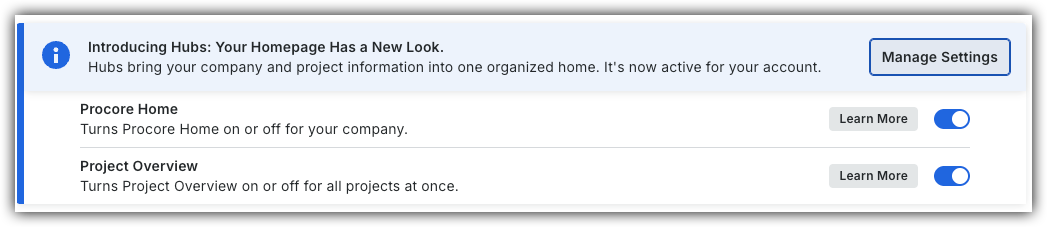
 desactive Procore
 Inicio para cambiar entre la vista nueva y la vista heredada.
