Navigate the Model Manager Landing Page

Estado de implementación y disponibilidad regional

Gestor de modelos, el reemplazo de próxima generación de Procore para la herramienta Modelos , se lanzó oficialmente en disponibilidad general en todas las regiones. El soporte técnico de la aplicación móvil de Procore (iOS/Android) también está disponible en versión beta, ya que Procore continúa transformando los flujos de trabajo de modelo 3D. Estén atentos para conocer funciones adicionales en futuras versiones.

For platform deployment status & regional availability Show/Hide

The Gestor de modelos and the Models tool can be active on the same project at once. Administrators are not required to disable the Models tool.

Platform

Deployment Status/Region

Learn More

Web

  • General Availability:

    • United Kingdom & Ireland (UKI) on October 15, 2026

    • All other regions on November 17, 2026

iOS

  • Beta: All regions

Android

  • Beta: All regions

Gestor de modelos Beta: Access & Guidelines

  • Registration: Participating companies must sign the Procore Beta Agreement. Once signed, your Procore Administrator will coordinate with your Punto de contacto de Procore to enable Gestor de modelos on specific projects. It is not available in Procore Explore.

  • Support & Feedback: Please report critical or breaking issues directly to Procore Customer Support. For general feedback, feature requests, and non-critical issues, contact your dedicated Beta program lead or Punto de contacto de Procore.

  • Beta Notice: This feature and its supporting documentation are in active development. Beta services are provided strictly "as is" for evaluation purposes, carry no standard warranties or liability, and are subject to change or discontinuation without notice. For full terms, please refer to the Procore Subscription Services Agreement.

The landing page is the central hub for managing your project's Building Information Modeling (BIM) data. Use it to create and view the project model, manage file versions, and explore model snapshots to improve team coordination. Depending on your user permissions, there are two different views: An Admin View and a Read Only & Standard View.

Things to Consider

Prerequisites

About the Admin View

To learn about the Admin view Show/Hide Details

When you first open the landing page, the system prompts you to create a project model. This model provides a single, combined view of your project by displaying all files appended to it. Appended files must first be uploaded to the Document Management or Documents tool.

Click the Configure Settings icon to manage the tool. You can Manage User Access to Model Manager. When using Document Management as the project's repository, you can also Configure Federation Status.

Important

Choose you document repository carefully. Your initial selection is permanent. All future files must come from this source. To get started, click either the Create from Document Management or Create from Documents button. The buttons you see depend on your project's active tools. Some projects will have both buttons.

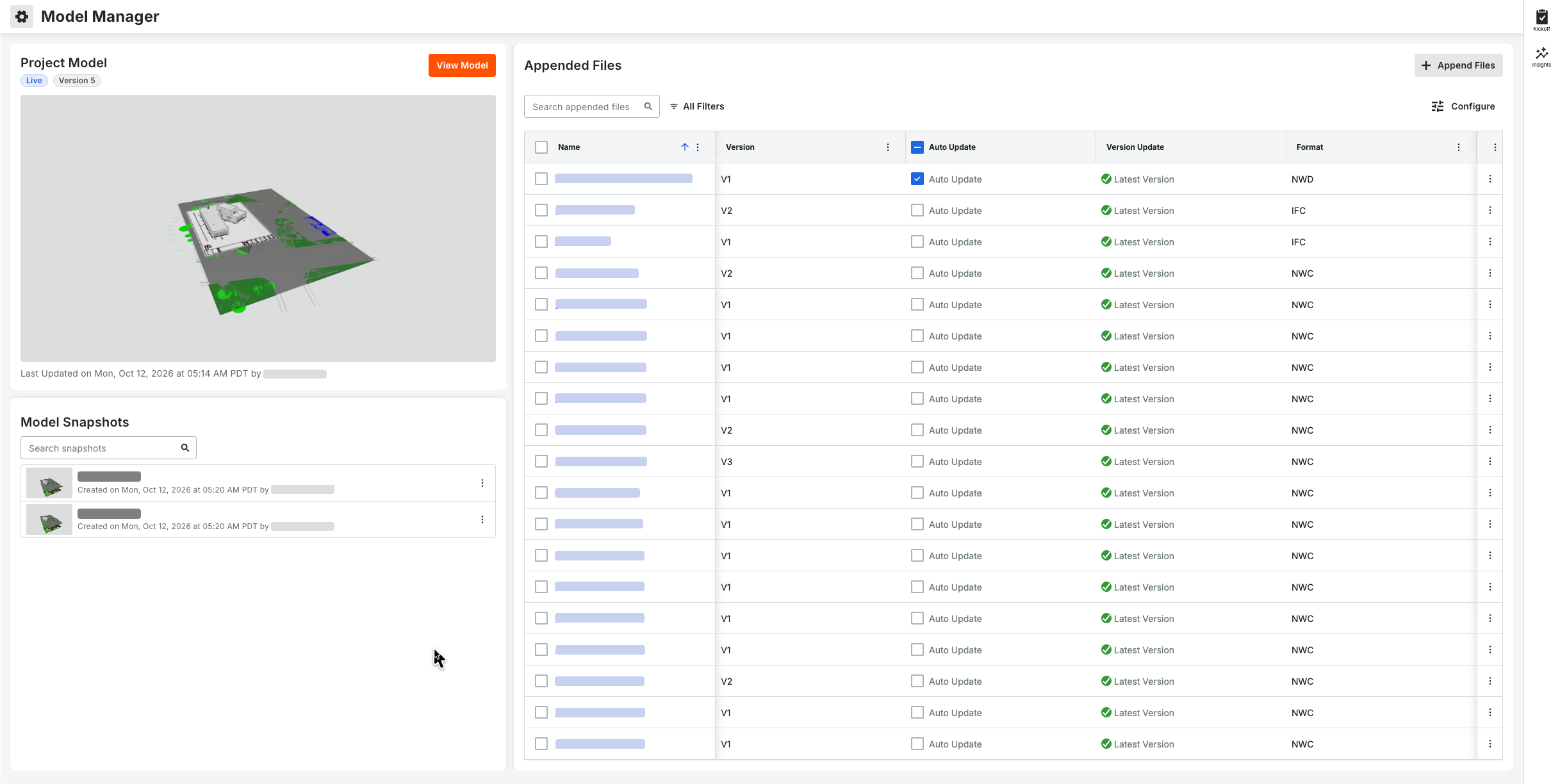
Once the project model exists, the landing page has three (3) cards: Project Model, Appended Files, and Model Snapshots.

This image shows the Admin view on the Model Manager landing page with the Project Model, Appended, Files, and Project Views card.

Project Model

The Project Model card serves as your primary gateway to the 3D environment. This model aggregates the appended files into a single, cohesive view, allowing for comprehensive project coordination. The card provides a high-level snapshot:

  • View Model: Click View Model to open the project model's federated scene.

  • Thumbnail: Preview the model's default Home viewpoint.

  • Status & Version: View the live model status and current file version. This information updates automatically.

  • Last Updated: View the date the model was updated and by whom.

Appended Files

Use the Appended Files card to manage the project model. Here, you can append and open files, manage version updates, view file formats, and remove files from the project model. Column titles depend on the project's document repository (Document Management or Documents).

After creating a model snapshot, Admins can use the Models Snapshots card to:

  • Search: Enter a keyword or phrase to find a snapshot.

  • Open: Click a snapshot to open it in the Visor de próxima generación.

  • Delete: Click More (⋮) button and choose Delete.

About the Read Only & Standard View

To learn about the Read Only & Standard view Show/Hide Details

From the 'Read Only' and 'Standard' view of the landing page, you also have these cards: Current Model and Model Snapshots. Administrative actions such as creating a project model, updating file versions, or creating/deleting snapshots require 'Admin' permissions.

  • Read Only Users: Can view the current model and see public Model Snapshots on the landing page. They can also click a snapshot to its snapshot-level content. They cannot open or navigate the live project model. If an Admin hasn't created snapshots, they see an empty state message, "No Snapshots Exist Yet."

  • Standard Users: Can view the current model and click to jump directly to save camera locations in the current project model.
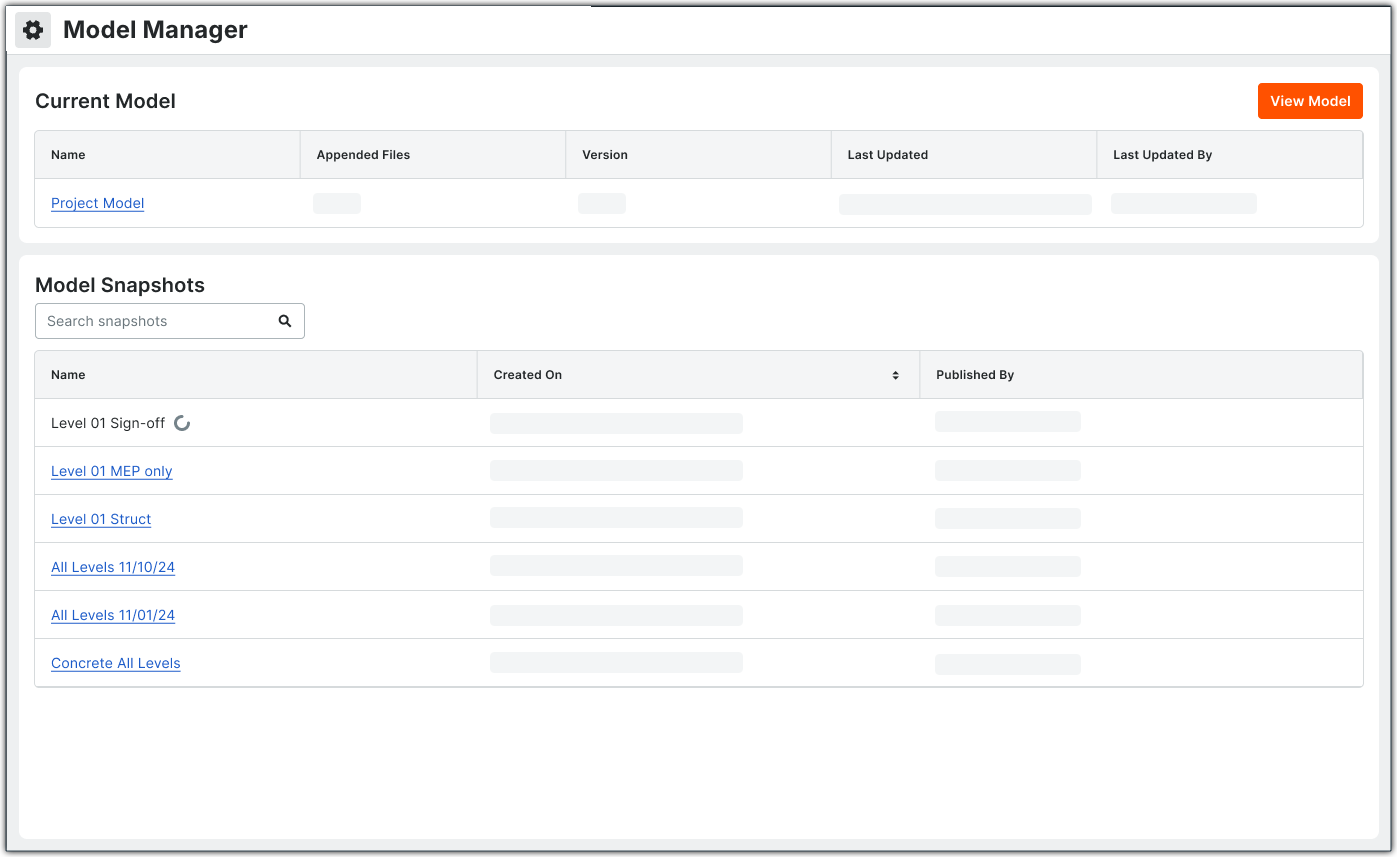
This image shows the Project Model Manager landing page for Read Only & Standard Users on the Procore Mobile app (iOS/Android)

Current Model

'Read Only' and 'Standard' users can view the Current Model by clicking the Name link or the View Model button.

Model Snapshots

'Read Only' and 'Standard' users use this card to add, open, manage, search for, and filter snapshots. There are two types of snapshots: Public (created by Admins) or Private (created by you). Hover your mouse cursor over the thumbnails to blow up the thumbnail.

The card provides a high-level snapshot of the model's current status:
  • Search: Enter a keyword or phrase to find a snapshot.

  • 3D Environment Access: Click a snapshot in the list to open it.


Windows es una marca registrada de Microsoft Corporation en los Estados Unidos y otros países. Google Chrome, Android y Google Play son marcas comerciales de Google LLC. iPhone, iPad y App Store son marcas comerciales o marcas de servicio de Apple Inc., registradas en EE. UU. y otros países y regiones. iOS es una marca comercial o marca registrada de Cisco en los EE. UU. y en otros países, y Apple Inc. la utiliza bajo licencia. Autodesk, AutoCAD, Civil 3D, Navisworks y Revit son marcas comerciales registradas o marcas comerciales de Autodesk, Inc. y/o sus subsidiarias y/o afiliadas en los EE. UU. y otros países. SpaceMouse es una marca registrada de 3Dconnexion. Todas las demás marcas comerciales son propiedad de sus respectivos promotores.