Navigate the Next-Gen Viewer in Model Manager

Estado de implementación y disponibilidad regional

Gestor de modelos, el reemplazo de próxima generación de Procore para la herramienta Modelos , se lanzó oficialmente en disponibilidad general en todas las regiones. El soporte técnico de la aplicación móvil de Procore (iOS/Android) también está disponible en versión beta, ya que Procore continúa transformando los flujos de trabajo de modelo 3D. Estén atentos para conocer funciones adicionales en futuras versiones.
For platform deployment status & regional availability Show/Hide

The Gestor de modelos and the Models tool can be active on the same project at once. Administrators are not required to disable the Models tool.

Platform

Deployment Status/Region

Learn More

Web

  • General Availability:

    • United Kingdom & Ireland (UKI) on October 15, 2026

    • All other regions on November 17, 2026

iOS

  • Beta: All regions

Android

  • Beta: All regions

Gestor de modelos Beta: Access & Guidelines

  • Registration: Participating companies must sign the Procore Beta Agreement. Once signed, your Procore Administrator will coordinate with your Punto de contacto de Procore to enable Gestor de modelos on specific projects. It is not available in Procore Explore.

  • Support & Feedback: Please report critical or breaking issues directly to Procore Customer Support. For general feedback, feature requests, and non-critical issues, contact your dedicated Beta program lead or Punto de contacto de Procore.

  • Beta Notice: This feature and its supporting documentation are in active development. Beta services are provided strictly "as is" for evaluation purposes, carry no standard warranties or liability, and are subject to change or discontinuation without notice. For full terms, please refer to the Procore Subscription Services Agreement.

The Visor de próxima generación lets you customize how you explore the project model. By adjusting the field of view or switching projection modes, you can view realistic spatial depth or remove distortion to check technical details. These tools help you easily navigate complex sites and precisely verify alignments. Admins can also view appended files here.

Things to Consider

Prerequisites

Camera Field of View (FOV)

The FOV setting dictates the "focal length" of your virtual lens. In the Visor de próxima generación, this is measured in degrees.

Feature

Behavior

Default setting

The default setting is 65° for new views created within the platform.

Imported views

Imported viewpoints from Navisworks® or Revit® retain their original FOV.

Distortion

High FOV (90°+) may cause a "fish-eye" effect, while low FOV (45°) may feel "zoomed in." The viewer allows these to persist if that is how the view was saved.

Adjustments

If a view looks distorted, Procore recommends resetting the Home view in Navisworks® to 65° and republishing to the document repository.

Projection Modes

Projection modes determine how 3D space is interpreted within the viewer. Click the Perspective/Orthographic button on the Navigation Toolbar to switch to the mode that best suits your current task—whether you need a realistic sense of depth for navigation or an undistorted view for verifying technical alignments.

How to Switch Between Projection Modes

For steps, see Switch Projection Modes in the Next-Gen Viewer.

Keyboard Shortcuts

A list of Keyboard Shortcuts for the Next-Gen Viewer is maintained in the Procore web application. See How do I find a list of keyboard shortcuts for the Next-Gen Viewer?

Left Toolbar

When using the Visor de próxima generación in the web application, a vertical toolbar appears on the left side of the screen, giving you fast access to navigation and design coordination tools.

In the Model Manager, the left toolbar in the Next Gen Viewer is a persistent, vertical toolbar that puts navigation and frequently used design coordination tools at your fingertips.

How to Use the Left Toolbar

For steps, see Use the General Tools in the Left Toolbar on Web.

Right Toolbar

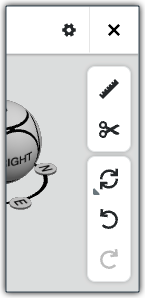
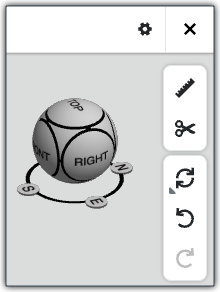
The toolbar next to the Navigation Sphere on the right side of the page Visor de próxima generación helps to control the visual environment and your interactions with the model. While the left toolbar deals with object data, the right toolbar helps you manipulate the model.

Just above the toolbar, you can also click Settings to configure your viewer settings. See Configure Next-Gen Viewer Settings.

In the Model Manager tool, the right toolbar in the Next-Gen Viewer helps to control the visual environment and your interactions with the model.

How to Use the Right Toolbar

For steps, see Use the Model Display & Inspection Tools in the Right Toolbar.

Context Menu

The context menu provides a centralized way to control how you view and interact with 3D model data. It allows you to declutter your view, find similar items across the entire project, and inspect details without losing the overall context of the model.

How to Use the Context Menu

For steps, see Use the Context Menu in the Next-Gen Viewer.


Windows es una marca registrada de Microsoft Corporation en los Estados Unidos y otros países. Google Chrome, Android y Google Play son marcas comerciales de Google LLC. iPhone, iPad y App Store son marcas comerciales o marcas de servicio de Apple Inc., registradas en EE. UU. y otros países y regiones. iOS es una marca comercial o marca registrada de Cisco en los EE. UU. y en otros países, y Apple Inc. la utiliza bajo licencia. Autodesk, AutoCAD, Civil 3D, Navisworks y Revit son marcas comerciales registradas o marcas comerciales de Autodesk, Inc. y/o sus subsidiarias y/o afiliadas en los EE. UU. y otros países. SpaceMouse es una marca registrada de 3Dconnexion. Todas las demás marcas comerciales son propiedad de sus respectivos promotores.