Add Project Notes in Procore Home

New Version Available

Procore Home has replaced the legacy Company Portfolio page and is enabled by default. Learn more about the difference between the legacy Company Portfolio page and the new Procore Home.

To return to the legacy Company Portfolio, Company Administrators can navigate to the Company Portfolio / Procore Home tool, click Manage Settings and toggle Procore HomeIcon Toggle OffOFF.

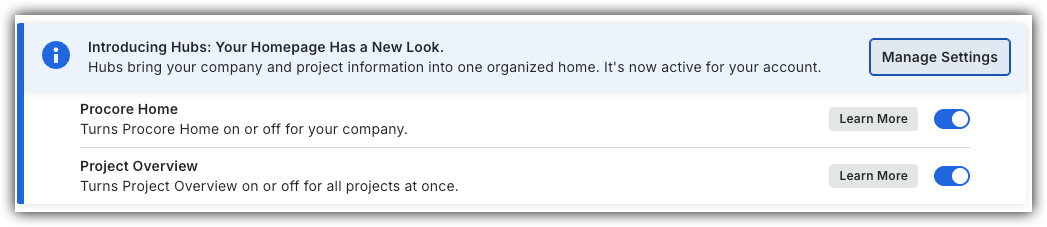
Procore Hubs announcement banner with Manage Settings button and toggles for Procore Home and Project Overview features.


However, later this year it will be sunset and will no longer be available. If your company reverted to the legacy Company Portfolio experience, Company Administrators can re-enable the Procore Home experience in Procore Explore. (US 2 | UK)

Things to Consider

  • Required User Permissions on the company's Procore Home tool.

  • Additional Information:

    • This task can also be completed by users with the appropriate permissions to the project's Overview or project's Admin tool.

    • Projects notes are visible in the Procore Home tool by anyone who has been added to the project.

Steps

Company Administrators can enable the Procore Home beta in Procore Explore. (US 2 | UK)

  1. Navigate to the company's Portfolio tool or Home.

  2. Click Notes in the project's 'Actions' column.

  3. Enter your note.

  4. Click Post Note.

Company Portfolio (Legacy)
  1. Click the Projects tab.

  2. Click the list Icon View List icon.

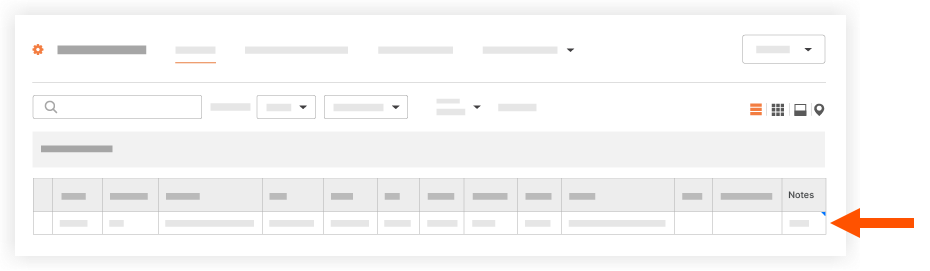
  3. Click the project's Notes field.
    Portfolio Project Notes

  4. Click outside of the field to save your changes.

See Also

Loading related articles...