Apply Configurable Fieldsets to Projects
Contexte
Un ensemble de champs configurables est un groupe de champs dans certains outils Procore qui peuvent être définis comme optionnels, obligatoires ou cachés, selon les besoins de votre compagnie. Cela permet un meilleur contrôle sur l’entrée de données lorsque les utilisateurs créent et modifient des items dans des projets Procore.
Voir Que sont les ensembles de champs paramétrables et quels outils Procore les prennent en charge?
Things to Consider
Fieldsets apply to new projects by default, but you can also choose to update existing ones.
Applying a configurable fieldset to an existing project may impact any new or existing items created or updated using the fieldset, including any changes made to field requirements or custom fields.
If you want to configure fieldsets for specific tools, see What are configurable fieldsets and which Procore tools support them?
Conditions préalables
See Create New Configurable Fieldsets OR click here to view the steps.
Navigate to the Company level Admin tool.
Under 'Tool Settings', click the tool you want to create configurable fieldsets for.
Click the Fieldsets tab.
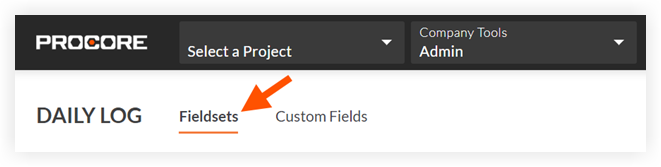
Note: Tools without other settings in the Company level Admin tool will open to this page automatically.Click Create Fieldset and if required, select the fieldset type.
Enter a name for the fieldset, then click Create.
On the 'Edit Fieldset' page, each field name has the following options:
Do one of the following:
Click the toggle to the ON
 position to make the field visible in the section.
 Click the toggle to the OFF
 position to hide the field in the section.
Note: A faded toggle icon indicates that the field is visible and cannot be changed to hidden.
Do one of the following:
Mark the 'Required' checkbox to designate the field as required.
Clear the 'Required' checkbox to designate the field as optional. Notes:
Optional: If available, click Create Section to create a new section. See Create Custom Sections.
Click Save.
In the 'Apply changes to [#] project(s)?' window, click Assign Projects to add the fieldset to projects.
In the 'Assign Projects' window, mark the checkbox next to each project you want to apply the fieldset to and click Update.
In the 'Apply changes to [#] project(s)?' window, click Confirm.
Optional: To set a fieldset as the default for new projects, click the
 icon at the end of its row on the 'Fieldsets' tab and select Set as New Project Default.
 Note
Projects created from a project template that include fieldsets will inherit the fieldsets from the project template instead of your company's default fieldsets. See Configure a Project Template.