La seule page du site de support V2 disponible dans vos paramètres régionaux est celle de la bibliothèque vidéo. Le lancement complet du site Web arrivera prochainement.
Vous recherchez d'autres contenus ? Retournez sur le site de support V1.
Bêta Définir une colonne de budget pour les flux de travail
La colonne sélectionnée sera utilisée par les flux de travail personnalisés pour déterminer si une étape conditionnelle est vraie ou fausse par rapport au budget. Voir Quels sont les différents types d’étapes dans un flux de travail personnalisé ?
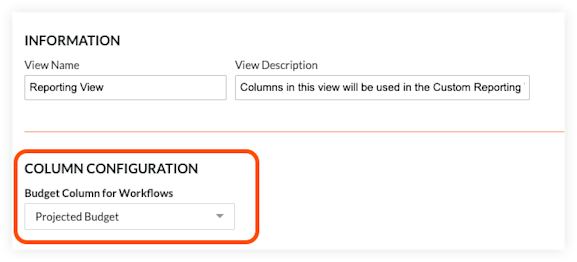
Accédez à la vue du budget des rapports personnalisés.
Sous Configuration des colonnes , choisissez une colonne Budget pour les flux de travail.
Remarque: Une colonne doit être ajoutée à la vue du budget des rapports personnalisés avant d’apparaître comme une option.
Configurer une nouvelle vue du budget pour les rapports personnalisés avec Intégrations ERP
Suivez les étapes ci-dessous pour configurer une nouvelle vue du budget pour les rapports personnalisés lorsque le compte Procore de votre entreprise utilise l’outil Intégrations ERP. Gardez à l’esprit que les étapes ci-dessous dépendent du fait que tous ou certains des projets du portefeuille de votre entreprise utilisent l’outil Intégrations ERP pour synchroniser les données de Procore avec un système ERP intégré.
Pour les comptes où tous les projets utilisent l’intégration ERP, voir Vue des rapports personnalisés avec tous les projets ERP.
Pour les comptes où certains projets utilisent l’intégration ERP et d’autres non, voir Vue des rapports personnalisés avec des projets ERP mixtes.
Vue des rapports personnalisés avec tous les projets ERP
Suivez ces étapes lorsque tous les projets de construction du compte Procore de votre entreprise sont synchronisés avec un système ERP intégré. Si vous avez un mélange de projets synchronisés et non synchronisés, consultez plutôt la rubrique Vue des rapports personnalisés avec des projets ERP mixtes.
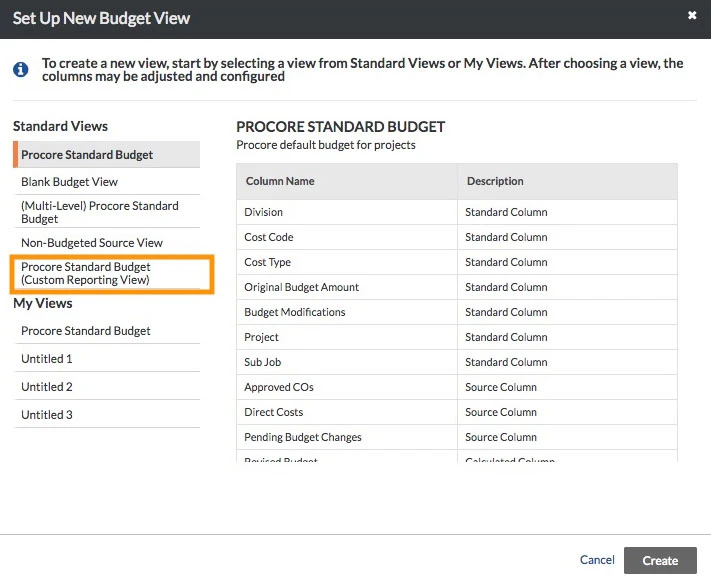
Suivez les étapes décrites dans Configurer une vue du budget pour les rapports personnalisés.
Avant de pouvoir créer les colonnes calculées présentées dans ce tutoriel, vous devez d’abord ajouter les colonnes source ERP. Pour plus d’informations, voir Créer une colonne source.
Configurez les colonnes suivantes :
Coûts du projet ERP à ce jour
Engagement ERP facturé
Coûts directs ERP
Coûts prévus
Facultatif. Supprimer les colonnes non ERP
Facultatif. Réorganiser les colonnes de la vue du budget
Coûts du projet ERP à ce jour
Ceci ajoute une colonne calculée nommée « Coûts du projet ERP à ce jour ».
Procédure à partir de la fenêtre Configurer les colonnes... | Paramètres de la colonne |
|---|
Cliquez sur Créer une colonne calculée. Sous Nouvelle colonne calculée, procédez comme suit : Nom de la colonne. Entrez le nom : Coûts du projet à ce jour ERP Format de colonne. Devise Calcul de la colonne. Voir la colonne Paramètres.
Placez une coche dans la case Coûts du projet à ce jour ERP. Cliquez sur Créer.
| Détail des coûts directs ERP (+) Ajouter Factures de sous-traitants |
Engagement ERP facturé
Ceci ajoute une colonne source nommée « Engagement ERP facturé ».
Procédure à partir de la fenêtre Configurer les colonnes... | Paramètres |
|---|
Cliquez sur Créer une colonne source. Sous Nouvelle colonne source, procédez comme suit : Cochez la case Engagement ERP facturé. Cliquez sur Créer.
| N/A |
Coûts directs ERP
Ceci ajoute une colonne calculée nommée « Coûts directs ERP ».
Procédure à partir de la fenêtre Configurer les colonnes... | Paramètres |
|---|
Cliquez sur Créer une colonne calculée. Sous Nouvelle colonne calculée, procédez comme suit : Nom de la colonne. Entrez le nom : Coûts directs ERP Format de colonne. Devise Calcul de la colonne. Voir la colonne Paramètres.
Cliquez sur Créer.
| Coûts du projet ERP à ce jour (-) Moins Engagement ERP facturé |
Coûts prévus
Ceci ajoute une colonne calculée nommée « Coûts prévus ».
Procédure à partir de la fenêtre Configurer les colonnes... | Paramètres |
|---|
Cliquez sur Créer une colonne calculée. Sous Nouvelle colonne calculée, procédez comme suit : Nom de la colonne. Entrez le nom : Coûts prévus Format de colonne. Devise Calcul de la colonne. Voir la colonne Paramètres.
Cliquez sur Créer.
| Coûts engagés (+) Ajouter Détail des coûts directs ERP (+) Ajouter Changements de coûts en attente |
Optionnel. Supprimer les colonnes non ERP
Ensuite, supprimez les colonnes non ERP :
Dans la barre latérale, sélectionnez Coûts des projets à ce jour (non-ERP) et cliquez sur Supprimer.
Dans la barre latérale, sélectionnez Coûts directs (non-ERP) et cliquez sur Supprimer
Remarque: si vous ne pouvez pas supprimer cette colonne initialement, fermez d’abord la vue du budget en cliquant sur Terminé. Une fois que vous avez rouvert la vue des rapports personnalisés et accédé à « Configurer les colonnes », cette colonne peut être supprimée.
Dans la barre latérale, sélectionnez Factures de sous-traitant (non-ERP) et cliquez sur Supprimer.
Optionnel. Réorganiser les colonnes de la vue du budget
Vous pouvez ensuite réorganiser les colonnes comme vous le souhaitez par glisser-déposer sur les colonnes de la vue du budget. Une fois la configuration de votre vue du budget terminée, assurez-vous de cliquer sur Terminé. Vous pouvez désormais utiliser votre nouvelle « Vue du budget ERP (vue des rapports personnalisés) » lorsque vous créez un rapport personnalisé en utilisant l’outil Budget comme source de données. Voir Créer un rapport d’entreprise personnalisé.
Vue des rapports personnalisés avec des projets ERP mixtes
Si, pendant la durée de vie d’un projet, des coûts directs ont été créés dans Procore, puis qu’il a été décidé d’intégrer le projet et de désactiver l’outil Coûts directs, il se peut que des valeurs provenant des deux sources apparaissent encore pour le projet donné.
Suivez les étapes décrites dans Configurer une vue du budget pour les rapports personnalisés.
Configurez les colonnes suivantes :
Coûts du projet ERP à ce jour
Engagement ERP facturé
Coûts directs ERP
Coûts prévus
Facultatif. Supprimer les colonnes non ERP
Facultatif. Réorganiser les colonnes de la vue du budget
Coûts du projet ERP à ce jour
Ceci ajoute une colonne calculée nommée « Coûts du projet ERP à ce jour ».
Procédure à partir de la fenêtre Configurer les colonnes... | Paramètres de la colonne |
|---|
Cliquez sur Créer une colonne calculée. Sous Nouvelle colonne calculée, procédez comme suit : Nom de la colonne. Entrez le nom : Coûts du projet à ce jour ERP Format de colonne. Devise Calcul de la colonne. Voir la colonne Paramètres.
Placez une coche dans la case Coûts du projet à ce jour ERP. Cliquez sur Créer.
| Détail des coûts directs ERP (+) Ajouter Factures de sous-traitants |
Engagement ERP facturé
Ceci ajoute une colonne source nommée « Engagement ERP facturé ». Si vous souhaitez faire correspondre le nom de la version non ERP de cette colonne, nommez-la Facture de sous-traitant ERP.
Procédure à partir de la fenêtre Configurer les colonnes... | Paramètres |
|---|
Cliquez sur Créer une colonne source. Sous Nouvelle colonne source, procédez comme suit : Cochez la case Engagement ERP facturé. Cliquez sur Créer.
| N/A |
Coûts directs ERP
Ceci ajoute une colonne calculée nommée « Coûts directs ERP ».
Procédure à partir de la fenêtre Configurer les colonnes... | Paramètres |
|---|
Cliquez sur Créer une colonne calculée. Sous Nouvelle colonne calculée, procédez comme suit : Nom de la colonne. Entrez le nom : Coûts directs ERP Format de colonne. Devise Calcul de la colonne. Voir la colonne Paramètres.
Cliquez sur Créer.
| Coûts du projet ERP à ce jour (-) Moins Engagement ERP facturé |
Coûts prévus
Ceci ajoute une colonne calculée nommée « Coûts prévus ».
Procédure à partir de la fenêtre Configurer les colonnes... | Paramètres |
|---|
Cliquez sur Créer une colonne calculée. Sous Nouvelle colonne calculée, procédez comme suit : Nom de la colonne. Entrez le nom : Coûts prévus Format de colonne. Devise Calcul de la colonne. Voir la colonne Paramètres.
Cliquez sur Créer.
| Coûts engagés (+) Ajouter Coûts directs ERP (+) Ajouter Changements de coûts en attente |
Optionnel. Renommer les colonnes non ERP
Si vous souhaitez distinguer davantage les colonnes non ERP des versions ERP similaires, renommez les colonnes non ERP :
Dans la barre latérale, sélectionnez Coûts des projets à ce jour (non ERP), cliquez sur Modifier, renommez-le Coûts des projets non-ERP à ce jour, cliquez sur Mettre à jour.
Dans la barre latérale, sélectionnez Coûts directs (non-ERP), cliquez sur Modifier, renommez-le Coûts directs non-ERP, cliquez sur Mettre à jour.
Dans la barre latérale, sélectionnez Factures de sous-traitant (non-ERP), cliquez sur Modifier, renommez-le Factures de sous-traitant non-ERP, cliquez sur Mettre à jour.
Optionnel. Réorganiser les colonnes de la vue du budget
Vous pouvez ensuite réorganiser les colonnes comme vous le souhaitez par glisser-déposer sur les colonnes de la vue du budget. Une fois la configuration de votre vue du budget terminée, assurez-vous de cliquer sur Terminé. Vous pouvez désormais utiliser votre nouvelle « Vue du budget ERP (vue des rapports personnalisés) » lorsque vous créez un rapport personnalisé en utilisant l’outil Budget comme source de données. Voir Créer un rapport d’entreprise personnalisé.
Voir aussi
Chargement des articles connexes...