Configurer la SSO initiée par le fournisseur de services pour Procore dans Azure AD (ID d’entra)Configure SP-Initiated SSO for Procore in Azure AD (Entra ID)

Azure Active Directory est désormais l’ID Microsoft Entra

Microsoft a renommé Azure Active Directory en Microsoft Entra ID. Les directives de cette documentation ne sont pas affectées par le changement de nom.

 Note

Si votre organisation utilise les produits Gestion financière du portefeuille et Planification des immobilisations dans Procore, vous devez contacter votre Procore point of contact ou l’équipe de support technique pour configurer votre authentification unique Azure AD.

Vous devrez fournir les informations suivantes lors de la demande de configuration : URL émettrice de l’authentification unique, URL cible de l’authentification unique (facultatif pour l’authentification unique initiée par l’IdP) et certificat x509 d’authentification unique.
Arrière-plan

Pour vous aider à comprendre les termes abordés ci-dessous, voici quelques définitions :

  • Fournisseur d’identité (IdP). Il s’agit du service qui vérifie l’identité de vos utilisateurs finaux (par exemple, Okta, OneLogin ou Microsoft Azure AD).

  • URL émettrice (ID de l’entité). Chaîne unique qui identifie le fournisseur émettant une demande SAML.

  • SAML. Abréviation de Security Assertion Markup Language (langage de balisage d’assertion de sécurité).

  • Fournisseur de services (SP). Procore (en anglais seulement)

  • URL cible. L’URL du fournisseur d’identité qui recevra les requêtes SAML de Procore.

  • Certificat X.509. Il s’agit d’un certificat numérique crypté qui contient les valeurs requises qui permettent au service d’authentification unique de vérifier l’identité de vos utilisateurs.

Si votre entreprise souhaite utiliser Azure AD SSO pour gérer les connexions des utilisateurs à Procore, ces configurations sont prises en charge :

  • SSO initiée par le fournisseur de services (initiée par le fournisseur de services). Appelée authentification unique initiée par Procore, cette option permet à vos utilisateurs finaux de se connecter à la page de connexion Procore, puis d’envoyer une demande d’autorisation à l’IdP. Une fois que l’IdP a authentifié l’identité de l’utilisateur, celui-ci est connecté à Procore. Pour configurer cette solution avec Microsoft Azure AD, reportez-vous aux étapes ci-dessous.
    OU

  • SSO initiée par le fournisseur d’identité (initiée par l’IdP). Avec cette option, vos utilisateurs finaux doivent se connecter à la page authentification unique de votre fournisseur d’identité (par exemple, Azure AD), puis cliquer sur une icône pour se connecter et ouvrir l’application web Procore. Pour configurer cette solution, consultez Configurer la SSO initiée par l’IdP pour Microsoft Azure AD.

Éléments à prendre en compte

Steps

Important!

For a successful SSO authentication, ensure that the user’s primary email address in Microsoft Azure/Entra matches their Procore login email exactly.

If you need to update a user's primary email or change their alias to match Procore, please refer to Microsoft’s documentation:

  • Step 1: Add Procore as a New Enterprise Application in Azure AD

  • Step 2: Configure the Procore Enterprise Application's SSO Settings

  • Step 3: Add the Azure AD Settings to Procore's Company Level Admin Tool

Step 1: Add Procore as a New Enterprise Application in Azure AD


  1. Log in to the Azure AD portal as a Global Administrator: http://portal.azure.com.Demo Azure Add Procore

  2. Under Favorites, click Azure Active Directory.

  3. Under Manage, click Enterprise Applications.

  4. Click +New Application.

  5. Under Add from the Gallery, type the following in the Enter a Name box: Procore.

  6. Click the matching application named Procore.
    This reveals a new pane.

  7. In the Name box, type a name for your application.
    Note: In the example above, we named our application: Procore (Demo)

  8. Click Add.
    A message appears to confirm that the application was added successfully. You should now be viewing your new Procore enterprise application's Overview page.

Step 2: Configure the Procore Enterprise Application's SSO Settings

  1. In the Overview page for your new enterprise application, under Manage, click Single Sign-On.Demo Basic Saml Config

  2. In the Single Sign-on Mode page, click SAML.
    This opens the Set Up Single Sign-On with SAML - Preview page.

  3. Under Basic SAML Configuration, click Edit.
    This opens the Basic SAML Configuration window.

  4. Under the Basic SAML Configuration page, do the following:

    • Identifier (Entity ID)
      Change the value from: <https://app.procore.com> to: <https://login.procore.com>
      Note: If you are using Portfolio Financials and Capital Planning, enter the following value instead:[https://www.honestbuildings.com/pfcp/app/#!/login](https://login.procore.com "https://login.procore.com")

      Réutilisation de contenu SSO

       Optional - Unique Entity ID

      When configuring SSO for a single Procore instance, you should NOT check this box.

      If your company licenses more than one Procore instance, and you want to configure unique Procore enterprise applications within your IdP tenant for each instance, you can by enabling Unique Entity ID. If enabled, you are still limited to one (1) enterprise application per Procore company instance.

      Important: SSO for Procore targets users by email domain. An email domain can only be targeted once in all of Procore, so if you're considering setting up SSO with Unique Entity IDs across multiple Procore instances, remember that you can only target an email domain once, in a single instance.

      To generate a Unique Entity ID for an enterprise application, check the Enable Unique Entity ID box in the Procore Admin tool's SSO configuration page for the Procore instance you want to specify on an enterprise application. Checking this box will generate a unique Entity ID URL in the field below, which you will then copy and paste into the appropriate Entity ID field in your IdP's configuration page.

      Notes: You must save your configuration with the box checked to generate the Unique Entity ID. Enabling this feature does not impact user membership or access to a given instance. Access to a company in Procore is determined by a user's presence in the Directory tool, and their configured permissions within Procore. Auto-provisioning with SSO is not supported at this time.

      Sso Unique Entity Id

    • Sign On URL
      Leave this field blank. You do NOT need to enter a value in this field.

    • Reply URL (Assertion Consumer Service URL)
      Enter the following: <https://login.procore.com/saml/consume>

  5. Click Save.
    A message appears to confirm that your settings were saved successfully.

  6. Click the 'x' to close the Basic SAML Configuration page.

  7. Under SAML Signing Certificate, click the Download link for the Certificate (Base64) file.
    Notes:

    • This downloads a file named PublicCertificate.cer to your browser's specified download area.

    • Open the file in a text editor and leave it open on your computer. Later, you will copy the code that appears between the ---BEGIN CERTIFICATE--- and ---END CERTIFICATE-- tags into Procore.
      Certificate Base64

Step 3: Add the Azure AD Settings to Procore's Company Level Admin Tool

  1. Leave the Azure AD page open as described in the previous step.

  2. Log into Procore using your Procore Administrator account.

  3. Navigate to the Company level Admin tool.

  4. Under Company Settings, click Single Sign On Configuration.

  5. Leave Procore's 'Single Sign On Configuration' page open.

  6. Go to the Azure AD page that you left open.

  7. Under Set Up [Your Application Name], click View Step-by-Step Instructions.
    This opens the Configure Sign-On page.

    Copiez ces informations à partir d’Azure AD...

    Collez-le dans ce champ dans Procore...

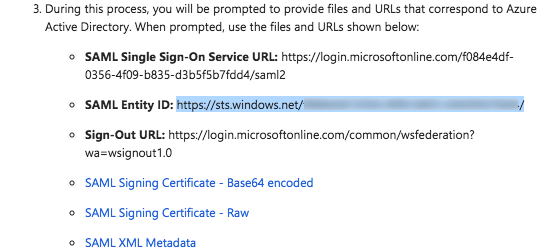
    ID d’entité SAML Copiez l’URL de ce champ à partir d’Azure AD.

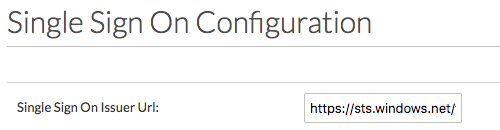
    URL de l’émetteur de l’authentification unique Collez l’URL de l’ID d’entité SAML dans le champ URL de l’émetteur de l’authentification unique .

    Saml Entity Id

    Issuer Url

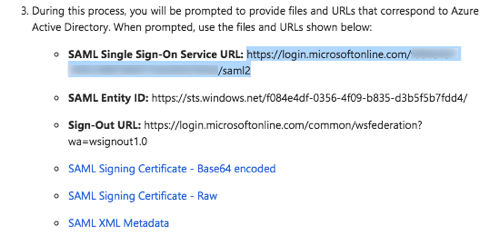
    URL du service d’authentification unique SAML Copiez l’URL de ce champ à partir d’Azure AD.

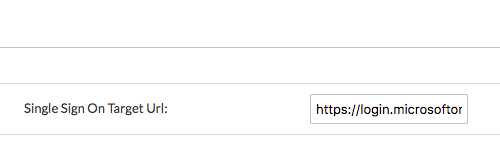
    URL cible de l’authentification unique Collez l’URL du service d’authentification unique SAML dans le champ URL cible de l’authentification unique .

    Saml Sso Service Url

    Sso Target Url

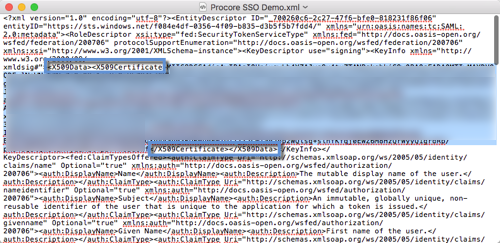
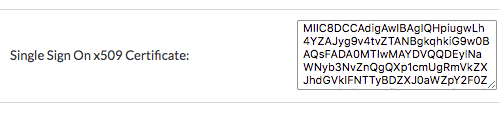
    Métadonnées XML SAML Téléchargez ce fichier sur votre ordinateur et ouvrez-le dans un éditeur de texte (c’est-à-dire Bloc-notes ou Texte/Modifier). Recherchez les données de certificat qui apparaissent entre les balises HTML de début et de fin du certificat x509. Copiez ensuite les données. Ne copiez PAS les étiquettes. Ceci est illustré dans l’image animée ci-dessus : Balise de début : Balise de fin :

    Certificat x509 d’authentification unique Collez les données de certificat que vous avez copiées dans ce champ.

    Xml Certificate

    Sso X509

  8. On the 'Single Sign On Configuration' page in Procore, click Save Changes.

  9. Reach out to Procore Support or your company's Procore point of contact to request that they configure the email domain(s) you'd like to target for SSO.

  10. After you receive confirmation that the SSO configuration is ready, mark the Enable Single Sign On checkbox on the 'Single Sign On Configuration' page.

  11. Select the Service Provider Forward option.

  12. Click Save Changes.

See Also

Loading related articles...