Assigner ou supprimer un modèle d’inspection au niveau entreprise d’un projet
Éléments à prendre en compte
Informations complémentaires
Exigence de section: vous ne pouvez appliquer la logique qu’aux éléments d’une même section d’inspection.
Limite: vous pouvez ajouter un maximum de quatre conditions à un seul élément.
Types de réponse exclus: vous ne pouvez pas ajouter de logique conditionnelle aux types de réponse « Nombre », « Texte », « Signature » ou « Date ».
Historique des changements: Procore suit les modifications apportées à la logique conditionnelle dans l’historique des changements du modèle.
Synchronisation du modèle: la logique ajoutée au niveau entreprise s’applique à toutes les nouvelles inspections de projet créées à partir du modèle.
Logique au niveau projet: vous pouvez également ajouter une logique à des modèles individuels au niveau projet.
Escalier
Assigner un modèle au niveau entreprise à un ou plusieurs projets
Accédez à l’outil Inspections au niveau entreprise.
Recherchez le modèle dans la vue de liste et accédez à la colonne Projets assignés .
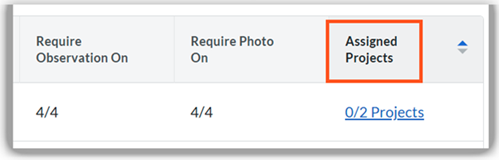
Cliquez sur Projets.
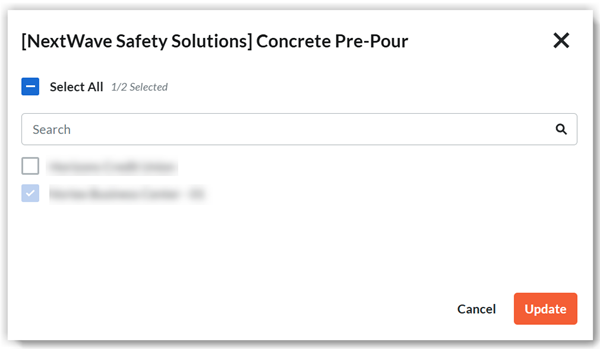
Cliquez sur Sélectionner tout pour affecter le modèle à tous vos projets ou cochez individuellement les cases des projets auxquels vous souhaitez appliquer le modèle.
Si vous sélectionnez cinq projets ou moins, les modèles se synchroniseront automatiquement. Toutefois, si vous sélectionnez plus de cinq projets, vous recevrez un e-mail lorsque les modèles auront fini d’être appliqués à tous vos projets.
La possibilité d’importer des modèles directement à partir de votre projet est toujours disponible.
Cliquez sur Mettre à jour.
Supprimer un modèle au niveau entreprise d’un ou de plusieurs projets
Accédez à l’outil Inspections au niveau entreprise.
Localisez le modèle dans la vue en liste et accédez à la colonne Projets assignés.
Cliquez sur Projets.
Décochez les cases à côté des projets dont vous souhaitez supprimer le modèle.
Cliquez sur Mettre à jour.