Create a Record for a Payment Received

Vous utilisez la terminologie du maître d’ouvrage ou de l’entrepreneur spécialisé ?

Procore peut être configuré pour utiliser une terminologie spécifique aux entreprises générales, aux maîtres d’ouvrage ou aux entreprises spécialisées. Découvrez comment appliquer les options du dictionnaire.

  • To learn the differences: Show/Hide

    • This table shows the differences in tool names (bold) and terms across the point-of-view dictionaries for Project Financials.

      Entrepreneurs généraux
      Anglais (États-Unis) - Par défaut

      Propriétaire
      Anglais (Terminologie du propriétaire V2)

      Entrepreneurs spécialisés
      Anglais (terminologie des entrepreneurs spécialisés)

      Facturation

      Facturation

      Facturations proportionnelles

      Propriétaire

      Financement

      Propriétaire

      Maître d’ouvrage/Client

      Maître d’ouvrage/Client

      CG/client

      Ordre de changement au contrat principal

      Ordre de changement de financement

      Ordre de changement du contrat client

      Contrats principaux

      Financement

      Contrats clients

      Revenu

      Financement

      Revenu

      Sous-traiter

      Contrat

      Sous-traiter

      Sous-traitant

      Entrepreneur

      Sous-traitant

      Ventilation des coûts du sous-traitant (VDCS)

      Ventilation des coûts de l’entrepreneur (VDCST)

      Ventilation des coûts du sous-traitant (VDCS)

      About These Dictionaries
      • Default Setting: The 'General Contractor' dictionary is enabled by default for all accounts.

      • Availability: These alternate dictionaries in italics are available in US English only.

      How to Switch Your Dictionary

      To change your company's terminology to the Owner or Specialty Contractor dictionary, contact your company's . They will work with your Procore Point of Contact to make the change.

Background

An owner invoice is an itemized record of a financial transaction between a project owner and a company responsible for completing work. Typically, it is issued by a general contractor and submitted to a project owner to signal that payment is due for completed work. When you receive a payment from an owner, you can create a record of that payment in Procore's Invoicing tool using the steps below.

Éléments à prendre en compte

Prerequisites

Steps

  1. Navigate to the project's Invoicing tool.

  2. Click the Owner tab.

  3. Locate the owner invoice in the list. The click to open it.

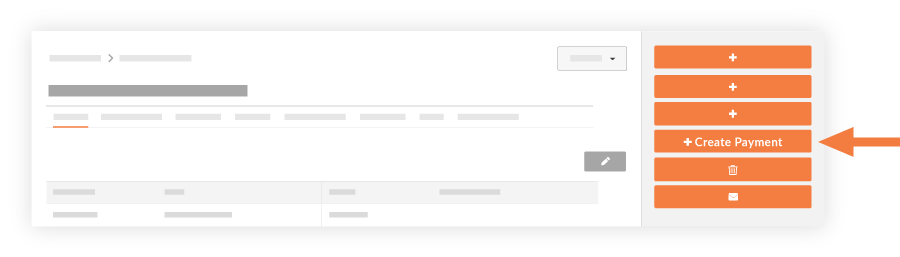
  4. Click Create Payment.
    create-payment-received.png

  5. Complete the following fields:

    • Invoice. Select the associated invoice from the drop-down list.

    • Date. Select a date that the payment was received.

    • Payment #. Enter the payment number.

    • Invoice #. Enter the invoice number for the payment, if applicable.

    • Check #: Enter the check number for the payment.

    • Notes. Include any additional notes to provide details about the payment.

    • Amount. Enter the amount of the payment received.

    • Attachments. Include any attachments related to the payment. For example, you might want to attach the check image or the invoice file.

  6. Click Add. The payment is listed under the 'Contract Summary Report' section in the 'Payments Received' column.
    paymentsreceived2.png

  7. Click Save.

     Notes
    • You will see a list of all payments received, which you can then export to a PDF by choosing Export > PDF.

    • All payments received on the project are tracked in the Contract Summary Report in the Prime Contract tool's General tab (see illustration below).

See Also

Loading related articles...