Imprimer un code QR de lieu (bêta)
Contexte
L’outil Lieux (bêta) est disponible sur Procore Explore. Les fonctionnalités et la documentation de cet outil sont susceptibles d’être modifiées sans avis au cours du développement.
Pour accéder à la version bêta et nous faire part de vos commentaires Afficher/Masquer les détails
Comment y accéder :
Rejoignez le programme bêta Lieux en ligne à l’aide de Procore Explore.
Assurez-vous que le nouvel outil Lieux (bêta) est actif sur votre projet.
Assurez-vous de disposer des autorisations utilisateur requises. Pour en savoir plus, consultez autorisations.
Accédez à l’outil Lieux de votre projet.
Remarque: vous pouvez basculer entre le nouvel outil Lieux (Web) et l’ancienne page Lieux. Cliquez sur l’icône points de suspension verticaux située dans le coin supérieur droit du nouvel outil Lieux et sélectionnez l’option Gérer les lieux (hérité). La page Lieux hérités apparaît dans un nouvel onglet.
Comment faire part de vos commentaires pendant la version bêta : Cliquez sur l’icône points de
suspension verticaux située dans le coin supérieur droit du nouvel outil Lieux et sélectionnez l’option Partager des commentaires . Utilisez cette option pour signaler des bogues ou suggérer des améliorations. Vos commentaires sont essentiels au développement final de cet outil.Assistance: pour signaler un problème, contactez votre point de contact Procore, votre responsable du programme bêta ou envoyez un ticket au support client Procore.
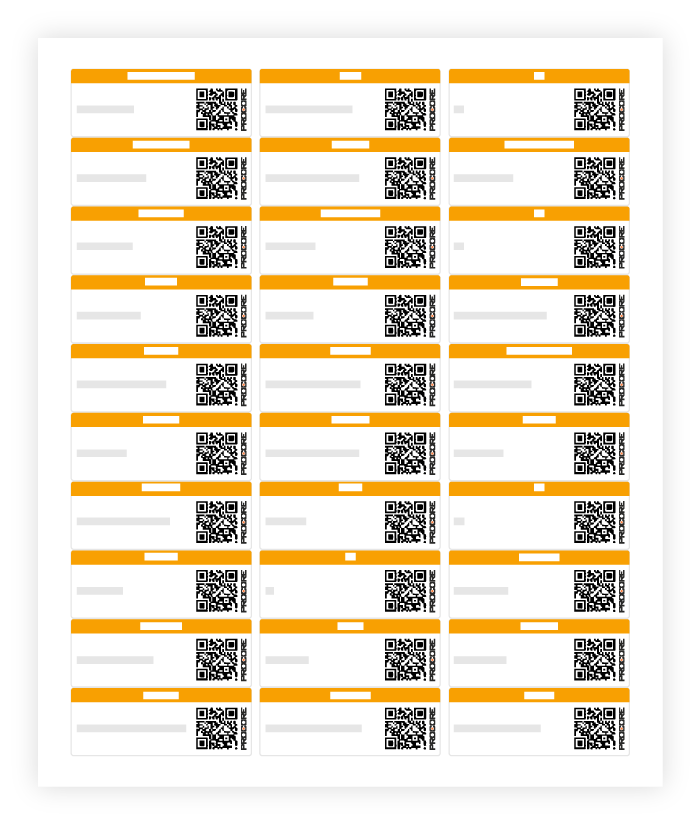
Vous pouvez imprimer le QR code du lieu souhaité d’un projet à l’aide de l’outil Lieux. Dans Procore, un code QR de lieu est un code-barres bidimensionnel lisible par une machine qui renvoie directement à un lieu de projet spécifique. Vous pouvez facilement enregistrer et numériser le QR code d’un lieu.
 dans la ligne correspondante, puis sélectionnez Imprimer le code QR.