Guide de démarrage : Affichages 2D dans l’outil Maquettes

Éléments à prendre en compte

  • Autorisations utilisateur requises :

    • Autorisations de niveau « Admin » sur l’outil Maquettes du projet.

  • Informations complémentaires:

    • La fonctionnalité Affichages 2D n’est disponible que sur l’application Procore pour les appareils iOS.

Conditions préalables

  • L’outil Maquettes doit être actif sur le projet.

  • Vous devez avoir accès aux programmes Autodesk® suivants : Navisworks® (Gérer ou Simuler) et Revit®.

Escalier

Suivez les étapes ci-dessous pour utiliser la fonction Affichages 2D pour la première fois :

  1. Téléchargez ou mettez à jour l’application Procore sur un appareil iOS

  2. Télécharger le plug-in Procore sur un ordinateur

  3. Publier un maquette dans Procore

  4. Exportez des grilles à partir de Revit

Étape 1 : télécharger ou mettre à jour l’application Procore sur un appareil iOS

  1. Si l’application Procore n’est pas déjà sur votre appareil iOS, vous devrez la télécharger depuis l’App Store.

  2. Ouvrez l’application Procore .

  3. Confirmez que la version de votre application est 2021.0412 ou une version ultérieure.

    • Pour voir quelle version vous utilisez actuellement, appuyez sur Paramètres et faites défiler vers le bas. Le numéro de version est affiché sous votre adresse e-mail Procore, à côté de « Procore pour iOS ».

    • Si vous devez mettre à jour l’application, accédez à l’App Store sur votre appareil pour lancer la mise à jour. Voir Mettre à jour l’application Procore iOS.

Étape 2 : télécharger le plug-in Procore sur un ordinateur

Consultez le tutoriel complet Télécharger le plug-in Procore pour l’outil Maquettes ou cliquez ci-dessous pour afficher les étapes.

Afficher /Masquer les étapes

  1. Download the plugin application to your Windows computer. Note: You can also download the plugin directly from the Models tool in Procore by clicking Download Plugin.

  2. Click the downloaded .exe application file to begin setting up the plugin.

  3. Allow Procore to make changes to your device. Note: You will need Administrator rights to your computer.

  4. Log into Procore with your Procore credentials.

  5. Click Install next to the version you want to download. Note: The year of your Navisworks® application and the Procore plugin should be the same.

  6. Open the Navisworks® application on your computer. A Procore tab will be viewable in Navisworks®.

Étape 3 : publier un maquette sur Procore

Consultez le tutoriel complet Publier un maquette sur Procore ou cliquez ci-dessous pour voir la vidéo et les étapes :

Show /Hide Video and Steps

Follow the steps below to publish a model to Procore.

  • Step 1: Launch the Procore Plugin in Navisworks®

  • Step 2: Select the Publish Action

  • Step 3: Enter Model Information

  • Step 4: Configure Viewpoints

  • Step 5: Add a 2D Sheet

  • Step 6: Map the 2D Sheet to the Model

Step 1: Launch the Procore Plugin in Navisworks®

  1. In Navisworks®, click the Procore tab to open the plugin ribbon.

  2. Click Publish to open the Models window.

Step 2: Select the Publish Action

In the Models window, choose one of the following options:

  • To publish a new model, click New Model.

  • To publish a new version of an existing model, hover over the model in the list and click Publish Version.

Step 3: Enter Model Information

Enter information about the model as follows:

  1. Choose the appropriate option:

    • For a new model, enter the name that will be displayed in Procore in the Model Name field.

    • For an existing model, keep the existing name.

  2. Select the Status of the model from the drop-down list:

    • Coordination. For reference only. Not approved for construction.

    • Construction. Fully coordinated and approved for field installation and layout.

    • As-Built. Updated to reflect final, field-verified conditions.

Step 4: Configure Viewpoints

Set the Home Viewpoint

The Home Viewpoint is the model's default starting view and thumbnail image. For best results and easy navigation, choose a clear, general overview of the project.

  1. Set the initial viewpoint:

    1. In the viewer, navigate the model to your desired starting position.

    2. Click Add.

    3. Click Save to confirm.

  2. Optional: Update an existing viewpoint:

    1. Navigate the model to the new position.

    2. Click Edit.

    3. Click Save to apply the changes.

Add Saved Navisworks® Views (Optional)

You can upload specific viewpoints to make them available in Procore.

  1. Add a saved view:

    1. Click Add.

    2. Mark the checkbox next to each view you want to upload.

    3. Click Add to confirm your selections.

  2. Optional: Remove a saved view:

    1. Click the delete (x) icon next to the viewpoint.

Step 5: Add a 2D Sheet

Use these steps to link a 2D drawing sheet to your 3D model by setting its location and elevation.

  1. Select the drawing sheet:

    1. In the 2D Sheets section, click Add.

    2. If your project uses drawing areas, you must first select an area from the Drawing Area drop-down list.

    3. Select your drawing from the Drawing drop-down list.

  2. Set the sheet's elevation. This sets the vertical position of the sheet within the model:

    1. To use an existing level, select a predefined level from the Level drop-down list.

    2. To set by model selection, click directly on an element in the 3D model. The elevation will be calculated automatically based on the point you clicked.

    3. To create a new level, click Create New and enter the details for the new level.

  3. Proceed to the next step:

    • After setting the elevation, click Next.

    • Now, you must map the sheet to the model. See Step 6: Map the 2D Sheet to the Model.

       Important

      Before adding another 2D sheet, you must complete the mapping process for the current sheet and then repeat these steps.

Step 6: Map the 2D Sheet to the Model

This step aligns the 2D drawing with the 3D model by asking you to select two common reference points on each.

  1. Select reference points on the 2D sheet:

    1. Click Start to begin.

    2. Select two opposing reference points on the 2D drawing. The points will be labeled 'A' and 'B'.

    3. To re-select your points at any time, click Clear.

    4. When you are satisfied with your points, click Done.

       Tip

      For the best accuracy, choose grid line intersections that are located within the main project footprint.

  2. Select matching points on the 3D model:
    Now, you will select the same two points on the 3D model.

    1. Click Start to begin selecting points on the model.

    2. Select the same two reference points on the 3D model that correspond to points 'A' and 'B' from the drawing.

    3. Click Save to confirm the points.

       Important

      The reference points selected in the 3D model must exist on the Z-axis (vertical plane). You cannot choose points on a flat floor or a 2D object. For precision, Procore recommends turning the Navisworks® grid ON by selecting View > Show Grid.

Step 5: Publish the Model

Before finalizing the model, decide whether to process it using Procore's cloud servers (recommended) or your local computer.

 Important

Use Section Boxes in Navisworks® to publish specific areas or views of your model. See Add a Section Box to a Model. Section Planes are not supported and can't be published to Procore.

  1. Choose your publishing method:

    1. Cloud Publishing (Default & Recommended)

      • How: Leave the Publish Locally checkbox cleared.

      • Description: This is the fastest method. Procore's servers do the heavy lifting, which frees up your computer. You can monitor the progress on the Uploads tab in the Procore BIM plugin.

    2. Local Publishing

      • How: Mark the Publish Locally checkbox.

      • Description: This option is significantly slower. Procore recommends using it when publishing a locked model file or when troubleshooting issues with the Navisworks® Appearance Profiler.

  2. Finalize and view:

    1. When ready, click Publish.

    2. After the model has successfully processed, a confirmation message will appear. Click Done.

    3. View your model in the Models tool on the Procore web or mobile app. See View a Model (Web), (iOS), or (Android).

Étape 4 : exporter les grilles à partir de Revit

L’API Navisworks ne prend pas en charge la capacité de publier des lignes de quadrillage, vous devez donc utiliser Revit pour exporter les lignes de quadrillage du projet. Il s’agit d’une étape TRÈS importante et doit être effectuée par un membre de l’équipe qui peut AQ/CQ l’origine et valider que les grilles sont au bon endroit avant de les référencer sur le terrain pour l’installation.

  1. Ouvrez un fichier de coordonnées principal ou n’importe quel fichier de projet contenant les niveaux de construction et les grilles de votre projet.

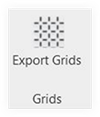
  2. Accédez à l’onglet Procore dans Revit et sélectionnez le bouton Exporter les grilles dans le ruban.
    revit-export-grids.png

  3. Utilisez le menu déroulant pour sélectionner l’entreprise et le projet pour exporter les grilles.

  4. Pour le système de coordonnées, sélectionnez Coordonnées internes ou Coordonnées partagées . Important! Celles-ci doivent correspondre aux coordonnées de votre modèle fédéré publiées à partir de Navisworks.

    coordinate-system.png

  5. Cliquez sur Ajouter des grilles pour tous les modèles qui partagent le même système de grille. Note:

    • Un seul ensemble de grilles peut être exporté par maquette publié.

    • L’icône affichage 2D icon-models-2d-view.png dans la visionneuse mobile ne s’affiche PAS si aucune grille n’est associée au modèle. S’il y a des grilles, l’option de vue 2D s’affiche lorsque l’objet mur est sélectionné dans l’outil Maquettes.

    • Le quadrillage peut être activé ou désactivé par les utilisateurs de niveau « Admin » dans la zone Paramètres de la visionneuse mobile. Voir Paramètres : maquettes (iOS).

Prochaine étape

See Also

Loading related articles...