Add Non-Contract Invoices in Portfolio Financials

 Legacy

This information is intended for accounts with Portfolio Financials product in Procore. Please reach out to your Procore point of contact for more information.

Fond

La salle des factures de Gestion financière du portefeuille est un endroit où vous pouvez enregistrer des factures pour des éléments de coût qui ne nécessitent pas de contrat. Les factures ajoutées ici sont enregistrées en tant que somme forfaitaire et suivent le même processus que les autres factures, sauf qu’elles ne sont pas comparées à une ventilation des coûts sur un contrat. Contrairement à la salle des contrats dans Gestion financière du portefeuille, la salle des factures n’est disponible que du côté du maître d’ouvrage, et les fournisseurs n’en partagent pas l’accès.

Éléments à prendre en compte

  • Autorisations utilisateur requises:

    • « Accès complet » au projet ou supérieur.

  • Informations complémentaires:

    • Important! La fonction « Salle des factures » doit être activée pour le compte de votre organisation. Si cette fonctionnalité n’est pas encore activée, veuillez contacter votre Procore point of contact.

Steps

To create an Invoice Room:

  1. Navigate to the project's Cost Tracker on the Project Page.

  2. Locate a cost item that you want to add an invoice for.

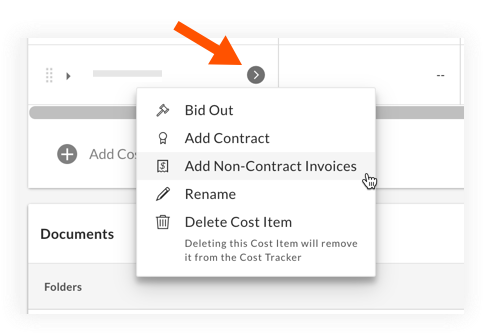
  3. Click the arrow icon-circle-arrow-pfcp.png icon for the cost item and select Add Non-Contract Invoices.
    add-non-contract-invoices.png
    This action creates the Invoice Room. Invoice Rooms have an Invoice Room icon-invoice-room-pfcp.png icon to differentiate from Contract Rooms and Bid Rooms.

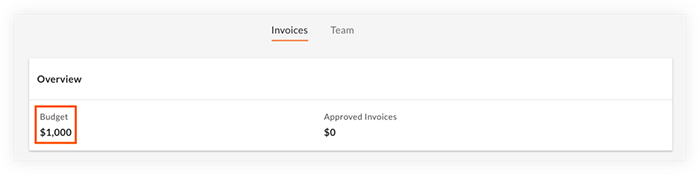
    Note: You can see the overall budget for the cost item in the 'Overview' section.

    budget-amount.png

To add a new invoice to the Invoice Room:

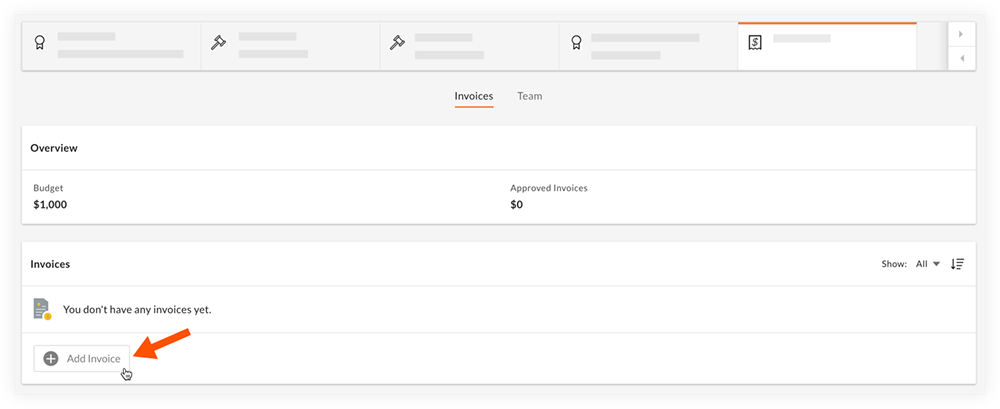
  1. Click Add Invoice.

    add-invoice-to-invoice-room.png

  2. Enter a name and amount for the invoice, and complete the other optional fields as necessary.

  3. Optional: Click Add Vendor to link a vendor. Linking a vendor does not share the Invoice Room portal with them, and only serves as a record of who the invoice is for.

  4. Optional: Click Add Document to attach a relevant document for the invoice.

  5. Click Submit.
    Note: After submitting the invoice, it will wait for approval or rejection.

See Also

Loading related articles...