Créer un modèle de flux de travail d’approbation dans Gestion financière du portefeuille

 Legacy

This information is intended for accounts with Portfolio Financials product in Procore. Please reach out to your Procore point of contact for more information.
Fond

Les administrateurs d’entreprise peuvent créer et gérer des flux de travail d’approbation personnalisés pour examiner ou approuver des éléments dans Gestion financière du portefeuille. Ces flux de travail peuvent être simples ou complexes, et peuvent être utilisés pour des éléments tels que les offres, les contrats, les budgets, les ordres de changement et les factures.

Éléments à prendre en compte

  • Autorisations utilisateur requises:

    • « Administrateur de l’entreprise » dans Gestion financière du portefeuille.

Steps

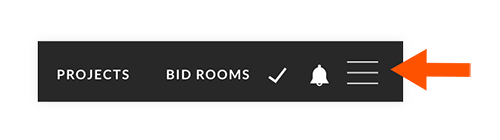
  1. Click the Plus de menu (≡) icon to expand the sidebar menu.
    hamburger-icon.png

  2. Click Company Settings.

  3. Click Approval Workflows if it is not already selected.
    Note: This opens the Templates page.

  4. Click + Add Template.

  5. Enter a name for the workflow template under 'Template Name'.
    Note: The name cannot already in use for another workflow.

  6. Select an approval type from the 'Approval Type' drop-down menu:
    Note: The approval type options will depend on which approval types have been enabled for your company.
    Important! The approval type cannot be changed after the workflow template is saved.

    • Bid/Contract

    • Budget

    • Change Order

    • Invoice

  7. Click Next.

  8. Under User, search for the person you want to add to the workflow step and select their name from the drop-down menu.
    Note: In order to be added to the approval workflow, the person must have 'Company Admin' or 'Building Admin' permissions.

  9. Under Approves, select one of the following options:

    • Always: If you select this option, the workflow step is complete.
      Note: You can either add another step and repeat the process, or click Save to confirm the workflow template.

    • Only If: If you select this option, the following information must be completed:

      1. Select one of the following options from the drop-down menu to determine the only condition that the item (invoice, change order, bid/contract, or budget) would require an approval:

        • is greater than

        • causes forecast to exceed budget by
          Note: This option is not available for Budget or Invoice approvals.

        • exceeds previous budget by more than
          Note: This option is only available for a Budget approval.

      2. Enter the amount as a numeric value.
        Note: If available, click the dollar or percent symbol to describe the amount.

  10. Click Save.

Cliquez sur Étape suivante.

See Also

Loading related articles...