Configure Settings: Change Orders
Background
The configuration settings for the project's Change Orders tool gives you the ability customize change order reasons, change order types, and change order statuses.
Things to Consider
Required User Permissions:
'Admin' level permissions on the project's Change Orders tool
Prerequisites
Steps
You can perform the following configuration tasks:
Change Order Configuration
Permissions Table
Configure Change Order
Navigate to the project's Change Orders tool.
Click the Configure Settings
 icon.
icon.Under Change Order Settings, do the following:
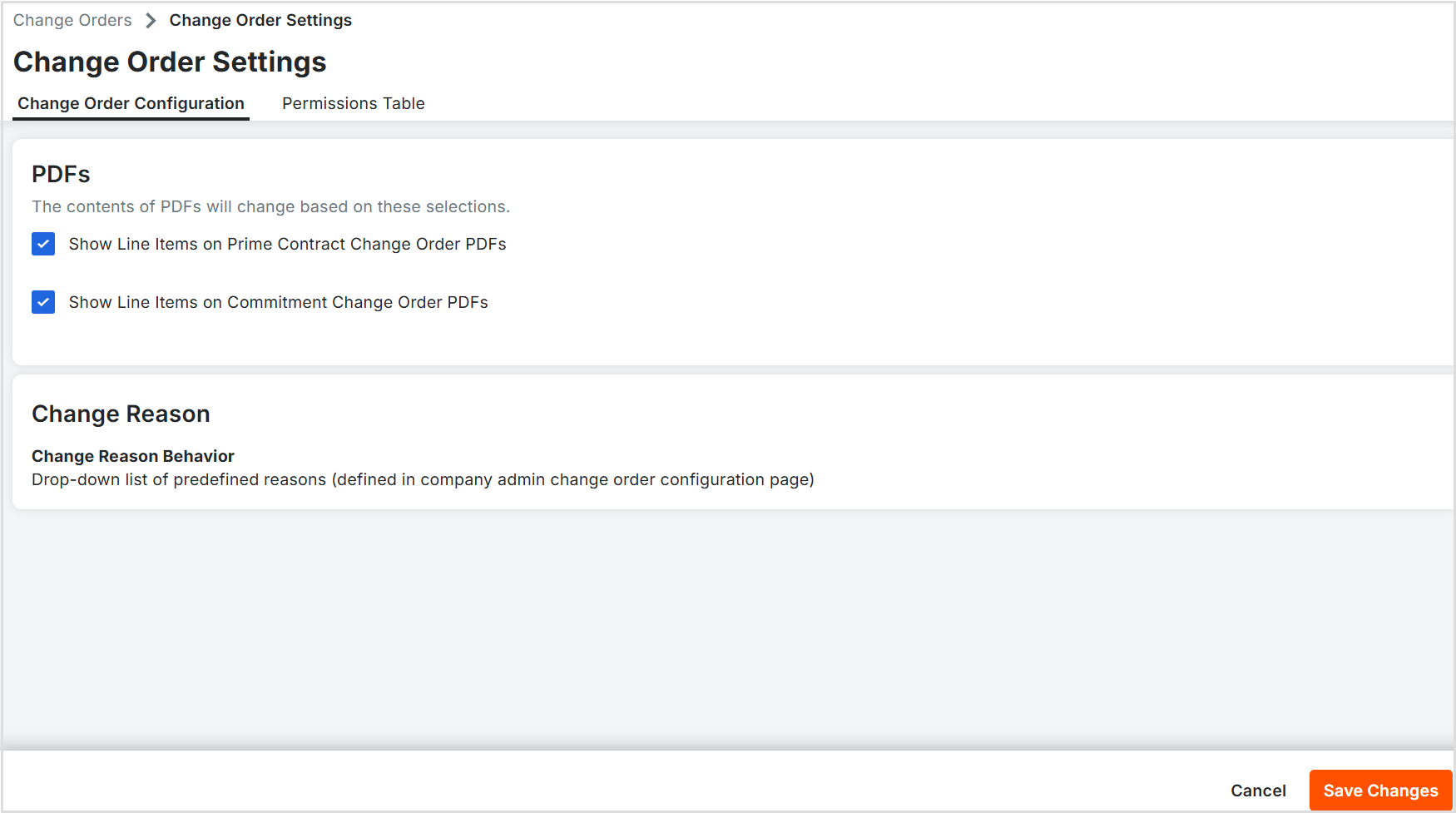
PDFs
Show Line Items on Prime Contract Change Order PDFs
To show line items on PCCOs exported PDFs, mark this checkbox. To hide line items from PCCOs exported PDFs, remove the mark from this checkbox.Show Line Items on Commitment Change Order PDFs
To show line items on an exported PDF for a CCO, mark this check box. To hide line items from an exported PDF for a CCO, remove the mark from this check box.
Change Reason
Change Reason Behavior
To modify the change reason behavior always contact your Procore point of contact first. You have these options:Drop-down list of pre-defined reasons. Provides users with the ability to select change reasons from a drop-down list. See Set the Default Change Management Configurations and What are the different change order tier settings in Project Financials?
Freeform text field. Allows users to enter any additional information in a text entry field.
Click Save Changes.
Set User Permissions for the Change Orders Tool
Notes
If you have a small number of users, you might choose to manage user permissions for the project's Change Orders tool using the steps below.
If you have a large number of users, it is recommended that you manage user permissions on Procore's project tools using permission templates. For instructions, see Create a Project Permission Template.
Navigate to the project's Change Orders tool.
Click the Configure Settings
icon.Click Permissions Table.
View each user's permission for the Change Orders tool:
Company
None
Read Only
Standard
Admin
Set each user's permission for the tool according to your preferences.
 Access
 No Access
Note: To view a complete list of available tasks by permission level, see Permissions.
When finished, click Back.