Key Features

Add a Notes Column to a Budget or Forecasting View

A user with 'Admin' level permission on the Company level Admin tool can add a Notes column when configuring the columns for a budget or forecasting view. The Notes column is available in the Standard Budget and Standard Forecast views. You can also modify the column name. For example, you might want to rename the column from Notes to Comments or Memorandum. For instructions, see Set up a New Budget View and Set up a New Forecasting View.

Example

This shows the Configure Columns window and the Notes column.
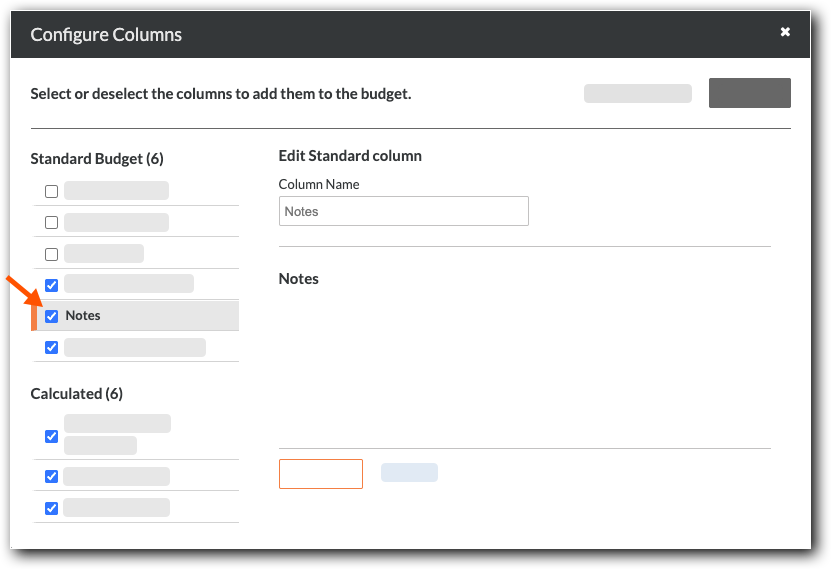
Notes Column

Add, View, or Edit Notes on Budget or Forecast Line Items

Once a view is assigned to a project, users with 'Read-Only' level permission or higher on the Budget tool will see a Notes column when applying a view to a project's budget or forecast. Users with 'Standard' level permission or higher on the Budget tool can click the Add Note link or the note text to open a card below the budget. You can add, view, or update a note for the selected line item. Changes are saved automatically in the Change History tab.

Example

This shows the Notes column with the Add Note link.
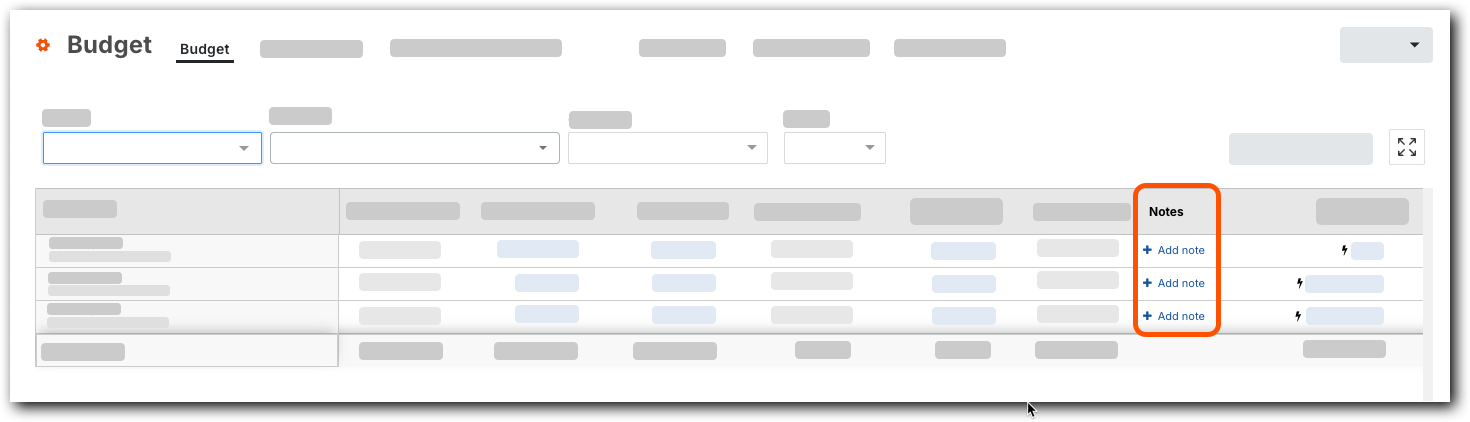
Add Notes Link

This shows the Notes for [Line Item] entry card. Click the close Icon Markup Close X icon to save the note card.

Notes For Line Item

Filter Budget and Forecast Line Items by Notes

The Filter menu in the Budget and Forecast tabs lets users apply filters to view. See Apply the View, Snapshot, Group, and Filter Options on a Budget View.

Example

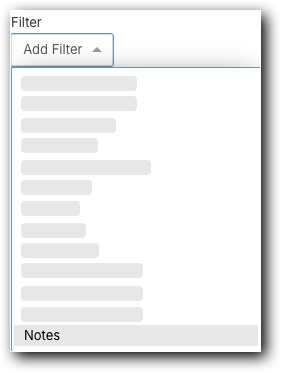
This shows the Notes option in the Filter menu at the top of the Budget tool's Budget and Forecast tabs.

Filter Menu Notes Option

Include Notes in Budget Export Files

When exporting the budget to a Comma Separated Values (CSV) or Portable Document Format (PDF), a Notes column is included in the file download. To export a budget, click the Export button on the budget to start the export.

  • If your company is using the ERP Integrations tool: Show/Hide

    • The Notes column for Budget Line Items cannot be imported from or exported to your integrated ERP system.

Example

This shows the Notes column when downloaded to the PDF file format.

Notes Column In Pdf

Include Notes in 360 Reporting

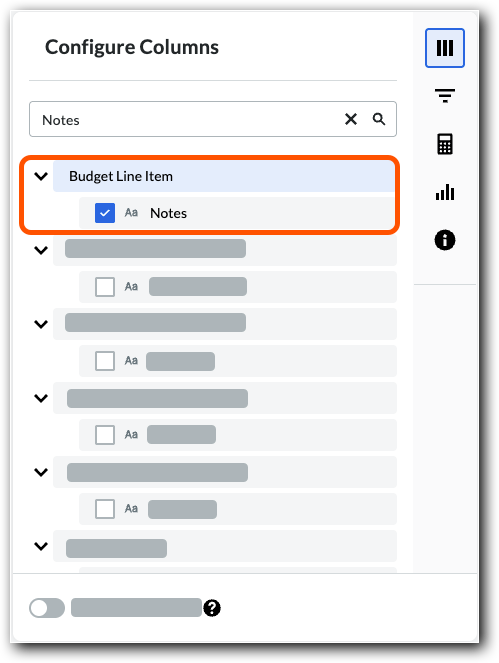
When creating new 360 reports for Financials, search for Notes in the Configure Columns panel and mark the Notes check box under the Budget Line Item group to include the column in a report. See Create a Company 360 Report or Create a Project 360 Report.

Example

This shows how to select the Notes column when configuring columns for a 360 report.

Budget Line Items Notes Reports

View Notes in the Budget Tool's Change History

New and updated notes are automatically recorded in the Budget tool's Change History tab. See View and Filter the Change History of the Budget.

Example

This shows how notes are recorded in the Budget tool's Change History tab.

Notes Change History

View Notes in Budget Snapshots

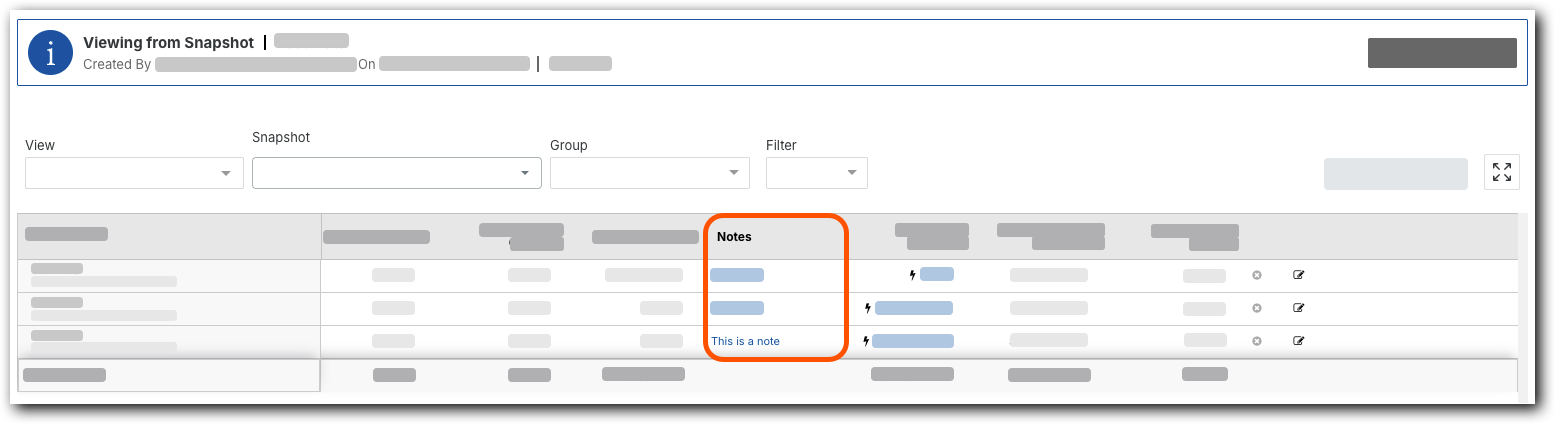
Notes are also automatically included in budget snapshots. See Create a Budget Snapshot. You can click a note in the column to open the Notes card. Because snapshots represent a point in time, notes are only viewable.

Example

This shows the Notes column in a budget snapshot.

Notes In Budget Snapshot