Disbursements with Sub-Tier Payments
Background
When an invoice includes "off-platform" payment logs—such as a manual check recorded in an integrated ERP like Sage Intacct—Procore Pay must account for these amounts before completing a disbursement. This process is designed to help users reconcile manual payments and reduce the risk of duplicate payments through the Procore Pay platform.
Things to Consider
Required User Permissions:
To add invoices to a disbursement and allocate manual offline payments, users must hold one of the following Payments roles:
Payments Admin
Payments Disburser OR
Disbursement Contributor
Eligibility for Electronic Payment: Onboarded and approved sub-tiers are eligible for electronic payment after the subcontractor provides authorization.
Sub-Tier Visibility: Sub-tiers marked as recipients of a joint check on an invoice appear under the first-tier subcontractor during the disbursement process.
Payment Methods:
ACH Requirements: Only sub-tiers that have successfully onboarded to Procore Pay, reached 'Approved' status, confirmed their EIN, and received subcontractor authorization for specific amounts are payable via ACH.
Manual Payment Marking: Sub-tiers not meeting all ACH requirements are automatically marked for "manual" payment in the system.
Off-Platform Allocations: If funds were paid outside of Procore Pay, the GC (payor) must confirm and allocate those funds within the platform.
Non-Editable Transactions: Any ACH payments processed through Procore Pay against an invoice cannot be edited once initiated.
This process only applies to invoices where Joint Check is set to "Yes" within the Authorize Direct Sub-Tier Payments section.
Steps
Best Practice for Offline Payments
Any payments made outside of the platform should be recorded in Procore Pay before issuing electronic payments to facilitate accurate application.
Navigate to the Payments tool and select the Disbursements tab.
Locate and select the invoice(s) you intend to pay.
Click the Add to Disbursement dropdown and make the appropriate selection:
Select an existing Disbursement. Choose a disbursement from the list to include the invoice(s) in a payment run you have already started.
Create Disbursement. Start a new payment run for the selected invoice(s).
In the Review Invoices page, select the specific sub-tier portions you intend to pay.
Click Apply Paid Amount to allocate the remaining balance.
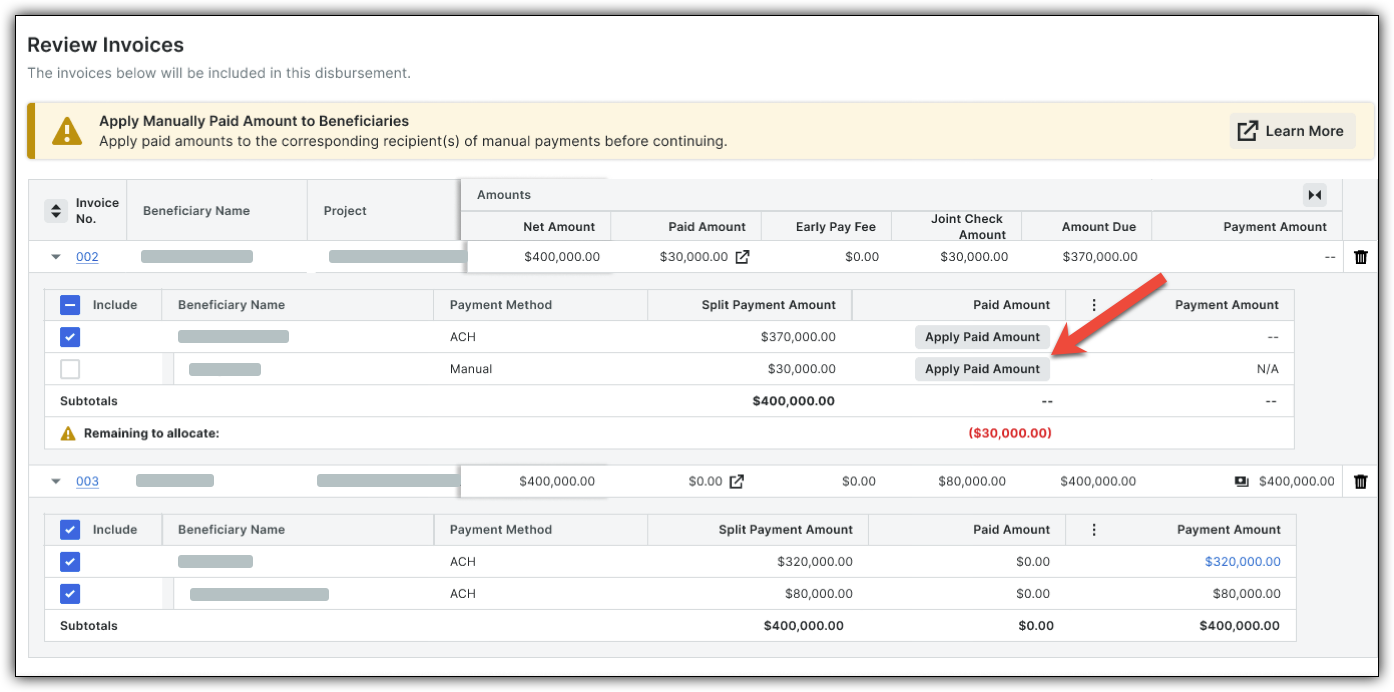
Example: If a $500 manual check was cut, specify how much of that went to the first-tier subcontractor vs. specific sub-tier suppliers.
Verify that the Remaining to Allocate field has reached $0.

Note: Once this balance is cleared, the is designed to mark those sub-tier portions as 'Satisfied' for accounting purposes within the platform, removing them from the ACH payment run, so you only pay the net difference.
Click Next.

