Connect to Microsoft Excel Using Exponam
Overview
This guide provides step-by-step instructions for importing Analytics data from Delta Share directly into Microsoft Excel using the Exponam.Connect add-in.
Using this method allows you to:
Access your Procore data directly in Excel without manually downloading CSVs.
Filter and select specific columns before importing, ensuring you only load the data you need.
Work with large datasets that might otherwise be too slow to process.
Prerequisites
Delta Share Credentials. Access to config.share file containing the Delta Sharing credentials.
Licensing:
Exponam.Connect Free: Limited to importing 100 rows of data.
Exponam.Connect Pro: Required for importing larger datasets (up to 1 million+ rows).
Steps
Install Exponam Add-in
Download the Exponam.Connect installer for your operating system (Windows or Mac).
Run the installer file and follow the on-screen prompts.
Once installation is complete, launch Microsoft Excel and open a new workbook.
Initialize Delta Share Connection
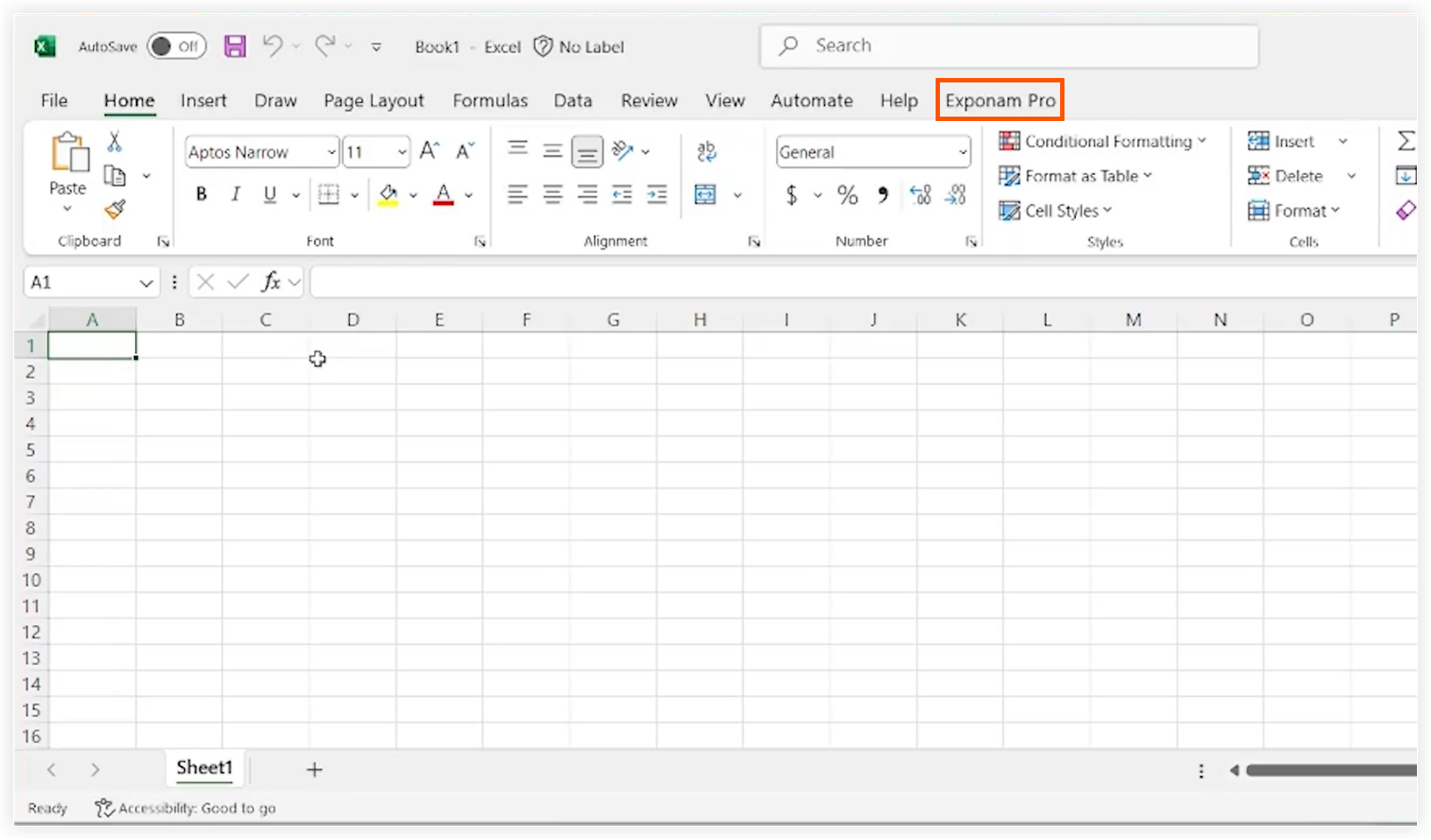
In Microsoft Excel, navigate to the Exponam Pro tab.
Click Import data.
Click the Delta Share icon.
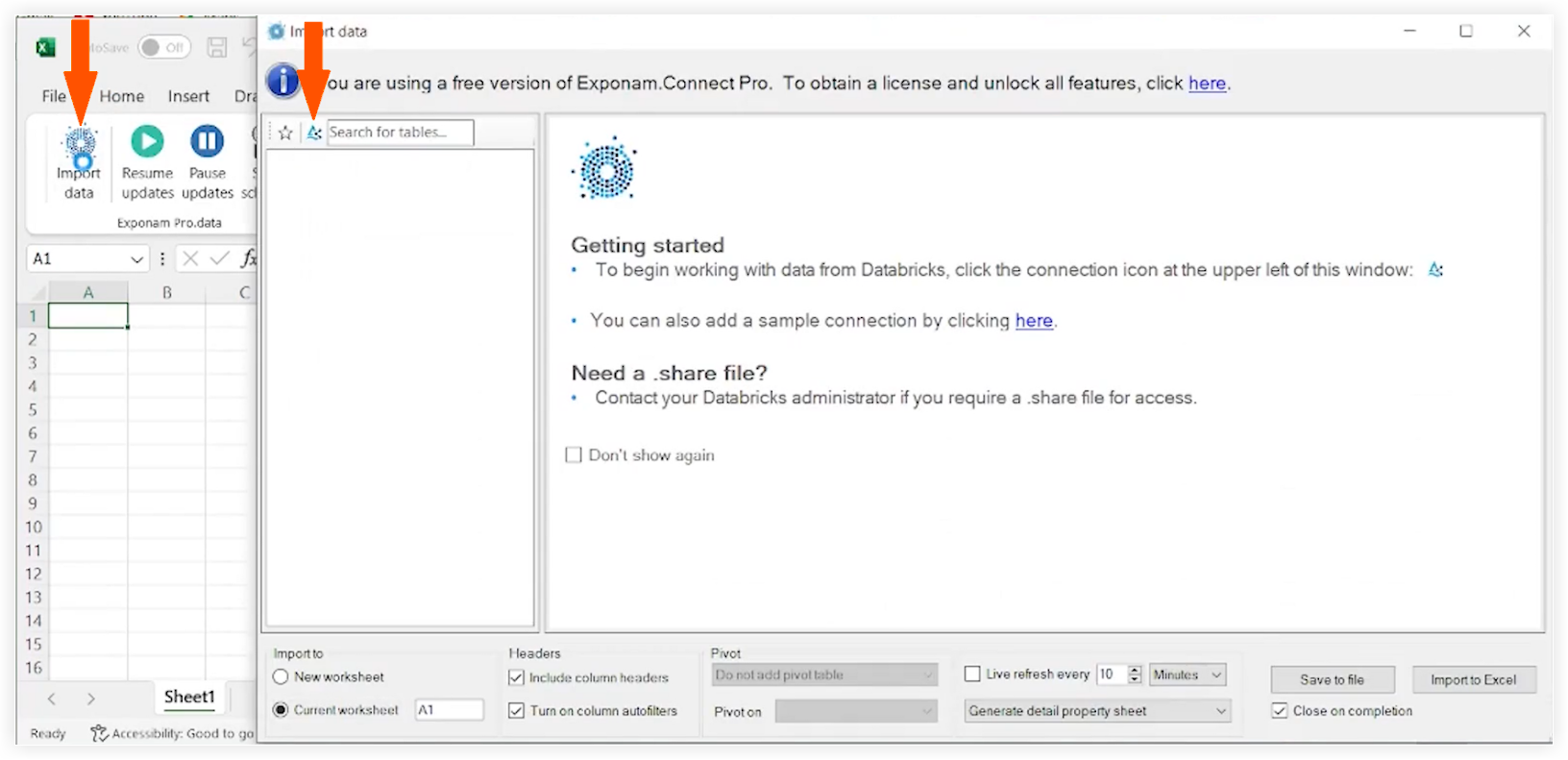
Locate and select your config.share file.
Click Open.
Select and Filter Data
The Exponam interface will now display a list of all available data tables.
Click on the name of the table you wish to access.
Use the Exponam interface to refine your data before importing to Excel. For example, you can apply filters, select particular columns, and more.
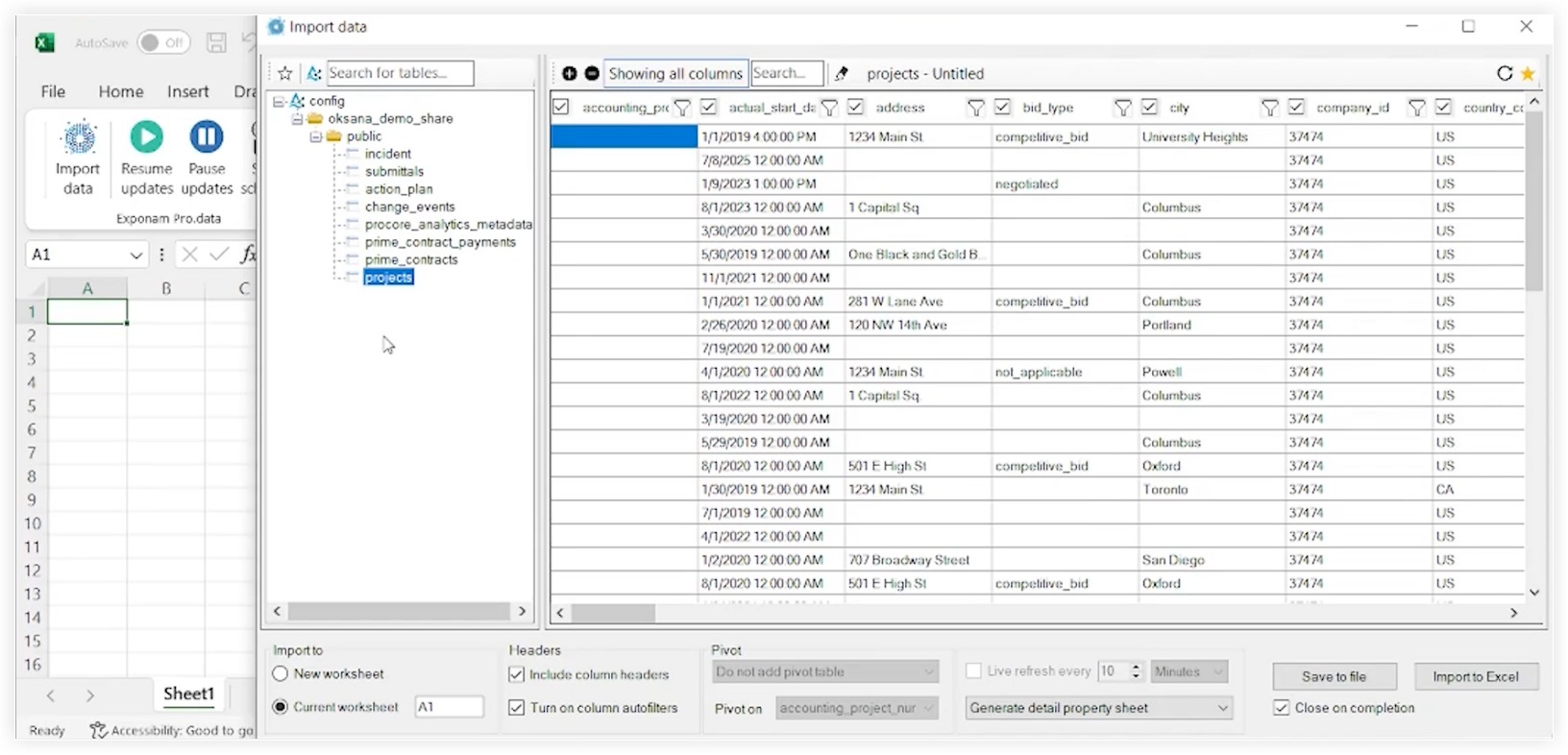
Import to Excel
Review your configuration and row count.
Note: Make sure that the row count is within your license limit.Click Import to Excel.
The data will populate in your active Excel worksheet.
Verification
Make sure that the columns and rows in Excel match what you selected in the Exponam window.
Check that data types (dates, currency, and more) are formatted correctly.
Troubleshooting
Missing "Exponam Pro" Tab. Make sure the installation was successful and check the Excel "Add-ins" settings to confirm that it is enabled.
Connection Error. Verify that your config.share file is still valid and that you have an active internet connection.
Row Limit Reached. If only 100 rows are displayed, check your license status in the Exponam settings.