Create a Workflow Template
Things to Consider
Required User Permissions:
To view, create, or edit a workflow template:
'Admin' level permissions on the Company Workflows tool.
OR'Read Only' or 'Standard' level permissions on the Company Workflows tool with the 'View Workflow Templates' and 'Create and Edit Workflow Templates' granular permissions enabled on your permissions template.
Customers using Procore in English can also choose from a selection of pre-populated quick start workflow templates for financial tools. These templates can be used as-is, or edited to meet your company's needs. Quick start workflows templates are not available outside of English speaking regions at this time.
Steps
Add a Workflow
Navigate to the Company level Workflows tool.
Click Create.
This opens the 'Add a Workflow' dialog box.
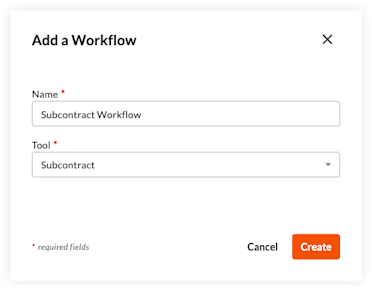
Enter a Name for the workflow.
Select the tool for the workflow from the Tool menu.
Note
Some Procore tools must be enabled to appear as a selection in this list. For a list of available tools, see Which Procore tools support Workflows?
Click Create.
Procore opens the workflow builder and creates an 'Untitled' first step for you.
Update the First Step in the Workflow
Begin by selecting the type of step (Response Step, Condition Step) you will use at the start of the workflow.
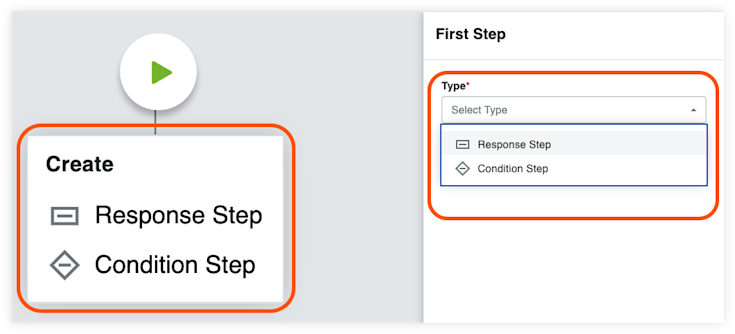
Follow the instructions for the selected step type:
Add a Response Step to a Workflow
Add a Condition Step to a Workflow
Add an End Step (Successful) to a Workflow
Add an End Step (Unsuccessful) to a Workflow
Add a Response Step to a Workflow
Enter the following information in the General Information section:
Step Name. Enter a name for the step.
Type. Select Response Step.
Item Status. Enter the item status that will be associated with this workflow step.
Days to Complete. Enter the number of days the 'Responsible Group' has to complete the workflow step. Then select Calendar Days or Business Days from the drop-down list. Once the set number of days passes, Procore sends a reminder email until the step is complete.
Optional: Notification Recipients . Select the groups or roles that should receive an automated notification when the workflow step is NOT completed within the number of days specified under Days to Complete. The recipients named here will also receive an email when the workflow step is completed. The default groups include:* Workflow Manager. A workflow manager is a Procore user who must be designated on a project.* Item Creator. An item creator is a Procore user who created the item on a project.* Distribution Group. After you publish this workflow and assign it to a project, you can define different group members when configuring the workflow on the Project level.* All Project Users from the Company. All project users from the item creator's company who are assigned to the project are automatically notified when you select Item Creator's Company from the notification recipient list.
Add Assignees
Complete the Assignees section:
Decision Type. Select one of default decision types for the step. This setting will also determine which response requirement options are available.* First responder decides.* Multiple responders decide.* Only required responders decide. Check this box if you want the final decision on the step to be determined only by responders in roles with one or all members required to respond.
Click Manage Assignees.
Compete the following steps for the selected decision type:
Tip
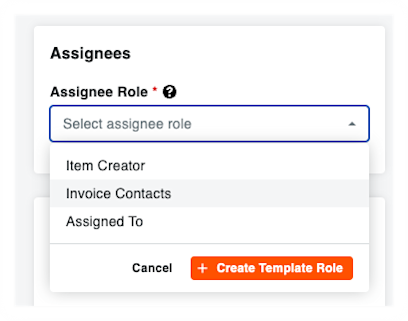 When selecting an Assignee Role from the Manage Assignees page, you may also choose to add new custom template roles. Complete the following steps to create a new template role:
Click the Assignee Role drop-down menu.
Click Create Template Role.
Enter a Template Role Label to give the role a name.
Click Save Role.
 icon attached to an existing step in the workflow builder and choose End Step (Successful).