Edit Root Cause Analysis Fields
Background
In the Company level Admin tool, you can manage custom values for Hazard, Contributing Condition, and Contributing Behavior fields. Once configured, team members can select these tailored values when creating an Observation or Incident. This allows your organization to align data collection with internal safety policies or specific regulatory compliance requirements.
Things to Consider
Additional Information:
If a value is currently in use on an existing observation or incident, it cannot be deleted from the 'Root Cause Analysis' page.
Important! You can only edit custom root cause analysis fields that have been added by your organization. Default system fields cannot be edited, but they can be deactivated.
Steps
Navigate to the Company level Admin tool.
Under 'Company Settings', click Root Cause Analysis.
To Edit a Root Cause Analysis Field
Click the field name you want to edit.
Type the desired edits.
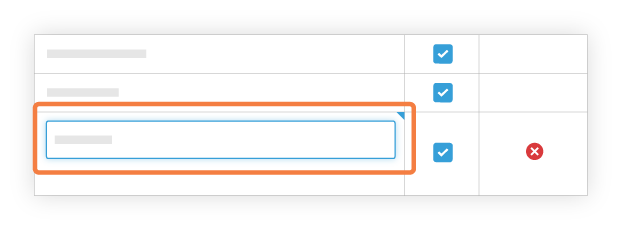
Hit Enter on your keyboard or click outside of the text box to save your changes.
To Mark a Root Cause Analysis Field as Inactive
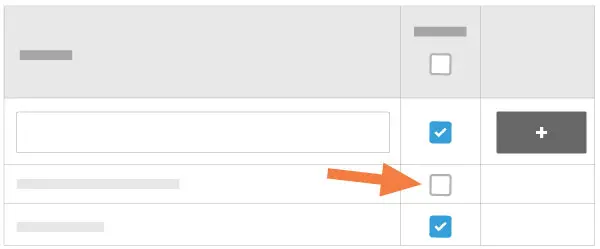
Click the checkbox
 next to the filed name or entire category you want to deactivate.
Note: An empty checkbox indicates that a field name is not active and cannot be selected by a team member at the project level.
See Also
Loading related articles...