Beta Participant Guide

Welcome to the Beta Program. This guide introduces the web-based Locations (Beta) tool .

Locations Tool (web) - Beta Access and Feedback

The Locations (Beta) tool is available on Procore Explore. The features and documentation of this tool are subject to change without notice during the course of development.

To access the beta and provide feedback Show/Hide Details

  • How to access:  

    • Join the web-based Locations Beta program using Procore Explore.

    • Ensure the new Locations (Beta) tool is active on your project.

    • Ensure you have the required user permissions. To learn more, see Permissions.

    • Navigate to your project's Locations tool.
      Note: You can switch between the new Locations tool (web) and the legacy Locations page. Click the vertical ellipses Icon Vertical Ellipsis icon located at the top right corner of the new Locations tool and select the Manage Locations (Legacy) option. The legacy Locations page appears in a new tab.

  • How to provide feedback during beta: Click the vertical ellipses Icon Vertical Ellipsis icon located at the top right corner of the new Locations tool and select the Share Feedback option. Use this option to report bugs or suggest improvements. Your feedback is critical to the final development of this tool.

  • Support: To report issues, contact your Procore point of contact, Beta program lead, or submit a ticket to Procore Customer Support.
Things to Consider

Locations (Beta) Tool - Navigation and Walkthrough

The new web-based Locations (Beta) tool is available on Procore Explore at the project-level tool menu.

  • To navigate to the project's Locations (Beta) tool Show / Hide Steps

    1. Log into the Procore web application.

    2. Open a Procore project.

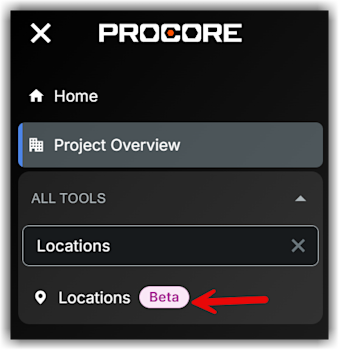
    3. In the All Tools menu, type Locations.

    4. Click Locations (Beta) in the All Tools list.
      This launches the Locations (Beta) tool and takes you to its main page that shows List View and Map View panes.
      This image shows the Locations (Beta) tool on the Project-level Procore web application.

  • To view locations Show/Hide

    The Locations tool is divided into two primary, distinct panes:

    1. The List or Tree View (Left): Displays your location hierarchy (Tier 1 > Tier 2 > Tier 3). You can toggle between a standard List or a Tree view to better visualize parent/child relationships.

    2. The Map View (Right): Displays an interactive map of your jobsite where you can draw and view location geometry.

  • To search and filter locations Show/Hide

    • Use the search bar to find locations by name or code. This filters both the list and the map simultaneously.

    • Use the Map Filter dropdown menu on the List view to filter by "Mapped" or "Unmapped" locations.

  • To configure location settings (Optional) Show/Hide

    Using the gearIcons Settings Gearicon in the Locations (Beta) tool, you can configure the following location settings:

    • Allow Locations to be created outside of the Locations tool and Locations Manager: When this option is selected, you will be able to create locations from any location field within the app without having to use the Locations tool or Locations Manager.

    • Include optional code: When this option is selected, the optional code is used by Document Manager (available in select, non-US regions) to tag and name documents with a location. 

    Note: The Icons Settings Gearicon is located at the top left side of the Locations tool.