Navigate the Viewer

Procore Model Manager - Beta Access & Feedback

The Model Manager (Beta) features and documentation are subject to change without notice. Please be aware that this content is restricted to beta participants and requires a direct link to access.

  • To learn about the beta program, see the Beta Participant Guide.

  • To access the beta and provide feedback Show/Hide Details

    • How to Access: Participating companies must sign the Procore Beta Agreement. Once signed, your Procore Administrator coordinates with your Procore point of contact to enable Model Manager (Beta) on specific Procore projects.

    • How to Provide Feedback During Beta: Contact your dedicated Beta program lead.

    • How to report critical issues: Report breaking changes to Procore Customer Support. For general feedback or non-critical issues, contact your Beta program lead or Procore point of contact.


Currently, only Admin permissions are available. Procore will add more permission levels later.

The Next-Gen Viewer provides a customizable environment for exploring your project's federated project model and discipline files. By adjusting the field of view and switching between projection modes, you can gain a more realistic sense of spatial depth or remove distortion for technical verification. It also offers features that allow you to navigate complex site orientations and verify alignments with greater precision.

Things to Consider

Prerequisites

Open a Model or Project View

  1. Navigate to the project's Model Manager (Beta) tool on your mobile device.

  2. Tap the Home View or a Project View to open it in the Next-Gen Viewer.

View Models in Landscape or Portrait Mode

The Procore Mobile app (iOS/Android) supports viewing in Portrait or Landscape mode. Simply turn the device sideways for landscape and upright for portrait mode.

Show/Hide Details

Landscape Mode

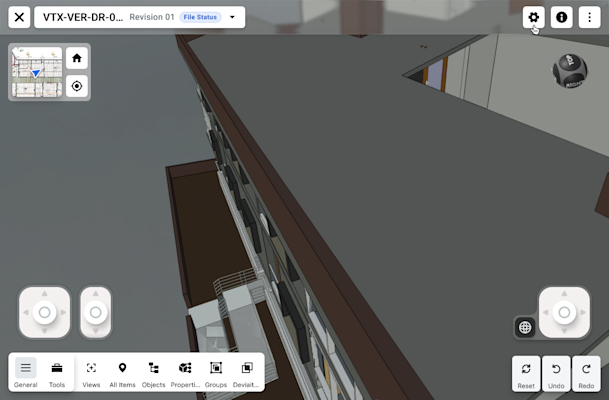
This image shows the default state of the Next-Gen Model Viewer in the Model Manager tool when viewed on a tablet.

Portrait Mode

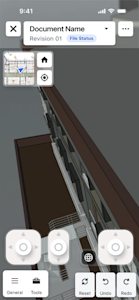
This image shows the Next Gen Viewer in the Model Manger tool when viewed on a mobile device in Portrait mode.

Tip

Not rotating between modes? If you are unable to view both modes on your device, check your device manufacturer's documentation to ensure the orientation lock is disabled. Enabling auto-rotate on your device allows the Procore app to switch between modes.

Header & Global Actions

  • Document Info: Displays the active Document Name and current Revision number, and a color-coded File Status badge.

  • Settings: Access viewer preferences, rendering options, and selection resolution.

  • Info: Access the model's metadata.

  • More: Access additional options.

Navigation & Orientation

  • 2D Minimap: Displays a 2D drawing overlay showing your current location (blue arrow) relative to the building footprint.

  • Home Icon: Resets the camera to the Home View.

  • Center/Target Icon: Re-centers the view on a selected object or your current coordinate position.

On-Screen Joystick Controls

Use the joysticks to navigate or walkthrough the model.

  • Left Joystick: Controls lateral movement. Slide the stick to move the camera forward, backward, left, or right.

  • Center Slider: Controls vertical movement. Move the camera directly up or down.

  • Right Joystick: Controls camera rotation. Rotating this stick changes the direction you are facing (pan or tilt) without moving your physical position in the model.

  • Globe: Toggles between local coordinate movement and global coordinates.

To learn more, see Explore Models Using Joystick & Touch Inputs.

Analysis & Management Toolbar

  • General/Tools: Switches between high-level management and specific measurement/markup tools.

  • Model Breakdown: Includes Views (saved project views), All Items (tree list), Objects, Properties, Groups, and Deviations (for clash or tolerance analysis).

  • History Controls: Reset (view), Undo, and Redo for model interactions.

Windows is a registered trademark of Microsoft Corporation in the United States and other countries. Google Chrome, Android, and Google Play are trademarks of Google LLC. iPhone, iPad, and App Store are trademarks or service marks of Apple Inc., registered in the U.S. and other countries and regions. iOS is a trademark or registered trademark of Cisco in the U.S. and other countries and is used under license by Apple Inc. Autodesk, AutoCAD, Civil 3D, Navisworks, and Revit are registered trademarks or trademarks of Autodesk, Inc., and/or its subsidiaries and/or affiliates in the USA and other countries. All other trademarks are the property of their respective owners.