Search and Filter My Time Entries (iOS)
Things to Consider
Procore automatically syncs your My Time entries across the Daily Log, Company Timecard, Project and Company Timesheets tools.
This item can be viewed or edited offline if it was previously viewed and cached on your mobile device. Tasks performed in offline mode sync with Procore once a network connection is reestablished.
Prerequisites
To see My Time as an option on your project, you must be marked as an employee of your company.
Steps
Search for My Time Entries
Navigate to the My Time tool using the Procore app on an iOS mobile device.
Tap the Search
 icon.
icon.Enter a keyword or phrase into the search bar that matches the description of the My Time timecard entry.
Tap a timecard entry to view more details.
Filter My Time Entries
Navigate to the My Time tool using the Procore app on an iOS mobile device.
Tap to apply one of the following sub tabs to filter your entries.
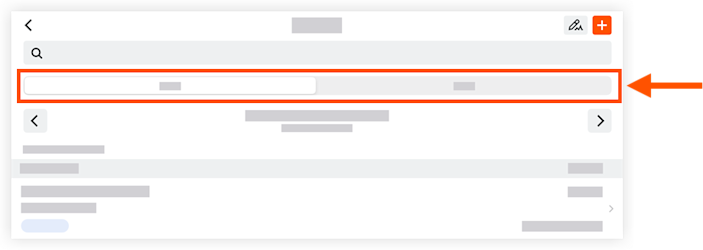
Tap Day.
Select the date of the timecard entry.
Tap Week.
Select the work week's date range for the timecard entry.
Tap a timecard entry to view more details.
See Also
Loading related articles...