Welcome to our new support center! Here, you will find answers to all your questions about Procore products and features—more easily than ever before. This is now the only support site for Procore. The previous site (support.procore.com) is now obsolete and will no longer be updated.
Company Administrators can switch between the new Procore Home and legacy Company Portfolio by following the below steps:
Open the Procore Home or Company Portfolio tool.
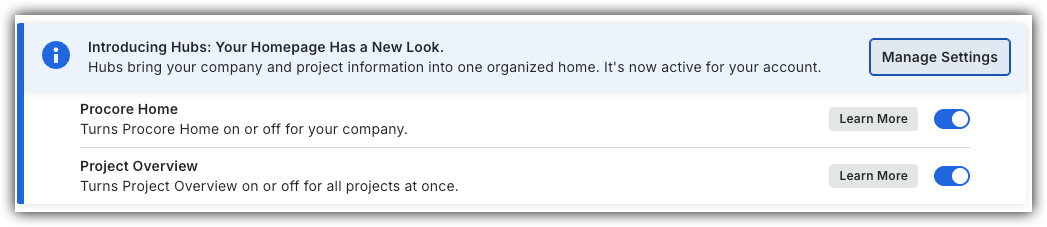
Locate the Introducing Hubs banner.
Select Manage Settings on the banner.
Toggle Procore HomeON or OFFto switch between the new view and the legacy view.
However, later this year Company Portfolio will be sunset and will no longer be available.
Background
Company Admins can standardize the Company Home for their entire team. You can rearrange or resize the information cards, ensuring a consistent view across the organization.
 or OFF
 to switch between the new view and the legacy view.
 .
.
 icon in the information card's corner and drag the card until it's the size you want.