Click Financial Reports or CustomReports and select from the following options:
Financial Reports:
Budget Variance, summarizes budget and variance data so you can analyze how closely each project is meeting its budgetary goals.
Contract Variance, summarizes contract and variance data so you can analyze how closely each project is meeting its contractual goals
Contract Summary, summarizes your Prime Contract data across your company's projects. Note: If the Schedule tool is enabled on a project, the 'Schedule % Complete' column shows the percentage complete.
Commitment Summary, summarizes your commitments data across your company's projects.
Custom Reports:
Projects, displays all available projects and their details.
Your Name, displays your available projects and their details grouped by stage.
Company Portfolio (Legacy)
Navigate to the company's Portfolio tool.
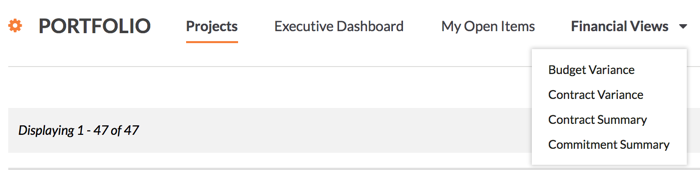
Click the Financial Views tab and select one of the available options:
Budget Variance, summarizes budget and variance data so you can analyze how closely each project is meeting its budgetary goals.
Contract Variance, summarizes contract and variance data so you can analyze how closely each project is meeting its contractual goals
Contract Summary, summarizes your Prime Contract data across your company's projects. Note: If the Schedule tool is enabled on a project, the 'Schedule % Complete' column shows the percentage complete.
Commitment Summary, summarizes your commitments data across your company's projects.
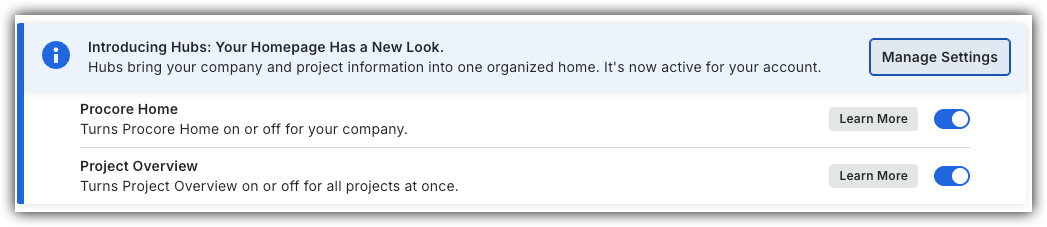
 or OFF
 to switch between the new view and the legacy view.