Scheduled maintenance on internal systems used for Customer Support interactions will take place on Friday, 13 November 2026 at 4:00 PM PST through Sunday, 15 November 2026 at 2:00 PM PST (Saturday, 14 November 2026 at 00:00 UTC through Sunday, 15 November 2026 at 22:00 UTC).
Customer Support will be unavailable during this window, with normal operations resuming immediately following the completion of the work. Responses to requests submitted during the downtime will experience delays, and this status page will be updated once the maintenance concludes. Users may still submit a case via our web form, and any cases received during downtime will be addressed in the order they were received once maintenance is complete.
Welcome to our new support center!
Here, you will find answers to all your questions about Procore products and features—more easily than ever before. This is now the only support site for Procore. The previous site (support.procore.com) is now obsolete and will no longer be updated.
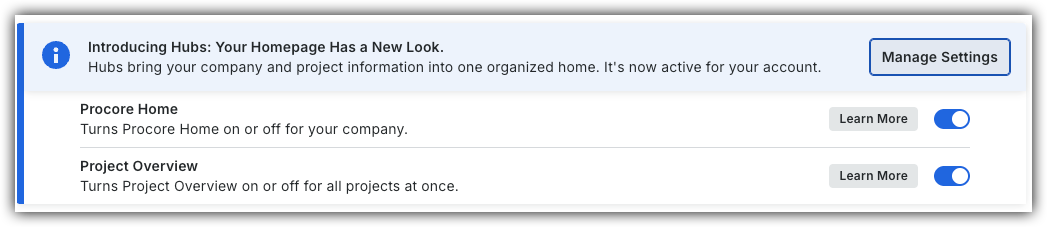
 or OFF
 to switch between the new view and the legacy view.

 List view.