Configure Columns in the Portfolio Hub Card

New Version Available

Procore Home has replaced the legacy Company Portfolio page and is enabled by default. Learn more about the difference between the legacy Company Portfolio page and the new Procore Home.

Company Administrators can switch between the new Procore Home and legacy Company Portfolio by following the below steps:

  1. Open the Procore Home or Company Portfolio tool.

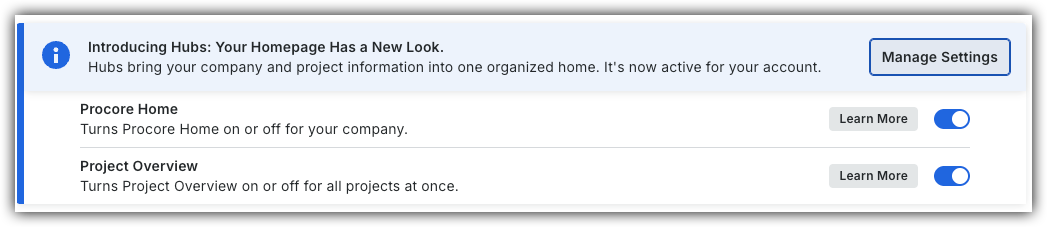
  2. Locate the Introducing Hubs banner.

  3. Select Manage Settings on the banner.

  4. Toggle Procore Home ON Icon Toggle On or OFFIcon Toggle Offto switch between the new view and the legacy view.

However, in early 2027, the Company Portfolio will be sunset and will no longer be available.

Procore Hubs announcement banner with Manage Settings button and toggles for Procore Home and Project Overview features.

Background

Configure columns in the Portfolio Hub card to customize table layouts, adjust data sorting, and pin critical project metrics across your portfolio. Customizing column settings allows users to highlight key details, adjust column sizes for optimal readability, and clear temporary sorting preferences.
Things to Consider

Steps

  1. Navigate to the company's Procore Home tool.

  2. Click the Portfolio tab.

  3. Configure your columns in the following ways:

    • Column Order

      • Click and hold the column header. Then move it to desired location using a drag and drop operation.

    • Column Sort

      • Click the column header to sort by that column.

      • Click again to switch between Icon Ag Grid Sort Ascending ascending ascending or Icon Ag Grid Sort Descending descending order.

    • Hide or Show Data

      • Click the table settings Four black rectangular shapes arranged in a 2x2 grid pattern on a white background. icon to configure what data is displayed in the table.

      • Move the toggles Icon Toggle On ON or Icon Toggle Off OFF to show or hide a column.

        • Available Columns: Show/Hide Fields

          • Flag

          • Project Name

          • Project Number

          • Address

          • Stage

          • City

          • State

          • Zip

          • Country

          • Description

          • Most Recent Note

          • Start Date

          • Completion Date

          • Type

          • Region

          • Project Image

          • Phone

          • Office

          • Square Feet

          • Time Zone

          • Departments

          • County

          • Warranty Start Date

          • Warranty End Date

          • Total Value

          • Delivery Method

          • Actual Start Date

          • Projected Finish Date

          • Use Tax Codes

          • Docusign Enabled

          • Non-Commitment Costs

          • Labor Productivity

          • Created By

          • Priority

          • Estimated Budget

          • Lead Architect

          • Subcontractor

          • Portfolio Manager

          • Project Manager

          • Architect

    • Resize Columns

      • Hover over the column divider.

      • Click the divider and drag the column to the desired width.

    • Other Column Settings: Click the vertical ellipsis Icon Ellipsis Vertical for the column. Then select from the following options:

      • Pin Column: Click to pin the column to a specific side or remove the pin.

        • Pin Left

        • Pin Right

        • No Pin

      • Autosize This Column: Click to automatically adjust the size of this column.

      • Autosize All Columns: Click to automatically adjust the size of all columns.

      • Sort By This Column: Organize table rows by the selected field.

        • Sort Column Ascending

        • Sort Column Descending

        • No Column Sorted

      • Reset Columns: Click to rest the columns to the default settings.

See Also

Loading related articles...