Here, you will find answers to all your questions about Procore products and features—more easily than ever before. This is now the only support site for Procore. The previous site (support.procore.com) is now obsolete and will no longer be updated.
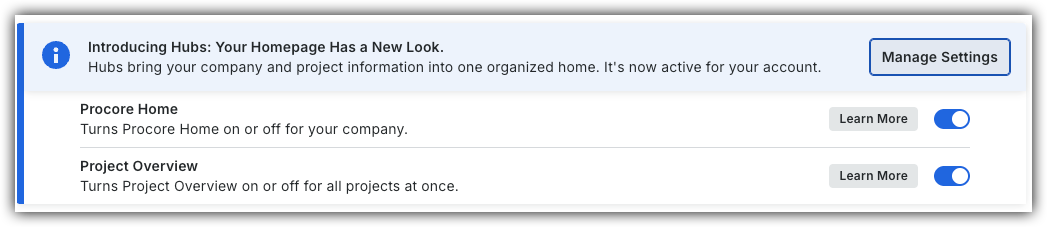
Company Administrators can switch between the new Procore Home and legacy Company Portfolio by following the below steps:
Open the Procore Home or Company Portfolio tool.
Locate the Introducing Hubs banner.
Select Manage Settings on the banner.
Toggle Procore HomeON or OFFto switch between the new view and the legacy view.
However, in early 2027, the Company Portfolio will be sunset and will no longer be available.
Background
Delete saved views in the Portfolio Hub card to remove outdated or unused table configurations from your view options. Removing redundant personal or company views keeps the views menu organized and reduces clutter when managing portfolio reports. Maintaining an up-to-date list of saved views ensures team members only select active, approved reporting layouts.
 or OFF
 to switch between the new view and the legacy view.

 Views button.
 icon next to the relevant saved view.