Update Saved Views in the Portfolio Hub Card

New Version Available

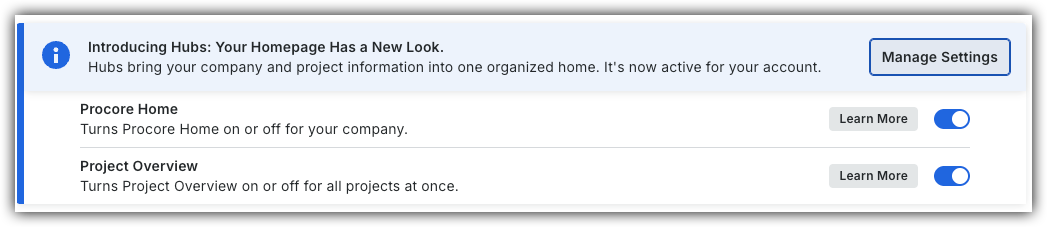
Procore Home has replaced the legacy Company Portfolio page and is enabled by default. Learn more about the difference between the legacy Company Portfolio page and the new Procore Home.

Company Administrators can switch between the new Procore Home and legacy Company Portfolio by following the below steps:

  1. Open the Procore Home or Company Portfolio tool.

  2. Locate the Introducing Hubs banner.

  3. Select Manage Settings on the banner.

  4. Toggle Procore Home ON Icon Toggle On or OFFIcon Toggle Offto switch between the new view and the legacy view.

However, in early 2027, the Company Portfolio will be sunset and will no longer be available.

Procore Hubs announcement banner with Manage Settings button and toggles for Procore Home and Project Overview features.

Background

Update saved views in the Portfolio Hub card to modify filter parameters, grouping options, or column configurations as portfolio reporting requirements evolve. Editing existing layouts ensures team members can maintain standardized table settings without recreating custom views from scratch. Keeping shared and personal views updated improves data consistency and streamlines project reviews across your organization.
Things to Consider

  • Required User Permissions on the company's Procore Home tool.

  • Additional Information:

    • Updating a saved company view overwrites the previous layout configuration for all users who access that view.

    • Renaming or editing descriptions for personal views affects only your user account..

Steps

  1. Navigate to the company's Procore Home tool.

  2. Click the Portfolio tab.

  3. Click the Icon Show Saved ViewsViews button.

  4. Select the Saved View you want to update.

  5. Adjust the table layout settings as needed. See Configure Columns in the Portfolio Hub Card.

  6. Click Update.

    Portfolio Saved Views panel showing Company Views and Personal Views sections, with an arrow pointing to the Update button.

Edit Name and/or Description

  1. Navigate to the company's Procore Home tool.

  2. Click the Portfolio tab.

  3. Click the Icon Show Saved ViewsViews button.

  4. Select the Saved View you want to update.

  5. Click the vertical ellipsis Icon Ellipsis Vertical icon next to the relevant saved view.

    Portfolio Saved Views panel showing Company Views and Personal Views, with an orange arrow pointing to a three-dot menu icon.
  6. Select Edit.

  7. Update the Name and/or Description.

  8. Click Update.

See Also

Loading related articles...