Organizar a estrutura de códigos de orçamento do projeto
Background
Your company's Procore Administrator can enable a setting that allows users with the required user permissions to arrange the segments in a project's budget code structure in any order you want. Because editing a project's budget code structure permanently disconnects it from the company's budget code structure, you should only use this setting when a project requires a unique budget code structure.
Things to Consider
Required User Permissions:
One of the following:
'Admin' level permissions on the Project level Admin tool.
'Read Only' or 'Standard' level permissions on the Project level Admin tool with the 'Manage WBS Codes' granular permission enabled on your permissions template.
Limitations:
For customers using the Company level ERP Integrations tool
The default segments in WBS are compatible with Procore's ERP Integrations tool. However, some integrations do NOT yet support custom segments.For customers who have independently developed or purchased a third-party solution to integrate with Procore
To take advantage of the custom segment capabilities associated with WBS, any existing API integrations that you have independently developed or purchased to interact with Procore must be updated to support Procore's new WBS API.
Prerequisites
Steps
Navigate to the Project level Admin tool.
In the right pane, click the Work Breakdown Structure link.
In the 'Budget Code Structure' section, click the Edit button.
At the 'Edit Budget Code Structure' window, read the message.
ImportantIf you choose to edit a project's budget code structure, be aware that the edit action permanently disconnects the project from the company's budget code structure. Any changes that you make to the project will only apply to that project. In addition, all changes made to the company's budget code structure will have NO effect on the project's budget code structure in the future.
If you want to proceed, click Edit.
In the 'Segment Order' table, click and hold the double grip and then use a drag-and-drop operation to place each segment in the desired position. The 'Order' area reflects the segment order you define for your project's budget code structure.
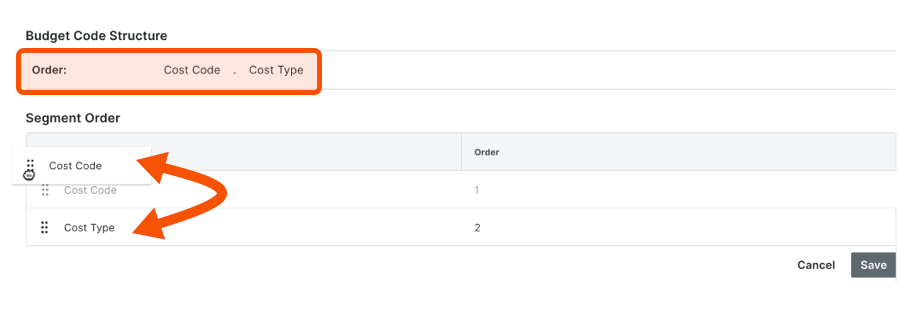
Click Save.
Você sabia que pode personalizar as descrições do código de orçamento para o seu projeto? A personalização é útil quando sua equipe deseja criar duas ou mais descrições para um único código de orçamento. A personalização também pode melhorar a legibilidade de seus códigos em itens de linha financeira para seus usuários finais. Para saber mais, consulte Por que e como crio uma descrição personalizada de código de orçamento para as ferramentas Finanças do Projeto do Procore?