Add a Budget Line Item
Background
A budget line item is a row in a data table that represents a project expenditure by cost code and cost type. If you want to perform job costing on your project, you can also present your project expenditures by sub job. Depending on your specific project, a budget can have hundreds or even thousands of line items on it. After creating a new Procore project, setting up a budget can be accomplished by adding budget line items to the project's Budget tool. To do this, you use the steps below to manually add each line item to your budget. Alternatively, you can import line items in bulk.
Things to Consider
Required User Permissions:
To add a new line item to a budget, 'Standard' level permissions or higher assigned to you on the 'Permissions Table' in the project's Budget tool. Note: If 'Standard' permission was assigned using a permission template, the 'Modify Original Budget Amount' granular permission must be enabled on your permissions template. If the granular permission is NOT enabled, line items can only be created with no value.
ORTo edit the original budget amount:* 'Admin' level permissions on the project's Budget tool.
OR* 'Read Only' or 'Standard' level permissions on the project's Budget tool with the 'Modify Original Budget Amount' granular permission enabled on your permissions template.
Additional Information:
As an alternative to manual data entry, you can also follow the steps in Import a Budget.
Each line item added to the budget must have a unique budget code. You cannot add two line items that use the same budget code. See What is a budget code in Procore's WBS?
Prerequisites
Your company's A Procore Administrator is a user who has 'Admin' level permissions on all of the Company level Tools in Procore. Granting a user ‘Admin’ level permissions in the Company level Directory tool automatically assigns that user ‘Admin’ permissions on all Company level tools. Also called a Company Administrator.
Add the Budget tool to the project. See Add and Remove Project Tools.
Complete the steps in Create Your Company's Default Work Breakdown Structure.
(Optional) Complete the steps in Create Your Project's Work Breakdown Structure.
Steps
Company Administrators can enable the UOM & WBS: Assign Units of Measure to Budget Codes and Lock on Line Items beta in Procore Explore.
Navigate to the project's Budget tool.
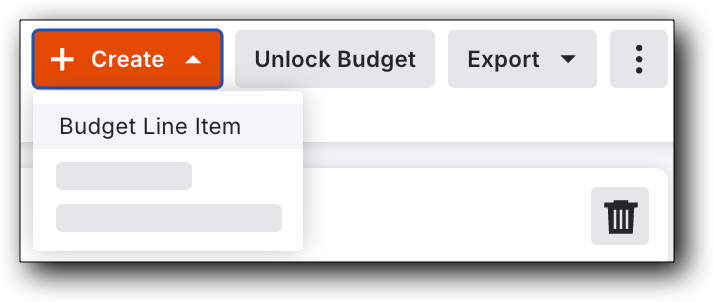
In the Budget tab, click + Create and select Budget Line Item from the drop-down list.
In the Create Budget Line Items window, click Add Line.
NoteProcore's Work Breakdown Structure includes two (2) default segments (
andA Cost Code identifies a specific type of work on a project to track its associated expenses, such as labor, materials, and equipment.
) and one (1) optional segment (A Cost Type is a set of costs identified by a unique abbreviation or label. Cost types are typically used in job costing (tracking costs for certain job activities and projects). In Procore's Work Breakdown Structure, 'Cost Type' is a flat segment with these default options: (E) Equipment, (L) Labor, (M) Materials, (O) Other, (OC) Owner Cost, (S) Commitments, and (SVC) Professional Services.
). To learn more, see What are segments and segment items?In Procore, a sub job allows you to compartmentalize job costs within a project. Once they are added to Procore (or imported via an
) you can monitor your project budgets and costs against them to help you better determine if you are making money on your project. For example, if your project is a multi-story commercial building, you might create a separate sub job for the build of each floor. Or, if your project is a multi-unit development, you might create a separate sub job for each individual structure.In Procore, the term integrated ERP System, is used to refer to Enterprise Resource Planning (ERP) software applications that can be configured to exchange data between Procore and a supported application using the Company level ERP Integrations tool. See Which ERP integrations are supported by Procore?

 (Optional) Click the caret
  icon next to Unit of Measure Assignment to expand the section and select a unit from the Unit of Measure drop-down list. See