Admin: Enable Procore AI
Background
Company Admin can give access to AI in the Procore side panel by enabling select projects and users. It helps to understand the relationship between Procore and Datagrid before you start, because the two are connected behind one login:
You're entitled to a plan. When your company buys a Digital Coworker SKU, your account becomes entitled to Procore AI and Datagrid.
You enable projects. As Company Admin, you choose which projects the AI will learn. Learning a project is what makes the Procore AI button appear on that project inside Procore, and it simultaneously creates a teamspace inside the company’s Datagrid account.
You give users access. Users see the side panel and use credits only after you invite them and assign a role.
One login covers both experiences. The first time a user opens the Procore AI side panel, they are credentialed for both the embedded experience inside Procore and the full Datagrid experience at app.datagrid.com — using the same Procore login. Nothing separate to sign up for.
Credit monitoring. To track credit and AI usage across all projects (teamspaces), see the Control Tower area of Datagrid, as described below.
Things to Consider
Prerequisites:
To enable Procore AI, you must be a Company Administrator.
Your company must have an active Digital Coworker package (Starter Pack, Pro, or Enterprise).
Review the introductory material in About Procore AI.
Irreversibility: Once a project is learned (indexed) for project-data access, this cannot be undone.
Steps
Enable projects and users with Procore AI.
Go to the Company Admin tool in Procore.
Under Company Settings on the right, select Procore AI.
Automatic versus manualAfter purchasing a Digital Coworker package, Procore automatically enables the toggle in the 'General Access' section of the Procore AI settings. However, other than Company Admin, specific projects and users will not have access until granted, as described below.
Project Data Access:
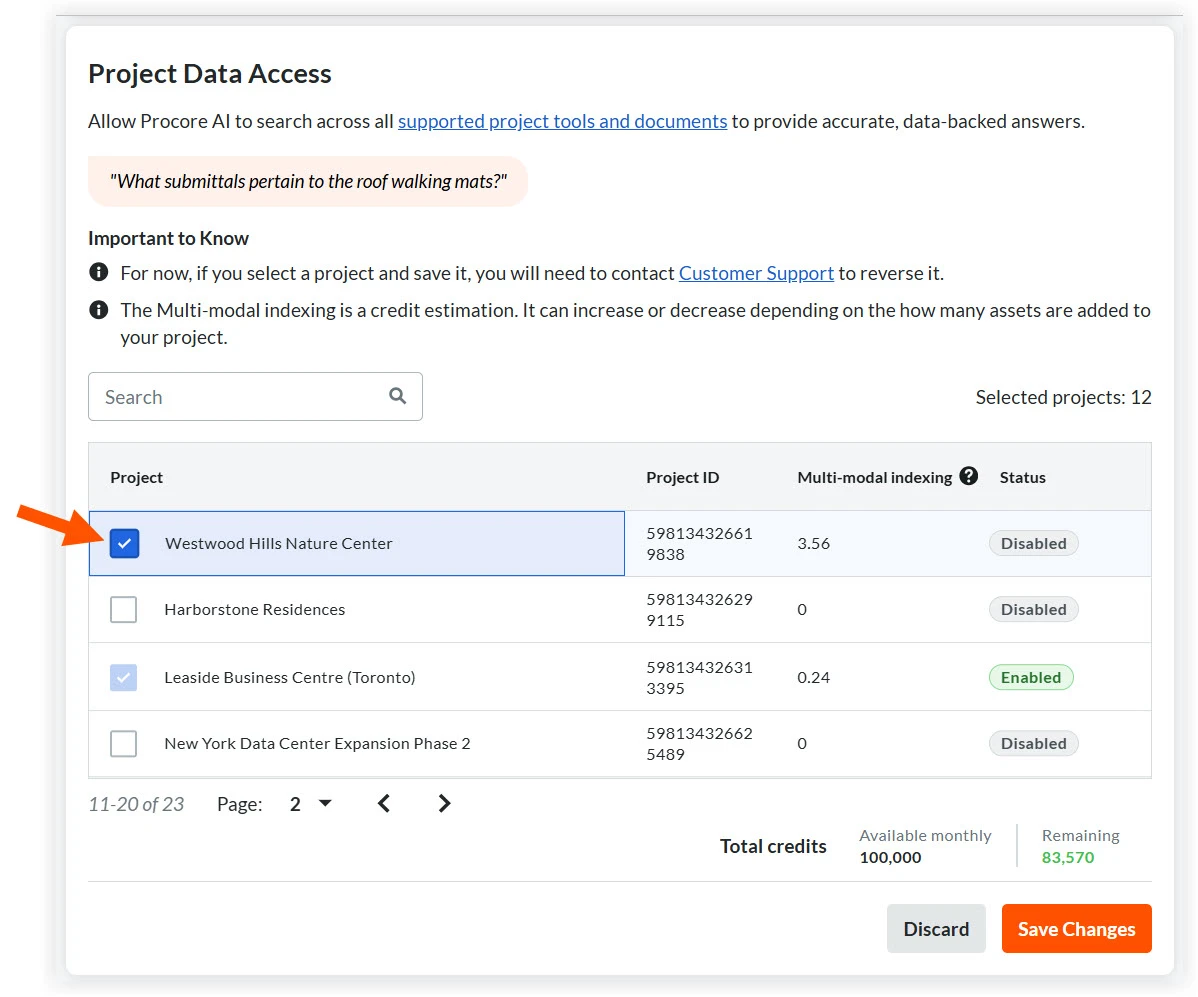
Review the list of projects and select the ones you want Procore AI to learn.
Note: If your company has the Datagrid Coworker Starter Pack, you can only select three projects. Once a project is selected and you click Save, you cannot switch your selection to a different project.Click Save. The status of each selected project changes to Processing, then Enabled, as learning begins. Learn how to track this process in the 'Monitor Learning Progress' section below.
Once a project is enabled, the Procore AI side panel becomes available on that project. Company Admin and users given access in the steps below will see the panel right away, along with a banner showing learning progress. The AI is ready to use once learning (indexing) finishes.

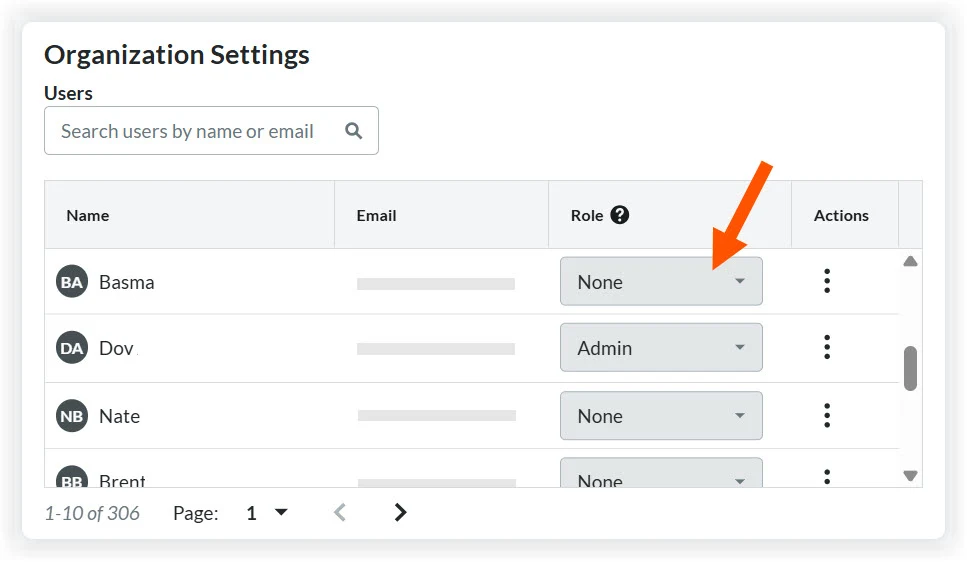
Organization Settings: Select Admin from the dropdown next to each user who needs AI Admin access across the organization. Assigning this role to a user automatically applies it to every project (see Project Settings below) once you click Save.
Admins at this level can access the Procore AI Company Settings page and Control Tower in Datagrid, to monitor credit usage and sett budget guardrails.
Role variations:
The first Admin (set at purchase) automatically becomes Owner. Everyone else needs an existing Admin or Owner to grant them the Admin role, at the Organization or Project level, before they can access Procore AI.
Starter Pack and Pro accounts also have an Owner role at the organization level. Owners can rename the account and promote an Admin to Owner.
On Enterprise plans, a user’s Member role in Datagrid carries over to Procore AI. Otherwise, Member isn’t a selectable role here.

Project Settings: Select a project (teamspace) name from the drop down and assign a role (Admin, Member, or Agent-only) for each AI user. This access level will apply to their use of that project's Procore AI in the Procore side panel and their access in the corresponding teamspace in Datagrid.
Granting Admin access to a project (teampsace) does not grant access to Control Tower in Datagrid.
If a user's Admin role is set at the Organizational level (see the Organizational Settings step above), their role is only editable there.

Monitor Learning Progress
Learning a project is a two-stage background process that you can monitor by opening theProcore AI side panel within a specific project. If you see 'Syncing Project Data', you can click the drop down to monitor the progress.
Stage 1 - Processing: The AI is extracting text and data from your files.
Stage 2 - Learning: The AI is building the "brain" of the project, mapping relationships between documents and Procore tools. The duration of this stage depends on the volume of data. Projects with large amounts of data may take several hours.
Click See in Datagrid at the bottom of the sync dropdown to view a read-only list of Procore objects currently being processed in the Datagrid standalone application. Click the tool tabs at the bottom to see what the AI has Learned in other Procore tools.
Monitoring credit usage
Company Admins can monitor AI credit usage and set limits in Control Tower.