Apply Configurable Fieldsets to Projects
背景
可配置字段集是某些 Procore 工具中的一组字段,可以根据公司的需求设置为可选、必填或隐藏状态。这样做可以在用户在 Procore 项目中创建和编辑项目时更好地控制数据输入。请参阅什么是可配置字段集以及哪些 Procore 工具支持它们?
Things to Consider
Fieldsets apply to new projects by default, but you can also choose to update existing ones.
Applying a configurable fieldset to an existing project may impact any new or existing items created or updated using the fieldset, including any changes made to field requirements or custom fields.
If you want to configure fieldsets for specific tools, see What are configurable fieldsets and which Procore tools support them?
先决条件
See Create New Configurable Fieldsets OR click here to view the steps.
Navigate to the Company level Admin tool.
Under 'Tool Settings', click the tool you want to create configurable fieldsets for.
Click the Fieldsets tab.
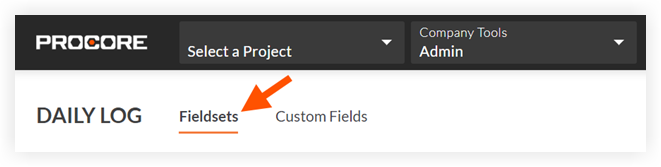
Note: Tools without other settings in the Company level Admin tool will open to this page automatically.Click Create Fieldset and if required, select the fieldset type.
Enter a name for the fieldset, then click Create.
On the 'Edit Fieldset' page, each field name has the following options:
Do one of the following:
Click the toggle to the ON
 position to make the field visible in the section.
 Click the toggle to the OFF
 position to hide the field in the section.
Note: A faded toggle icon indicates that the field is visible and cannot be changed to hidden.
Do one of the following:
Mark the 'Required' checkbox to designate the field as required.
Clear the 'Required' checkbox to designate the field as optional. Notes:
Optional: If available, click Create Section to create a new section. See Create Custom Sections.
Click Save.
In the 'Apply changes to [#] project(s)?' window, click Assign Projects to add the fieldset to projects.
In the 'Assign Projects' window, mark the checkbox next to each project you want to apply the fieldset to and click Update.
In the 'Apply changes to [#] project(s)?' window, click Confirm.
Optional: To set a fieldset as the default for new projects, click the
 icon at the end of its row on the 'Fieldsets' tab and select Set as New Project Default. Note
Projects created from a project template that include fieldsets will inherit the fieldsets from the project template instead of your company's default. See Configure a Project Template.