Complete Information for Documents in the Document Management Tool

Regional availability

The Document Management tool is available to accounts in the following countries: United Kingdom, Ireland, Australia, and New Zealand. It is not yet available for Procore accounts in the U.S. To learn more, please reach out to your Procore point of contact.

Background

After documents have been uploaded to the Document Management tool, they must have any missing attributes filled out before they can be submitted and viewed in the All Documents tab. Additional fields can be required depending on the project's and company's settings.

For information about each field, see What are the different fields in the Document Management tool?

Things to Consider

  • Required User Permissions:

Prerequisites

Steps

  1. Navigate to the project's Document Management tool.

  2. You can complete information for documents in the following ways:

    • From the Table

      • Bulk Edit Information

    • From a File

    • From the Document Viewer

注意
  • 填写字段时,“名称”列将根据输入的数据开始填充。

  • 有关每个字段的信息,请参阅文档管理工具中有哪些不同的字段?

  • "名称"、"类型"、"状态"和"版本"字段始终必填。其他字段可以根据项目和账户的设置隐藏或必填。

  • 如果想一次编辑多个文档的信息,请参阅下面的批量编辑文档信息部分。

From the Table

  1. Click the Uploads tab.Pdm Table View Uploads

  2. Fill out required attributes by clicking into fields to enter information or to search for desired values. Scroll to the right as necessary to access additional columns for data entry.

    注意

    你可以将鼠标悬停在"准备提交"列中的"缺少属性"消息上,以查看在提交文档之前仍需要填写哪些字段。

    Tip! You can use keyboard shortcuts to quickly move through the table:

    • Use the left, right, up, and down ARROW keys to move around to different fields.

    • While a field is selected, use the TAB key to move to the right, and SHIFT+TAB to move to the left.

    • Press ENTER or RETURN to select the field so that you can type or select information.

    • Use the ARROW keys to select options from drop-down menus, and press ENTER or RETURN again to confirm.

  3. If you have the 'Submit New Files' permission and you are ready to submit the documents, click Submit. See Submit Documents in the Document Management Tool.
    Note: If a document has an approval workflow, that workflow starts and the document shows up in the 'In Review' collection.

Bulk Edit Information for Documents

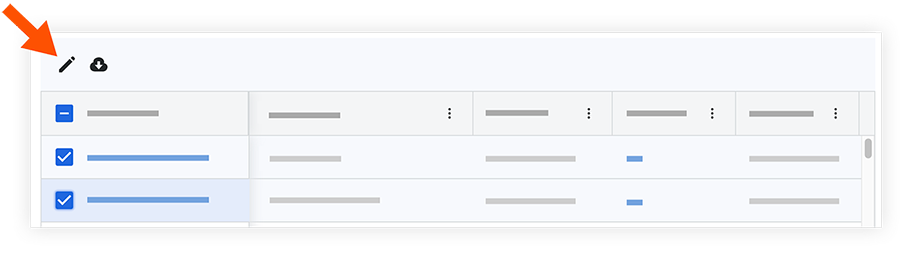
  1. Mark the checkboxes next to the files that you want to edit in bulk.
    Tip!

    • If you want to select all files at once, mark the checkbox at the top of the table.

    • If you want to select a range of rows at once, hold down the SHIFT key on your keyboard and mark the necessary checkboxes.

  2. Click the edit Icon Edit2 icon. Bulk EditThis opens the Edit Document Attributes side panel.

  3. Click into a field to enter information. See What are the different fields in the Document Management tool?

  4. After you complete all necessary fields, click Apply.

  5. If you have the 'Submit New Files' permission and you are ready to submit the documents, click Submit.
    This moves the selected files from the 'Uploads' tab.

From a File

Complete missing information in a .csv or .xlsx file and then import that into the Document Management tool.
Note: This method will not import the 'Type' field.

  1. Click the Uploads tab.

  2. Click Import Metadata.
    Note: The uploads tab must have at least one file.

  3. Click the link to download the metadata table template.

  4. Open the downloaded template and fill in all required fields and any desired fields.

  5. In the 'Import Metadata' window, upload the finished .csv or .xlsx file by clicking Attach File.

  6. Click Import.

  7. All fields in the uploads tab are automatically filled in from the imported file, and any errors are highlighted for easy correction.
    Note: Fields completed from the imported file have a spreadsheet Pdm Complete Info Documents icon in the cell. If the field's value is ever edited, the icon disappears.

  8. If you have the 'Submit New Files' permission and you are ready to submit the documents, click Submit. See Submit Documents in the Document Management Tool.
    Note: If a document has an approval workflow, that workflow starts and the document shows up in the 'In Review' collection.

From the Document Viewer

提示

如果你最近刚刚上传了文档,但“上传”窗口仍然打开,你可以将鼠标悬停在文档的 绿色对勾 图标上,然后点击 查看 以在查看器中打开该文档。

  1. Click the document that you want to open in the viewer.
    The document loads and the Information side panel opens. You can also click the information Icon Info3 icon to open the panel.

  2. Click into a field to enter information. See What are the different fields in the Document Management tool?
    Your selection saves when you click out of the field.

  3. Continue to fill out information for fields as necessary.

  4. If you have the 'Submit New Files' permission and you are ready to submit the documents, click Submit. Otherwise, click Next.
    The viewer will automatically load the next document. You can use the arrows or drop-down menu at the top of the viewer to open a different document.

  5. If you want to close the viewer and return to all documents, click Close.

Note

If a field is not automatically populated, check for a warning icon. Hovering over the icon provides specific error details, such as "Unsupported file format" or "Inactive field values," allowing you to correct the data before completing the upload.

Next Steps

See Also

Loading related articles...