Add Segment Items to a Project

Background

A segment is a discrete category that an organization uses to break down its work into manageable components. A segment item is one of many distinct items in a segment. After creating a segment, your company's Procore Administrator can add an unlimited number of segment items to it at the Company level. However, whether or not you are permitted to use the steps below to add custom segment items at the Project level, depends on the segment's Company level settings.

 Anmerkung

Die folgenden Schritte sind nur verfügbar, wenn Ihr Procore-Administrator ein Häkchen in das Kontrollkästchen "Hinzufügen/Bearbeiten/Löschen von Segmentelementen auf Projektebene" setzt. Weitere Informationen finden Sie unter Benutzerdefinierte Segmente hinzufügen und Einstellungen für benutzerdefinierte Segmente bearbeiten.
Things to Consider

  • Required User Permissions:

    One of the following:

    • 'Admin' level permissions on the Project level Admin tool.

    • 'Read-Only' or 'Standard' level permissions on the Project level Admin tool with the 'Manage Segment Items' granular permission enabled on your permissions template. Note: Your Procore Administrator must configure additional settings for you to edit or delete a custom segment. To learn more, see the "Notes" in Admin: Manage WBS Codes.

  • Additional Information:

      • To allow project users to edit or delete a company level custom segment item that is later copied to a project, the Add/Edit/Delete Project Level Segment Items and Delete Segment Items Inherited from a Company settings must be turned ON when completing the steps below.

        • When editing a company level segment item that was copied to your project, users can will only be able to change the 'Description' field of the segment item. See Edit Segment Items on a Project.

        • When editing a project level segment item that was specifically created on a project, users will be able change both the 'Code' and 'Description' of the segment item. See Edit Segment Items on a Project.

        • Procore's default 'Cost Type' segment can only be managed by a Procore Administrator in the Company level Admin tool. See Add Company Cost Types.

  • Limitations:

    • For customers using the Company level ERP Integrations tool
      The default segments in WBS are compatible with Procore's ERP Integrations tool. However, some integrations do NOT yet support custom segments.

    • For customers who have independently developed or purchased a third-party solution to integrate with Procore
      To take advantage of the custom segment capabilities associated with WBS, any existing API integrations that you have independently developed or purchased to interact with Procore must be updated to support Procore's new WBS API.

    • In a flat segment, duplicate entries in the 'Code' field are NOT permitted.

    • In a tiered segment, duplicate entries in the 'Code' field are NOT permitted when the segment items are children of the same parent segment.

    • There are no character limits or other limitations on entries in the 'Description' field.

    • There is no limit on the number of segment items you can add.

Voraussetzungen

Steps

  1. Navigate to the project's Admin tool.

  2. Under 'Company Settings', click the Work Breakdown Structure link.

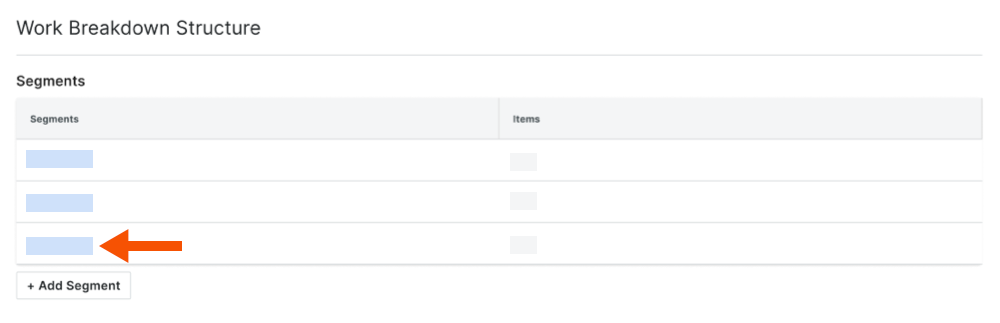
  3. In the 'Segments' table, click the segment that you want to work with.

    Wbs Segments Add Segment Item

     Anmerkung

    Sie können beispielsweise ein benutzerdefiniertes Segment mit dem Namen "Phase" erstellen und Segmentelemente mit den Namen "Phase I", "Phase 2" und "Phase 3" hinzufügen.

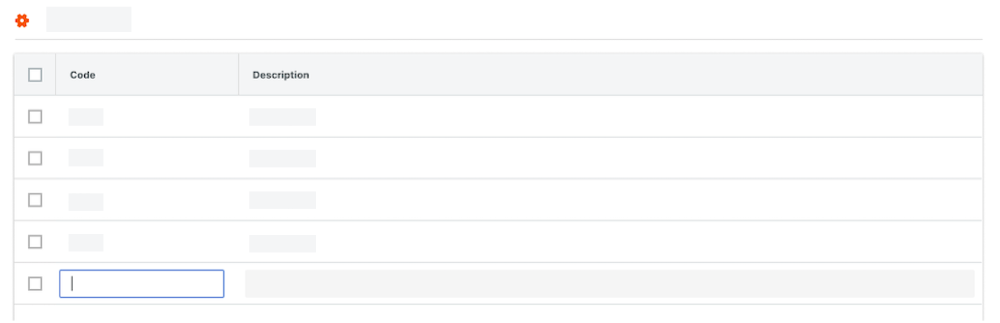
  4. In the 'Segment' table, click the Add Items button. Then do the following:

    Wbs Add Segment Line Item

    • Code. Enter a unique alphanumeric code for the segment item. For example, enter: P1, P2, or P3

       Note

    • Description. Enter a description of the segment item. For example, enter: Phase I, Phase II, or Phase III

       Wichtig

      Um die neue Einzelposition zu speichern, müssen Sie sowohl einen "Schlüssel" als auch eine "Beschreibung" eingeben. Wenn Sie KEINEN Eintrag in beiden Feldern haben und den Fokus des Cursors verschieben, werden Sie in einer Popup-Meldung daran erinnert, dass alle vorgenommenen Änderungen NICHT gespeichert werden.

      • Um den Dateneintrag für die Einzelposition abzuschließen, klicken Sie auf Abbrechen.

      • Um fortzufahren, ohne die Einzelposition zu speichern, klicken Sie auf Verlassen.

  5. Repeat the steps above for every segment item that you want to add.

Next Steps

See Also

Loading related articles...