Which budget views should I add to my Procore projects?
Answer
In addition to your Procore Standard budget view, Procore recommends setting up the following budget views for your projects:
Buyout savings
Buyout savings (while in buyout)
Variation analysis
Current/Revised
Real-time labour costing
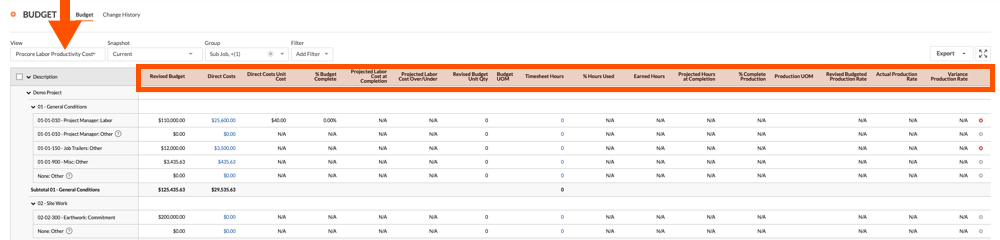
Procore labour productivity cost
If your company is using Procore's Resource tracking tools, you can also set up a budget view to perform real-time labour costing. See Add a budget view for real-time labour costing.
Buyout savings
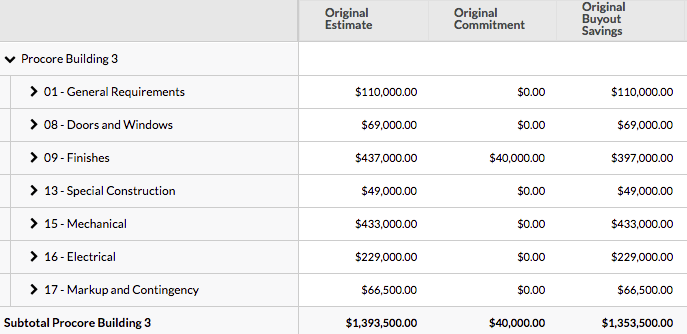
If the project buyout phase is complete, the 'Buyout Savings' budget view shows your project's buyout savings. Project buyout refers to the time period between Preconstruction and construction phases of a project when commitments (a.k.a., purchase orders and subcontracts) are issued. Buyout savings refers to situations where the work's estimated costs are higher than the actual market price, with the buyout savings being posted and held in a contingency fund. Typically, project buyout occurs after a contract award to a main contractor and that contractor's awarding of subcontracts. You can use the 'Buyout savings' view to filter your project's Budget by cost type to show only the budget line items to be committed. See Apply the view, Snapshot, group and filter options on a budget view.
Note: If the buyout is incomplete on a line item, the 'committed cost' amount in the view will be reflected as buyout savings. See buyout savings (while in buyout).
Navigate to the company's Admin tool.
Under Project settings, click Budget.
Click Set up new budget view.
Under Standard views, highlight Procore standard budget.
Click Create.
Type the following in the View name box:
Buyout savingsType a description for your new view in the View description box.
Under Column configuration, click Configure columns.
Ensure that all the default column tickboxes remain selected
Modify the committed cost column as follows:
Under Source, highlight committed cost.
Click Edit.
Remove the mark from the commitment variation tickbox.
Click Save as new or update.
Create a Buyout savings column as follows:
Click Create > Calculated.
Type the following in the Column name box: Buyout savings
In the Format list, ensure Currency is selected.
In the Pick a column list, select:
Original budget
Minus (-)
Committed cost
Click Create.
In the column list, remove the mark from all column tickboxes.
Place a mark in the following column tickboxes only:
Sub job
Division
Cost Code
Category
Original budget
Committed cost
Buyout savings
Click the (x) to close the Configure columns window.
Buyout savings (while in buyout)
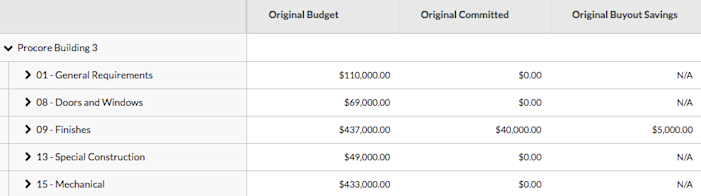
You can use this budget view instead of the one above if buyout is not complete on certain line items.
Navigate to the company's Admin tool.
Under Project settings, click Budget.
Click Set up new budget view.
Under Standard views, highlight Procore standard budget.
Click Create.
Type the following in the View name box:
Buyout savingsType a description for your new view in the View description box.
Under Column configuration, click Configure columns.
Ensure that all the default column tickboxes remain selected
Modify the committed cost column as follows:
Under Source, highlight committed cost.
Click Edit.
Remove the tick from the commitment variation tickbox.
Click Save as new or update.
Create a Buyout savings intermediate column as follows:
Click Create > Calculated.
Type the following in the Column name box: buyout savings intermediate
In the Format list, ensure Currency is selected.
In the Pick a column list, select:
Original budget
Minus (-)
Committed cost
Click Create.
Create a Buyout savings column as follows:
Click Create > Calculated.
Type the following in the Column name box:
Buyout savingsIn the Format list, ensure Currency is selected.
In the Pick a column list, select:
(Buyout savings intermediate
multiplied by (*)
Committed cost)
divided by (÷)
Committed cost
Notes:If the committed cost is equal to zero (£0), Procore shows the Buyout savings value as 'n/a.'
If the committed cost is not equal to £0, Procore shows the buyout savings.
Click Create.
In the column list, remove the tick from all column tickboxes.
Place a tick in the following boxes only:
Buyout savings
Original budget amount
Committed cost
Click the (x) to close the Configure columns window.
Variation analysis
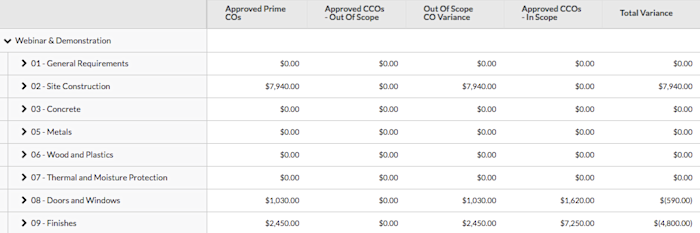
You can compare how much money you're making/losing off out-of-scope variations and how much money you're losing off of in-scope variations.Note: This view only works if you are using the change event tool.
Navigate to the company's Admin tool.
Under Project settings, click Budget.
Click Set up new budget view.
Under Standard views, highlight Procore standard budget.
Click Create.
Title the view variation analysis.
Click Configure columns.
Rename the Approved COs column
Click into Approved COs and click Edit.
Name the column Approved prime COs.
Click Update.
Create the Approved CVs - out of scope column.
Click Create in the top right corner and select Source.
Name the column Approved CVs - Out of Scope.
Select commitment as the column source.
Select the tickbox commitment variation.
Select the box next to "Approved" under status.
Select the tickbox next to "Out of Scope."
Click Create at the bottom of the module.
Create the Approved CVs - in scope column.
Click Create in the top right corner and select Source.
Name the column Approved CVs - in scope.
Select commitment as the column source.
Select the tickbox next to commitment variations.
Select the tickbox next to "Approved" under status.
Select the tickbox next to "In Scope."
Click Create at the bottom of the module.
Create the Out of scope VAR variance column.
Click Create in the upper right corner and select Calculated.
Title the column Out of scope VAR variance.
Enter the following calculation: Approved (Prime) COs - Approved CVs-Out of Scope.
Click Create at the bottom of the module.
Create the total variance column.
Click Create in the top right corner and select calculated column.
Title the column Total variance.
Enter the following calculation: out of scope VAR variance - approved CVs in scope.
Click Create at the bottom of the modal.
Remove the tick from all column boxes except:
Sub job
Division
Cost Code
Category
The columns that you just created.
Click the (x) to close the Configure columns window.
Current/Revised
This is similar to the "normal" Budget; however, all Pending, Projected and Forecast columns are removed. The over/under for this view will show you the over/under for current amounts.
Navigate to the company's Admin tool.
Under Project settings, click Budget.
Click Set up new budget view.
Under Standard views, highlight Procore standard budget.
Click Create.
Title the view Current/Revised.
Click Configure columns.
Create the Current over/under column.
Click Create in the top right corner and select calculated column.
Name the column Current Over/Under.
Enter the calculation Revised Budget - committed costs - direct costs.
Click Create at the bottom of the module.
Deselect the following columns in the left.
Pending cost changes
Pending budget changes
Projected cost
Projected budget
Projected over under
Forecast to complete
Exit the window to save your changes.
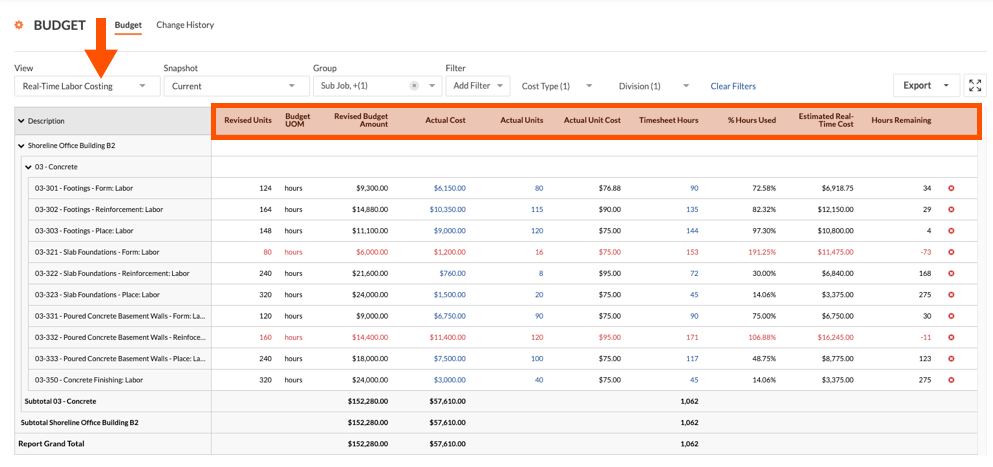
Real-time labour costing
For companies using Procore's Resource tracking tools and who want to use Procore's real-time labour costing capabilities in the Budget tool, Procore recommends setting up a budget view named 'Real-time labour Productivity' and adding the following columns. For step-by-step instructions about setting up the individual columns, see Add a real-time labour Productivity budget view or Resource tracking and Project Financials: Setup guide.
Procore labour productivity cost
For companies using Procore's Project Financials and Resource tracking tools, Procore recommends setting up a budget view named 'Procore labour productivity cost' budget view. This is a pre-built view that you can quickly add to a project. It allows users to input production quantities (see What are production quantities?) to your project's Budget. For instructions, see Set up the Procore labour productivity cost budget view.