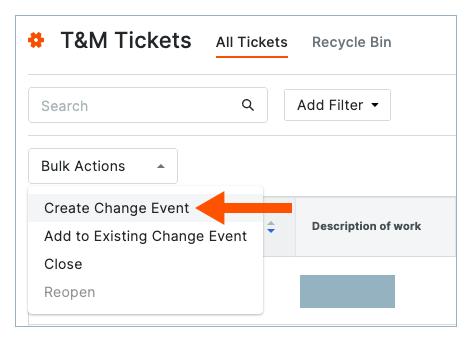
Create a change event from a daywork sheet
Background
If one or more daywork sheets results in a change to a contract's scope of work, you can create a new change event.
To perform this action, you will need to have the appropriate permissions on the project's change event tool and the daywork sheets tool.
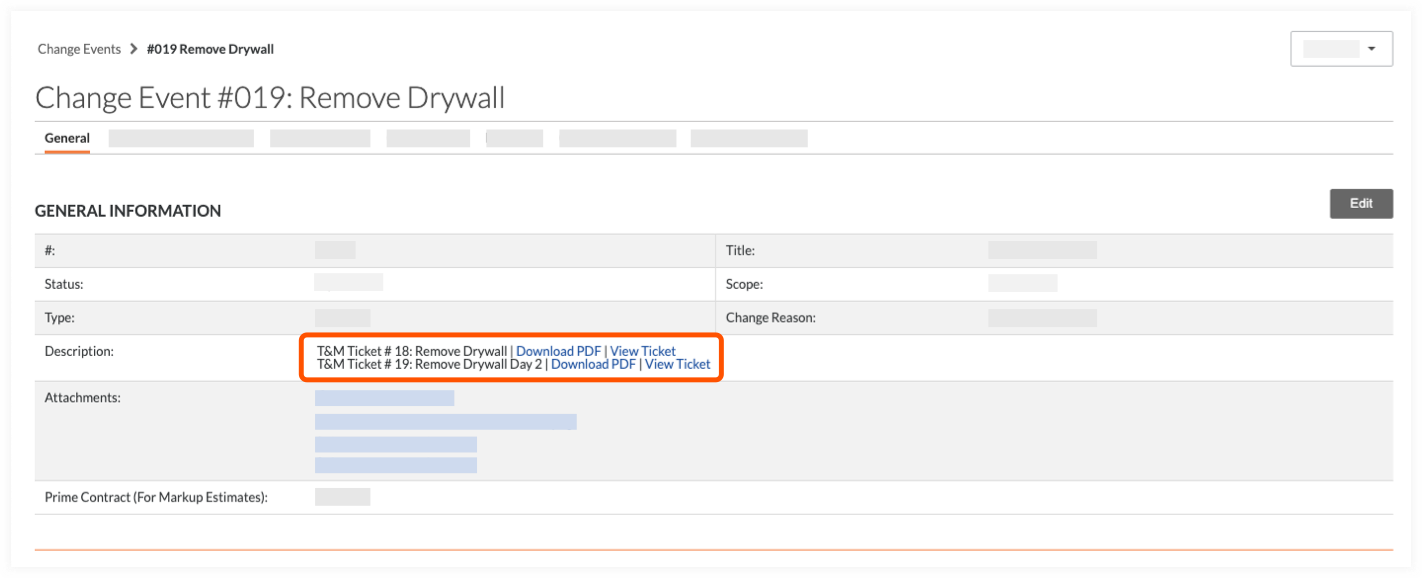
When you use this option, Procore creates a new change event and then automatically lists the daywork sheets that you selected in the 'Description' field in the new change event. In addition, any attachments are also linked in the Description and the line item entries on each ticket are added to the change event.
Things to Consider
The daywork sheets and their attachments appear as hyperlinks in the 'Description' field of the change event.
Alternate ways to create change event:
To learn how to use other Procore tools to create a change event.
Procore administrators can enable the Resource Management: Rate Tables - Company & Project Rate Management beta in Procore Explore. (US 2 | UK)
Rate tables centralise and standardise your labour and Equipment rates across all projects.
When you create rate tables, you define cost and billable rates for labour and Equipment. You can also define which rates can be overridden at the Project level.
Rate tables are then applied to projects and referenced by different Procore tools such as timesheets and Equipment. They can be viewed in 360 Reporting, Analytics and within some Procore tools.
Rates are configured in daywork sheets and applied to Labour, Equipment and Materials entries. When a change event is created from a daywork sheet, the revenue unit cost in each change event line item is pre-populated based on the rates from the daywork entries.
Change events apply rates only to materials selected from inventory.
These cost rates are visible in the change event in the change event tool.
To protect historical data from accidental changes, rates created in the table will be applied the next day.