Award a tender
Navigate to the project's Tendering tool.
Click View on the tender package you want to award a tender for.
Click the caret icon next to the relevant tender form to show the information.
In the tenderer column, click the name of the company you want to select as the winning tender.
Note: Alternatively, you can hover over the company name in the table view and click the vertical ellipsis
 .
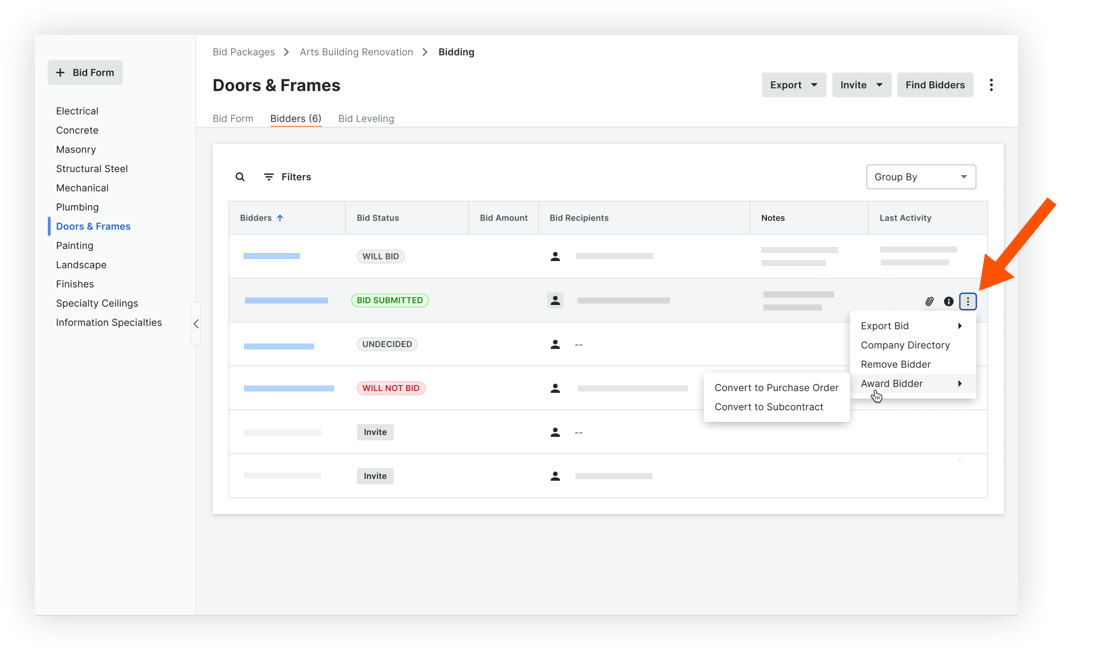
Click the Award tenderer menu and select Convert to purchase order or Convert to subcontract.
Click Award and Convert to confirm the action.
Note: After the tender is successfully converted, the project's commitments tool opens to the General tab of the new contract. The appropriate information from the winning tender is automatically copied over to the new contract.
In the 'General' tab of the contract, click the Bill of quantities tab. To learn more, see Bill of quantities.
To notify the company about the winning tender:
Click Email contract.
In the email tab, complete the following information:
To: Select the names of the recipient.
CC: Select the names of the people who should be copied on the email.
Private: Mark the tickbox if you only want the recipients and users with 'admin' level permission to the commitments tool to see the email. This is the default setting.
Attachments: Add one or more files to the email message. If appropriate, it is recommended that you add your company's official contract form as an attachment.
Message: Type the body of your email message. It is recommended to provide clear instructions to your recipients (i.e., subcontractors) with regards to how contracts and documents must be signed. Your message should also include a reminder to return the signed contract, which can conveniently be added as an attachment in their email response.
Note: The email message will automatically include the contract details.
When you are ready to email the contract, click Send .
The system sends the contract to the designated recipient.