Determine the order in which variations were approved

Background

If you need to delete a variation after it is placed in the 'Approved' status, you must remove the 'Approved' status from all 'Approved' variations that have been approved since that particular variation. To do this, find the most recently approved variation. Then, update each variation's status to 'draft' working backward until you locate the variation that you want to edit.

Example

If you approved variations in this order: 001, 002, 003

You must remove the 'Approved' status from variations in reverse order: 003, 002, 001.
Steps

  1. Navigate to the client contracts, commitments, funding or main contracts tool.

  2. Locate the item to work with and click its Number link to open it.

  3. In the item, click the Variations tab.

  4. Locate the variations in the 'Approved' status.

  5. Open each variation.

     Tip

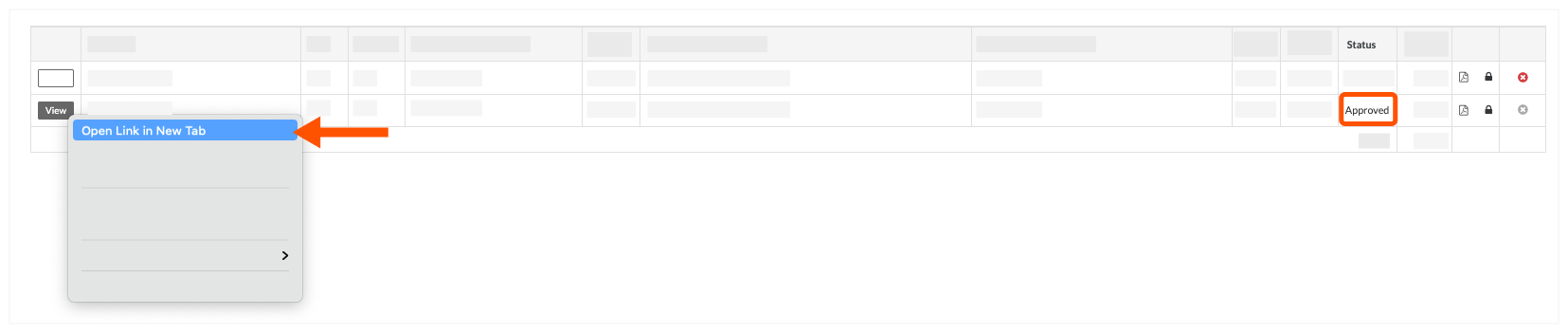
    Want to view all the 'Approved' variations in separate browser tabs? This lets you compare the variations tab-by-tab. To do this, right-click the View button and choose Open link in new tab.View Open Link In New Tab

  6. Locate the last approved variation by looking at the labels next to the 'status' field and finding the one labelled 'Approved' in ORANGE.

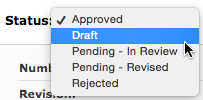
  7. Change the status of the last approved variation by clicking the ORANGE 'Approved' label and choosing any other status.

    Changestatus2015 03 24 10 44 54

  8. Refresh the open browser tabs. Then, repeat the steps above to locate the last approved variation.

  9. Repeat the steps above until you reach the variation that you want to edit or delete.

Next Steps

See Also

Loading related articles...