Edit subcontract
Background
After you create a subcontract, you can edit it at any time.
Things to Consider
Required User Permissions:
'admin' level permission on the project's commitment tool.
OR'Read Only' or 'Standard' level permission on the project's commitment tool with the 'Update work order contract' granular permission enabled on your permission template.
Prerequisites
Steps
Navigate to the project's Commitments tool.
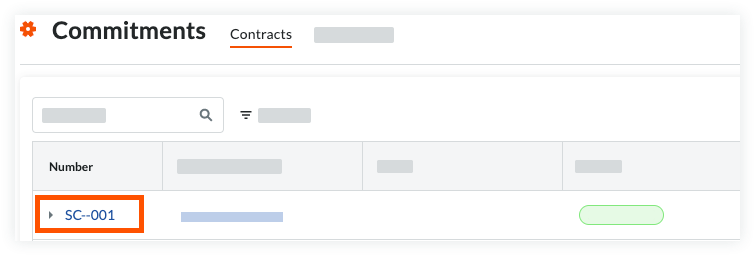
On the Contracts tab, locate the contract to edit and click its Number link.
Continue with the next steps:
Add the basic information
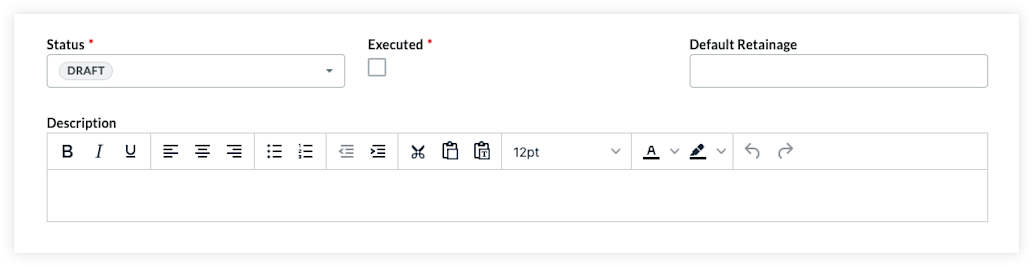
Update the general information
Update the contract access
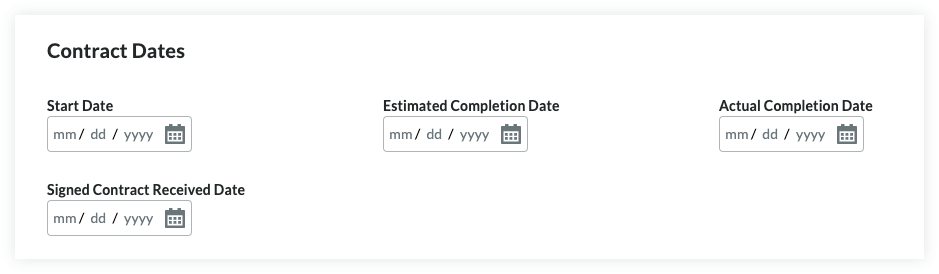
Update the contract dates
Add the scope of work
Set the accounting method
Update the bill of quantities
Add line items to the bill of quantities
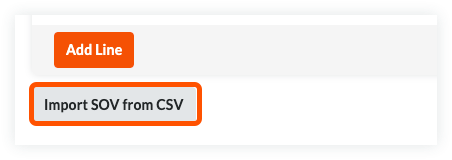
Import line items to the bill of quantities from a CSV file
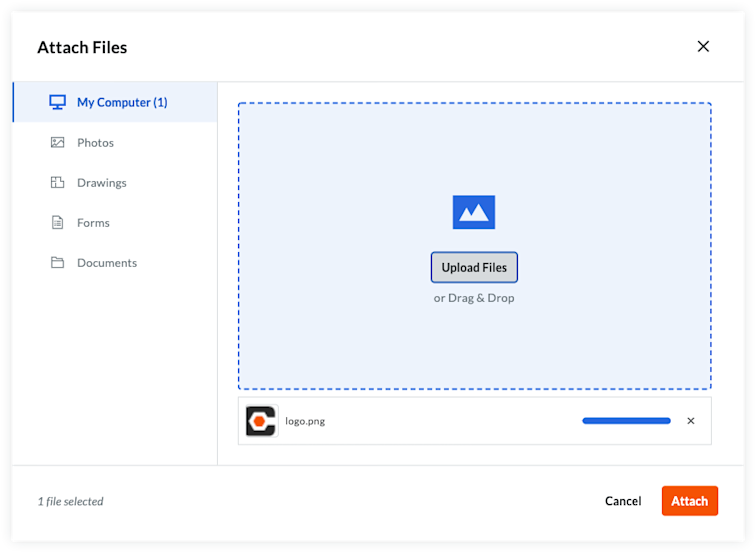
Attach files
Save the contract
Add the basic information
Update the basic information as follows:
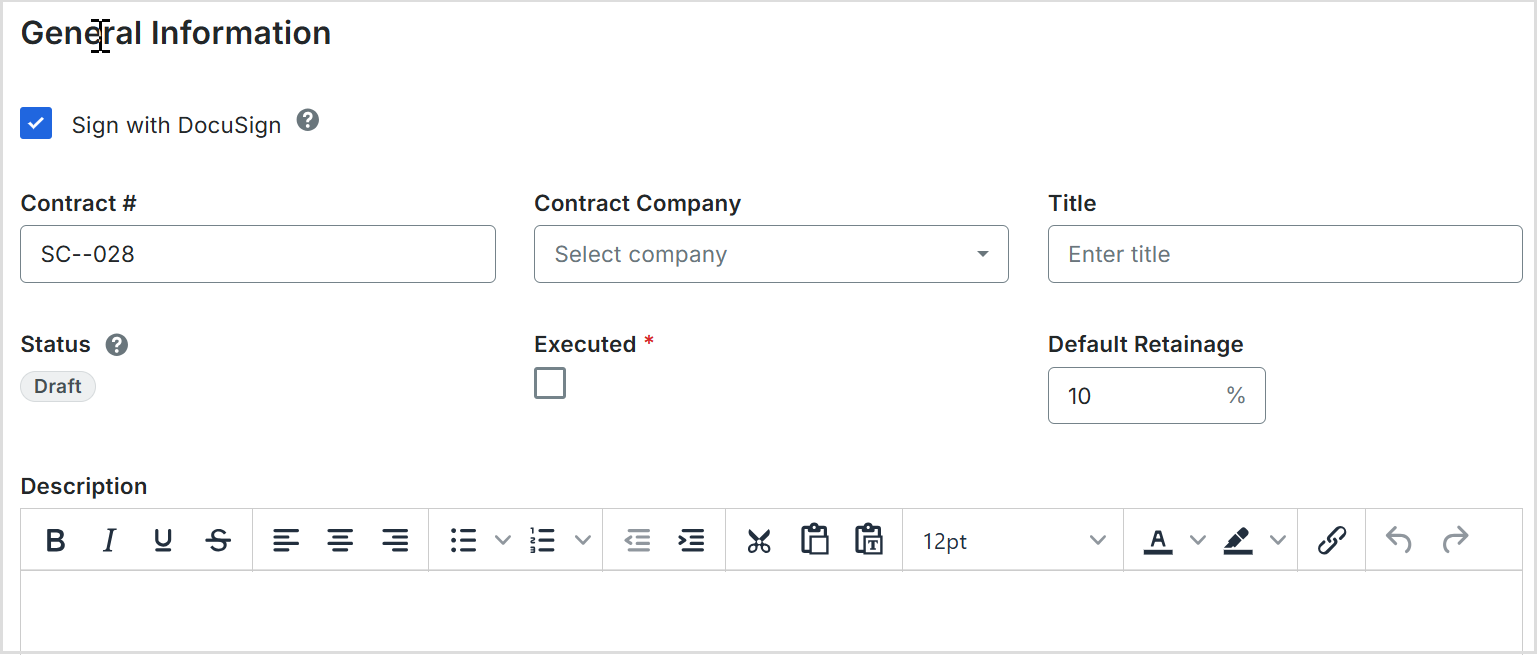
There are no required fields when adding the basic information.
If you click the Create button without completing any data entry, Procore saves the contract, lists you as the creator and automatically places it in the draft status.
Contract number
To number your contract(s), choose from these options:If you number your contracts using a sequential numbering system, you can enter any combination of alpha-numeric characters in this box. For subsequent contracts, Procore automatically applies consecutive numbering in ascending order.
ExampleThe examples below show you how Procore's ascending consecutive numbering works:
If the previous contract was 1, the next contracts are 2, 3 and so on.
If the previous contract was MC-0001, the next contracts are MC-0002, MC-0003 and so on.
If the previous contract was DCA00010-12-G-0001, the next contracts are DCA00010-12-G-0002, DCA00010-12-G-0003 and so on.
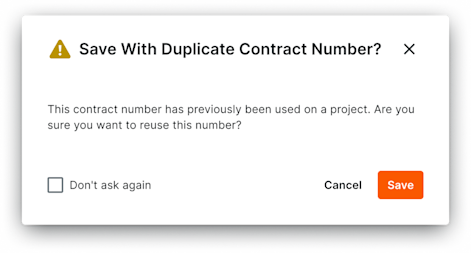 If the Contract # of the commitment you are creating has been previously used on any project within your company, a confirmation window will appear to ask how you would like to proceed. If you choose to ignore this message, click Save and the contract will be created. Additionally, if you do not want to receive this message when creating future commitments, you may tick the box next to the text Don'at as again.