Export a main contract payment application (legacy)

 Legacy Content

This page details the legacy main contract payment application experience. A modernised experience is also available. For more information on the new payment application experience, see Export a legacy PDF for main contract payment application in the modernised experience.
Background

You can export a main contract payment application to the CSV or PDF file format. You also have the option to download the payment application and any attachment to a PDF file.

Things to Consider

  • Required User Permissions:

    • Admin level permission to the Project level main contracts tool.

  • Supported File Formats:

    • CSV

    • PDF

    • PDF with attachment

  • Limitations:

    • The PDF with attachments option is not available when using Procore with DocuSign©.

Prerequisites

Steps

  1. Navigate to the project's main contract tool.

  2. Locate the contract to open.

     Tip

    How to find a contract? Use the Search and Select a column to group features to quickly find the contract.

  3. Click the appropriate Number link to open the contract.

  4. Click the Payment applications tab.

  5. Locate the payment application to open in the Payment applications (payment applications) tab.

  6. Click the payment application # link to open it.

  7. In the payment application, click the Export button and choose one of these options from the drop-down menu:

    • PDF
      If you chose this option, Procore exports the data to the PDF file format and downloads it to your computer.

    • PDF with attachments
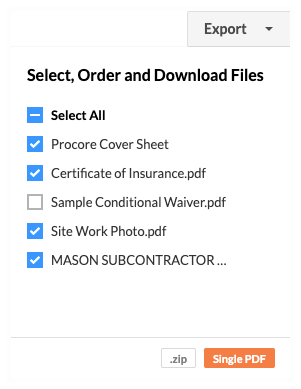
      If you choose this option, mark the tickboxes that you want to apply under 'Select, order and download files'. This option is NOT available when using the Procore + DocuSign©integration.
      Legacy Export Pdf With Attachments

      Then click one of these buttons:

      • Zip file. Click this button to download the PDF to a zip file.

      • Single PDF. Click this button to export the single PDF. Procore emails the PDF file to your user account's email address.

         Note

        Attachments must be in the PDF file format to be included in the Single PDF. If users have added attachments in other file formats (such as DOC, JPG, PNG and so on), Procore will exclude them from the Single PDF output.

    • CSV
      If you choose this option, Procore exports the data to the CSV file format and downloads it to your computer.

See Also

Loading related articles...