Edit the advanced settings on a main contract
Background
If you are a user with 'admin' level permissions on the Main Contracts tool, the steps below show you how to edit advanced settings for the project's main contract. This includes enabling financial markup, main contract payment application settings, comments settings and payment settings. In addition to these advanced settings, additional contract configuration settings are on the tool's Configure settings page. See Configure settings: Main Contracts.
Things to Consider
Required User Permissions:
'Admin' level permission on the project's main contract tool.
Additional Information:
Additional contract configuration settings are on the tool's Configure settings page. See Configure settings: Main Contracts.
Prerequisites
Steps
Navigate to the project's main contract tool.
Locate the main contract to work with. Then click its Number link.
Click Advanced settings.
Note: If your browser window is not in full-screen mode, choose More > Advanced settings.Click Edit.
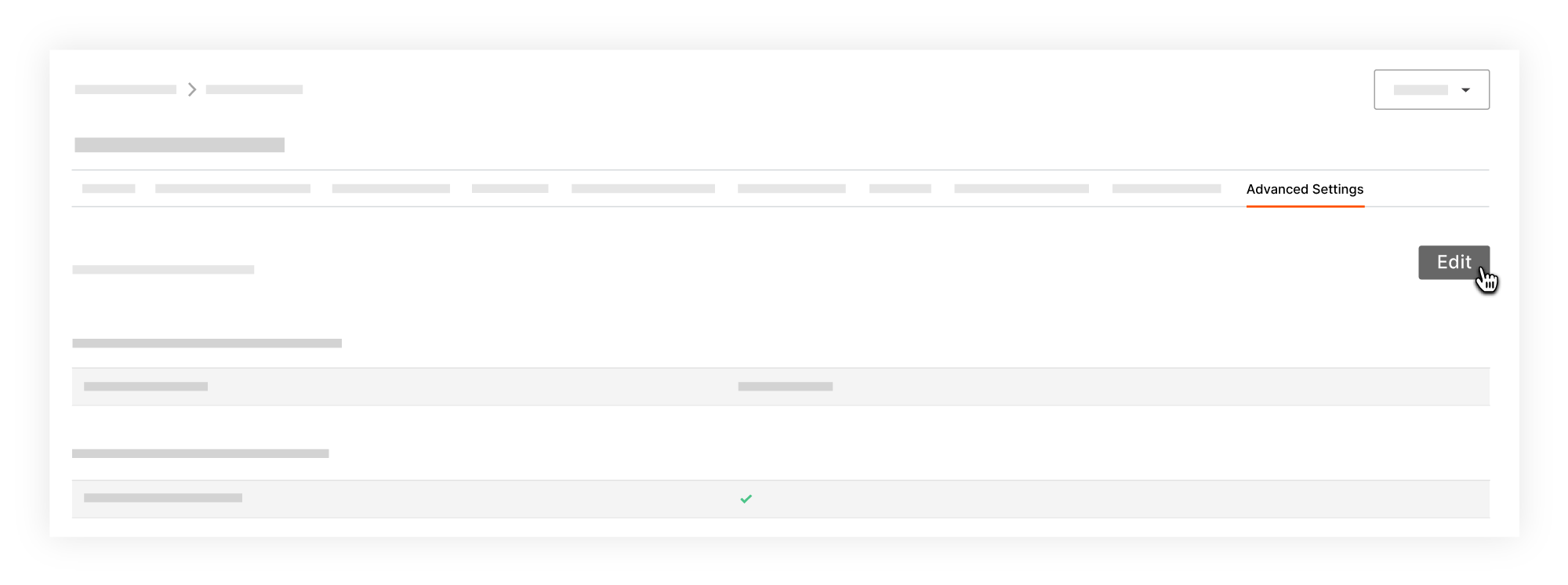
Under Financial markup settings, set the following:
Enable financial markups. Place a tick in this box to enable financial markup on main contract variations only. For more information, see Add financial markup to main contract variations.
Under main contract payment application settings, set the following:
Enable main contract payment applications. Place a tick in this box to enable main contract payment applications on the main contract.
Enable completed work retention. Place a tick in this box to enable work completed work retention on main contract variations.
Enable stored material retention. Place a tick in this box to enable stored material retention on main contract variations
Level of detail to display on variations. The level of detail that is selected here determines how variations are displayed on the 'Detail' tab of the main contract payment application. This setting affects the payment application in view mode and print mode. See What are the different variation tier settings in Project Financials? You will always enter and edit information at the line item level of detail specified. Select one of the following:* Main contract variation (MCV)* Potential variation* Line items in each potential variation. This is the default setting.
Approve subcontractor payment applications when owner approves main contract payment applications. Place a tick in this box so that once an owner approves a main contract payment application, the subcontractor payment application is also approved. This functionality will only be enabled if main contract payment applications are prefilled with payment applications. To learn how main contract payment applications are prefilled, see Create main contract payment applications.
Show cost code on PDF. Place a tick in this box to show cost code on the PDF. There is no cost code column in the configurable PDF tab, but cost code will show in headers if grouped by cost code.
Under payment setting, set the following:
Enable comments. Place a tick in this box to see the Comments tab. Only users with 'admin' level permissions on the main contracts tool can leave comments.
Enable payment. Place a tick in this box to enable payment on the main contract.
Click Save.
See Also
Loading related articles...