Import a Timecard into a daywork sheet
Things to Consider
Prerequisites
Steps
Import a Timecard into an existing daywork sheet
Import a Timecard into a new daywork sheet
Import a Timecard into an existing daywork sheet
Navigate to the project's Daywork Sheets tool.
Click Edit next to the daywork sheet you want to import a Timecard into.
Navigate to the Labour section.
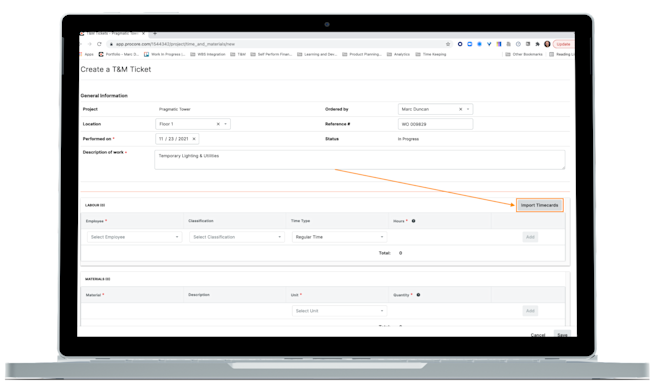
Click Import timecard.
Select the date of the timecards you want to import.
Select the Timecards you want to import.
Tip: You can search for Timecards by employee name or filter the Timecards by cost code.Click Import timecard.
Import a Timecard into a new daywork sheet
Navigate to the project's Daywork Sheets tool.
Click Create.
Fill in the General information for your daywork sheet.
Navigate to the Labour section.
Click Import timecard.
Select the date of the timecards you want to import.
Select the Timecards you want to import.
Tip: You can search for Timecards by employee name or filter the Timecards by cost code.Click Import timecard.
See Also
Loading related articles...