Update Items in the Cost Catalog
Background
When you export items and parts from the Cost Catalog tool in Procore, a Microsoft® Excel file containing the items is downloaded to your computer. Procore also allows for materials to be imported back into the Cost Catalog. See Import Cost Catalog Items.
Aspectos a tener en cuenta
Permisos de usuario requeridos
Permisos de nivel "Estándar" o 'Administrador' para la herramienta A nivel de compañía Catálogo de costos.
Información adicional
Los ítems del catálogo de costos predeterminados marcados con un icono de candado no se pueden editar.
Steps
Update a Specific Catalog Item
Navigate to the Cost Catalog tool in Procore.
Locate the cost catalog you want to update.
Click the vertical ellipsis
 and select Export Parts.
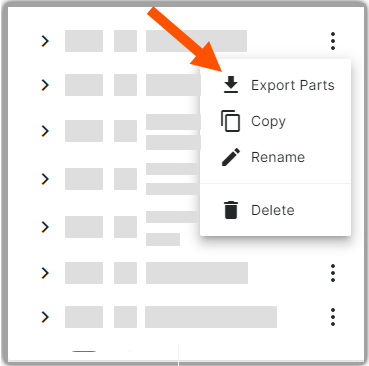
The cost catalog information will automatically download to your computer as an editable Excel file (.xlsx).Make any necessary edits, then Save the Excel file.
Click the vertical ellipsis
icon in the upper right corner.Click Import Catalog Items.
Click Import From Excel File.
Select the file you edited and click Open.
Click Upload.
Import finished successfully banner will be displayed on completion.
Update Custom Catalog Items
Navigate to the Cost Catalog tool in Procore.
Click the vertical ellipsis
icon in the upper right corner and select Export Custom Catalog Items.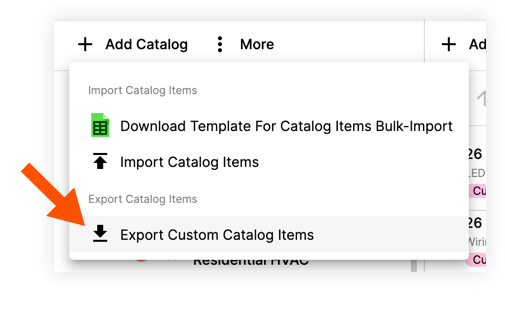
The custom cost catalog information will automatically download to your computer as an editable Excel file (.xlsx).Make any necessary edits, then Save the Excel file.
Click the vertical ellipsis
icon in the upper right corner.Click Import Catalog Items.
Click Import From Excel File.
Select the file you edited and click Open.
Click Upload.
Import finished successfully banner will be displayed on completion.
See Also
Loading related articles...