Set Up MFA with an Authenticator App as a Payor

 General Availability in Select Markets (United States)

Flag Us Procore Pay is available in the United States. It is designed for General Contractors and Owner-Builders who act as their own General Contractors on a job. Procore Pay extends the Invoice Management functionality in the Procore web application to handle the payment process between general and specialty contractors.

Important: MFA is Required for Procore Pay

To keep payments secure, all Procore Pay users must use Multi-Factor Authentication (MFA).

  • Payors: An Authenticator App is required to log in.

  • Payees: An Authenticator App is highly recommended for enhanced security, but you have the flexibility to use SMS Verification if preferred.

Prerequisites

Secure Your Account with the Authenticator App

First-Time Setup

To set up your mobile device for Procore MFA with an Authenticator app, complete these steps:

  1. Enter your Procore Email and Password. Then click Continue.

    Login Enter Your Email
  2. (Conditional) If your company uses Single Sign-On (SSO), sign in through your provider's login prompts. Follow the on-screen instructions to finish. For help with sign in, contact your company's SSO Administrator or visit your SSO provider's support site. To learn more, see What is Single Sign-On (SSO)?

  3. Open the Authenticator app on your mobile device. Use the app's built-in camera/scanner to capture the QR code displayed on the Secure Your Account page.

    Procore account security screen with QR code for authentication and instructions to scan and enter one-time code.
     Tips
    • Why isn't my phone's camera scanning the QR code? The QR code must be scanned from within the Authenticator app, not with your phone's camera. Open the Authenticator app and use its built-in scanner to capture the code.

    • Setting up MFA on your phone without a computer? Since you can't scan a QR code on the same screen, you must enter the code manually. Tap Trouble Scanning and enter the provided code into your authenticator app.

  4. Enter the 6-digit code from your Authenticator app. Then click Continue.

    A login dialog box with a text field labeled
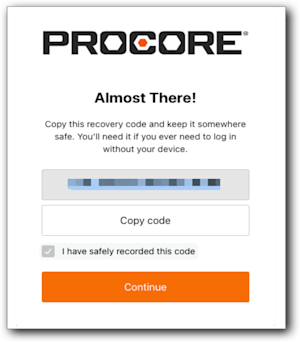
  5. At the Almost There page, click Copy Code and mark the I have safely recorded this code check box.

     Warning

    Be sure to save your recovery code in a location that is securely accessible from another device. If your MFA device is lost or damaged, you will need your recovery code to set up MFA on a new device. Each recovery code can be used only once. After a recovery code is used, you will have the option to save a new recovery code.


    Almost There Copy Code

  6. Mark the I have securely saved this code check box.

  7. Click Continue to log in to Procore with an Authenticator app for the first time. For future logins, see Login to Procore Pay with an Authenticator App as a Payor.