Set up Configurable Views for the Change Events Line Items View
Background
The Change Events tool offers five default views Classic Detail, Classic Summary, Complete View, Owner's View, and Scope View. Each view arranges columns differently to highlight specific data. If the defaults does not fit your needs, you can create a custom configurable view. Creating configurable views allows users to customize the list view of the Change Events tool with the columns of their choice and save the view so it can be standardized across Procore projects.
Temas a considerar
Permisos de usuario necesarios:
Permisos de nivel "Administrador" en la herramienta Administrador de nivel de empresa.
Información adicional:
Las vistas recién creadas se aplican automáticamente a todos los proyectos.
Las vistas recién creadas se configuran como "Ocultas" hasta que se publican. Consulte Cambiar el estado de una vista de Eventos de cambio configurables.
Los campos personalizados NO son compatibles con las vistas configurables.
Pasos
Crear una nueva vista
Vaya a la herramienta Administrador de nivel de empresa.
En "Ajustes de herramientas", haga clic en Gestión de cambios.
Haga clic en la pestaña Vistas configurables.
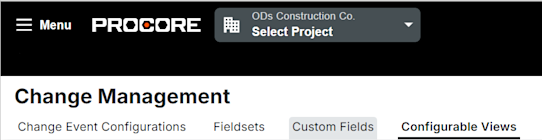
Haga clic en Crear vista.
Nota: Para editar una vista existente, haga clic en el título de la vista en la página Vistas configurables.Introduzca un nombre y una descripción para la vista.
Opcional: Seleccione un proyecto de su empresa para vista previa de la nueva vista con hasta 25 filas de datos.
Opcional: Elija una vista existente para usarla como plantilla para crear la nueva vista. La nueva vista se rellenará automáticamente con las columnas de la vista existente seleccionada.
Haga clic en Vistas configurables para comenzar a configurar la nueva vista.
Haga clic en el icono de configuración
 para ver la lista de columnas disponibles para añadir a la vista.
Activar los interruptores
 para incluir una columna en la vista.
Configure Columns
Click the Columns icon to open Table Settings, where you can configure row heights and column
Row Height: Choose between small, medium, and large row height for the change events list view.
Configure Columns: Use the toggle switch to determine which columns will be displayed or hidden from the change events list-view.
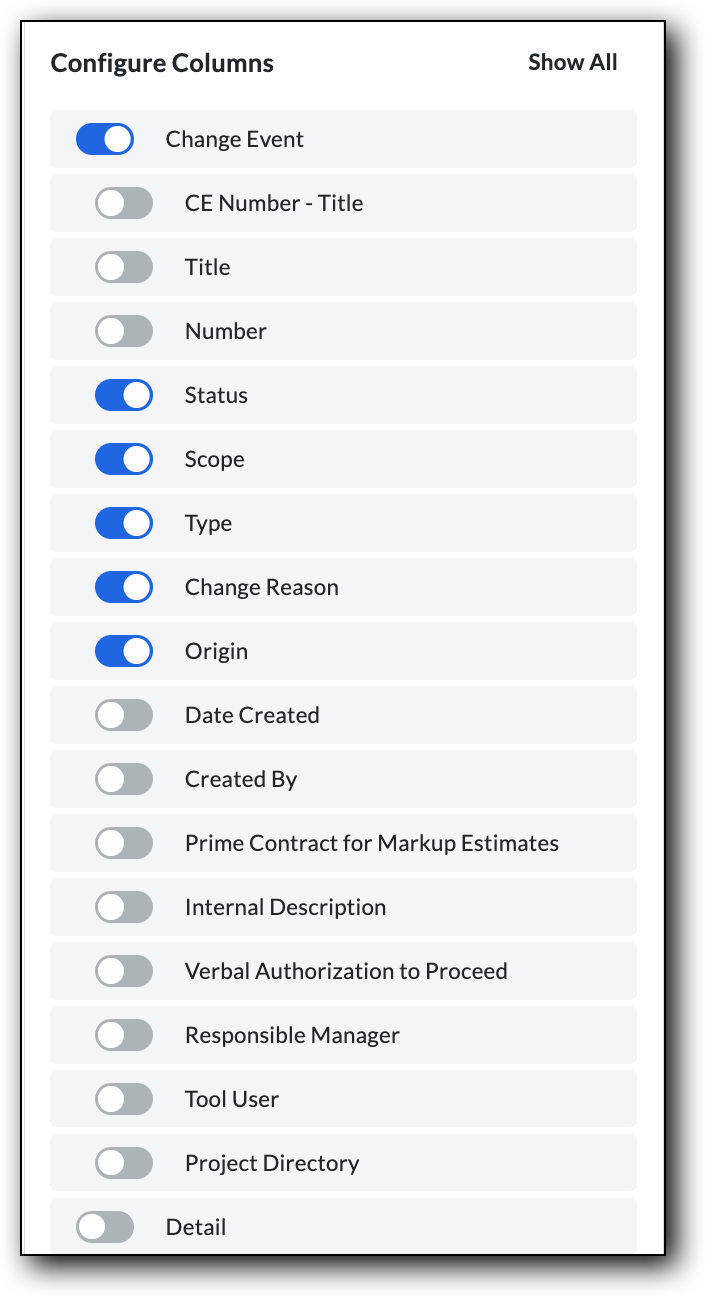
Note: Clicking Reset To Default will set all columns to display.
To reorder columns, click and drag a column title to move their position in the table to left or right.
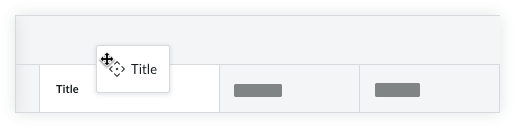
Click the vertical ellipsis
 when hovering over a column header/title to open additional column settings:
Group by Change Reason
Pin Column
Pin Left
Pin Right
No Pin
Autosize This Column
Autosize All Columns
Hide Column
Sort By This Column
Sort Column Ascending
Sort Column Descending
Column Not Sorted
Reset Columns
Ver elementos
La ficha Elementos de un evento de cambio individual permite realizar diferentes funciones de visualización y edición. Para conocer sus opciones, consulte Ver la vista de elementos de Eventos de cambio (beta).
Columnas de datos de evento de cambio
Cambiar información general del evento de cambio
CE Number - Title
Shows the change event number and the title combined that was assigned at creation.
Title
Shows the title of the change event.
Number
The change event number.
Status
Show the current status of the change event. To learn about Procore's default statuses, see What are the default statuses for change events in Procore?
Scope
Shows the following scope options: In Scope, Out of Scope, or TBD. See What are the default scope options for change events in Procore?
Type
Shows the type associated with the change event: TBD, Allowance, Contingency, Owner Change, or Transfer to indicate the type of cost you are preparing for. See Set the Default Change Management Configurations.
Change Reason
Shows the reason associated with the change. See Set the Default Change Management Configurations.
Origin
Shows a link to the item in a Procore project tool from which the change event originated. See Which Procore tools can I use to create a change event?
Date Created
The date the change event was created.
Created By
The name of the user who created the change event.
Prime Contract for Markup Estimates
The original prime contract associated with markup estimates linked to each change event.
CE Number - Title
Shows the change event number and the title combined that was assigned at creation.Title
Shows the title of the change event.Number
The change event number.
Status
Show the current status of the change event. To learn about Procore's default statuses, see What are the default statuses for change events in Procore?
Scope
Shows the following scope options: In Scope, Out of Scope, or TBD. See What are the default scope options for change events in Procore?Type
Shows the type associated with the change event: TBD, Allowance, Contingency, Owner Change, or Transfer to indicate the type of cost you are preparing for. See Set the Default Change Management Configurations.
Change Reason
Shows the reason associated with the change. See Set the Default Change Management Configurations.
Origin
Shows a link to the item in a Procore project tool from which the change event originated. See Which Procore tools can I use to create a change event?Date Created
The date the change event was created.
Created By
The name of the user who created the change event.
Prime Contract for Markup Estimates
The original prime contract associated with markup estimates linked to each change event.
Detalle
Item Type
Shows the type associated with the line item: Line Item, or Markup.
Budget Code
Select a budget code or click Create Budget Code. See What is a budget code in Procore's WBS?
Description
Enter a description for the line item.
Vendor. Select the vendor's company name from the drop-down menu. See Add a Company to the Project Directory.
Contract
Select the impacted purchase order or subcontract from the drop-down menu. See Create a Purchase Order or Create a Subcontract.
Unit of Measure
The unit of measure selected for the change event line item. See Which units of measure are included on Procore's master list?
Item Type
Shows the type associated with the line item: Line Item, or Markup.
Budget Code
Select a budget code or click Create Budget Code. See What is a budget code in Procore's WBS?
Description
Enter a description for the line item.Vendor. Select the vendor's company name from the drop-down menu. See Add a Company to the Project Directory.
Contract
Select the impacted purchase order or subcontract from the drop-down menu. See Create a Purchase Order or Create a Subcontract.
Unit of Measure
The unit of measure selected for the change event line item. See Which units of measure are included on Procore's master list?
Ingresos
Quantity
The number of the chosen units of measure associated with the revenue of the change event line item.
Unit Cost
The value assigned to each unit associated with the revenue of change event line item.
Revenue ROM
The rough order of magnitude (ROM) is the preliminary revenue value assigned to the change event line item.
Prime/Prime PCO
The value of the prime change order SOV line item connected to the change event line item.
Prime PCO Title
The title of the change order or potential change order connected to the change event line item.
Stage
The current status in the change event workflow.
Stage Status
The completion state of the active stage.
In Status Since
The date the current status took effect.
Latest Price
The most up to date value associated with the revenue of the change event line item.
Quantity
The number of the chosen units of measure associated with the revenue of the change event line item.Unit Cost
The value assigned to each unit associated with the revenue of change event line item.
Revenue ROM
The rough order of magnitude (ROM) is the preliminary revenue value assigned to the change event line item.Prime/Prime PCO
The value of the prime change order SOV line item connected to the change event line item.
Prime PCO Title
The title of the change order or potential change order connected to the change event line item.
Stage
The current status in the change event workflow.
Stage Status
The completion state of the active stage.
In Status Since
The date the current status took effect.
Latest Price
The most up to date value associated with the revenue of the change event line item.
Coste
Quantity
The number of the chosen units of measure associated with the cost of the line item.
Unit Cost
The value assigned to each unit associated with the cost change event line item.
Cost ROM
The rough order of magnitude (ROM) is the preliminary cost value assigned to the change event line item.
Request for Quote
The value of a returned RFQ associated with the change event line item.
RFQ Title
The title of an RFQ associated with the change event line item.
Request for Quote Status
The current state of vendor pricing requests.
Commitment/Commitment CO/PCO
The value of the commitment or commitment change order SOV line item connected to the change event line item.
Commitment Title
The title of the of the contract or change order connected to the change event line item.
Commitment Status
The current lifecycle state such as Draft, Out for Bid, Pending Approval, or Approved of the purchase order or subcontract associated with the change event line item.
Stage
The specific workflow phase such as In Review, Issued, or Executed of the commitment tied to the change event.
Days in Stage
Tracks the total number of consecutive days remained in its current workflow phase.
Stage Status
The completion state of the active stage.
In Status Since
The date the current status took effect.
Latest Cost
The most up to date value associated with the cost of the change event line item.
Por encima/por debajo
Over/Under
The difference between the 'Latest Price' and the 'Latest Cost'.
Over/Under
The difference between the 'Latest Price' and the 'Latest Cost'.
Producción
Unit of Measure
The unit of measure selected for the measurable amount of work installed on the project that is associated with the change event line item.
Quantity
The number of the chosen units of measure associated with the measurable amount of work installed on the project that is associated with the change event line item.
Presupuesto
Quantity
The number of the chosen units of measure associated with the budget of the change event line item.
Unit Cost
The value assigned to each unit associated with the budget of the change event line item.
Budget ROM
The rough order of magnitude (ROM) is the preliminary value assigned to a budget change connected to the change event line item.
Budget Change
The value of the budget change connected to the change event line item.
Stage
Stage reflects the current approval or lifecycle status (such as Draft, Under Review, or Approved) of the budget adjustment tied to the change event.
Days in Stage
Tracks the total number of consecutive days remained in its current workflow phase.
Stage Status
The completion state of the active stage.
In Status Since
The date the current status took effect.
Latest Budget Impact
The most up to date value for the budget impact of the change event line item. The value will match the Budget ROM column or the Budget Change column if there is a value.
Latest Budget Impact
Displays the broken-down components of the budget code such as Cost Code, Cost Type, or Sub Job assigned to the change event line item.
Filtrar y ordenar la vista Elementos de línea
Filtrado
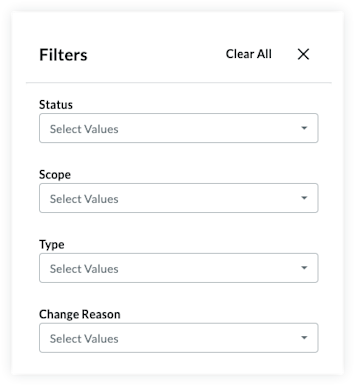
Haga clic en Filtros en la parte superior de la tabla de eventos de cambio.
Seleccione entre los siguientes filtros:
Estado
alcance
Tipo
Motivo del cambio
clasificación
Haga clic en el título de una columna para cambiar su comportamiento de clasificación.Ejemplo: Cambie el orden de clasificación de la columna "Estado" para que los eventos de cambio abierto aparezcan primero.
Agrupación de columnas
La agrupación de columnas le permite organizar mejor la tabla de elementos de Eventos de cambio, especialmente cuando se trata de evaluar el riesgo financiero en su proyecto. Especifique qué columnas desea agrupar y los elementos dentro de ese grupo se acumularán debajo.
Para agrupar columnas, haga clic en el selector Seleccionar grupo en la parte superior de la tabla de eventos de cambio y seleccione las columnas que desee agrupar.
Si se selecciona más de una agrupación, se pueden reorganizar dentro del selector "Agrupar por" haciendo clic y arrastrándolas al orden preferido. Se puede eliminar una agrupación haciendo clic en la "x" en el lado derecho del grupo.
Las agrupaciones se pueden restablecer haciendo clic en Restablecer en la parte inferior del selector.
Cambiar el estado de una vista de Eventos de cambio configurables
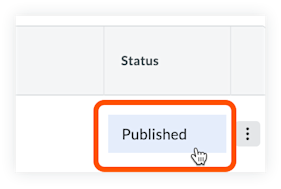
El estado de las vistas configurables individuales se puede alternar entre Publicado y Oculto. Las vistas publicadas están disponibles para su uso en los proyectos asignados y las vistas ocultas no están disponibles para su uso. El estado oculto es útil cuando se está creando una vista configurable, pero no está lista para implementarse.
Vaya a la herramienta Administrador de nivel de empresa.
En "Ajustes de herramientas", haga clic en Gestión de cambios.
Haga clic en la pestaña Vistas configurables.
Haga clic en la columna Estado en la fila de la vista que se está cambiando.
Duplicar o eliminar una vista
Las vistas configurables se pueden duplicar para facilitar la creación de una nueva vista. Al duplicar una vista, se crea una nueva vista que es una copia exacta de la vista existente. Al eliminar una vista, se elimina permanentemente.Nota: Las vistas eliminadas NO se pueden recuperar. Las vistas predeterminado de Procore no se pueden eliminar.
Vaya a la herramienta Administrador de nivel de empresa.
En "Ajustes de herramientas", haga clic en Gestión de cambios.
Haga clic en la pestaña Vistas configurables.
Haga clic en el icono de puntos suspensivos en la fila de la vista que se está cambiando.
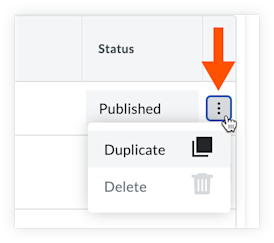
Haga clic en Duplicar o Eliminar.
See Also
Loading related articles...